Home > Online Product Documentation > Table of Contents > Selecting an XQuery Processor
Selecting an XQuery Processor
You use the Processors tab of the Scenario Properties dialog box to specify the processor you want to use to process your XQuery code.
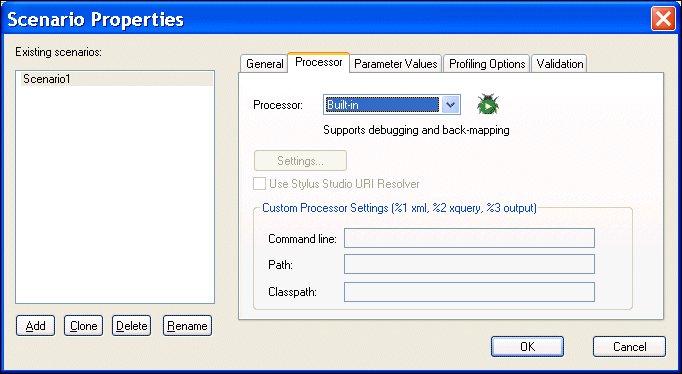
You can use
- The DataDirect XQuery processor
- One of several processors that support XQuery debugging and backmapping, including Stylus Studio's built-in XQuery processor and Saxon
- An external instance of the Stylus Studio processor
- The Mark Logic XQuery processor, which runs on the Mark Logic Content Interaction Server
- The Raining Data TigerLogic XDMS XQuery processor, which runs on the TigerLogic XDMS server
- Any custom processor you specify
|
Tip
|
|
You can define default settings for XQuery processors, and you can also choose to use one of them as the default XQuery processor. See Setting Default Options for Processors. |
Using the Saxon Processor
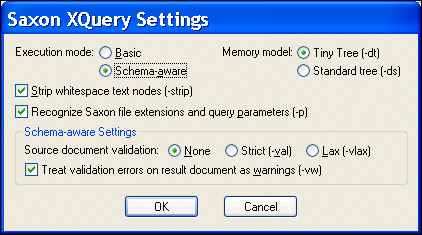
Stylus Studio lets you execute XQuery documents using either the Saxon-B (basic) or Saxon-SA (schema-aware) processor. You specify which processor you want to use with the Execution mode property in the Saxon XQuery Settings dialog box. Settings that have command line equivalents in Saxon show the command in parentheses following the property name. Some settings are available only if you are using Saxon-SA.

Stylus Studio's Sense:X syntax coloring and auto-completion provides full support for Saxon syntax, so long as the Saxon Logic XQuery processor is either associated with the current XQuery scenario or has been set as the default XQuery processor.
If you want to use the Saxon processor:
The Settings button becomes active.
The Saxon XQuery Settings dialog box appears.
Using the Mark Logic Processor
Stylus Studio's Sense:X syntax coloring and auto-completion provides full support for Mark Logic syntax, so long as the Mark Logic XQuery processor is either associated with the current XQuery scenario or has been set as the default XQuery processor.
If you want to use the Mark Logic processor:
The Settings button becomes active.
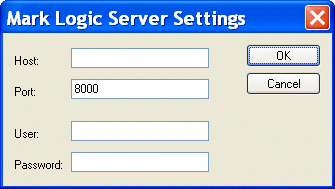
The Mark Logic Server Settings dialog box appears.
Using the TigerLogic XDMS Processor
Stylus Studio's Sense:X syntax coloring and auto-completion provides full support for TigerLogic XDMS syntax, so long as the TigerLogic XDMS XQuery processor is either associated with the current XQuery scenario or has been set as the default XQuery processor.
If you want to use the TigerLogic XDMS processor:
The Settings button becomes active.
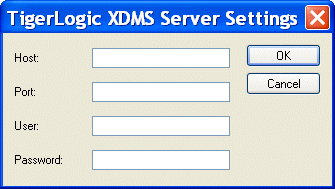
The TigerLogic XDMS Server Settings dialog box appears.