Translating X12 documents to XML
X12 and other EDI dialects are handled easily by <%= ConfigurationManager.AppSettings["SS"] %>, which has a comprehensive set of tools for managing and converting X12 transaction sets, segments, elements, and codelists. It uses this X12 dictionary for helping you write syntactically pure and semantically accurate X12 and to diagnose problems with incoming and outgoing X12 data.
This page will cover these areas involved with the X12 XML Converter:
- The X12 URL
- The File|Open dialog and X12 documents
- Open the X12 document in the XML editor
- Using X12 as input to XSLT
- Using X12 as input to XQuery
(Note that the X12 converter and the EDIFACT converter use the same URL; the EDI converter engine figures out from the document itself whether it should switch to EDIFACT or X12 mode. Not too shabby, huh?) (And while we are in parentheses, remember that the data conversion utilities can be called from your own programs through the data conversion API. More details can also be found on the XML Converters page. Now back to your regularly-scheduled and un-parenthesized content.)
The X12 URL
The "special ingredient" to using X12 with different sorts of XML Tools is that <%= ConfigurationManager.AppSettings["SS"] %> has an advanced URI Resolver that does on-the-fly conversions of documents from one syntax to another.
Anything that can be addressed by URL can be converted in real time through one of these converters. X12 is just one type; others include one for making HTML into proper XML (actually, XHTML) and another one to convert Comma-Separated Values to XML.
The way an EDI file is converted is by taking any place a regular XML URL would go,
and instead putting the URL to the X12 file, and prepending it with the
special adapter: protocol.
For example, to treat
C:\x12-sample.txt
as an X12 file, you'd use the URL
file:///c:/x12-sample.txt.
But to use it as an XML file, you'd prepend the protocol, to yield
adapter:EDI?file:///c:/x12-sample.txt.
There can be other options before the
?
that change the behavior of the converter, but
the above is good enough to actually read and use X12 documents as XML.
The File|Open dialog and X12 documents
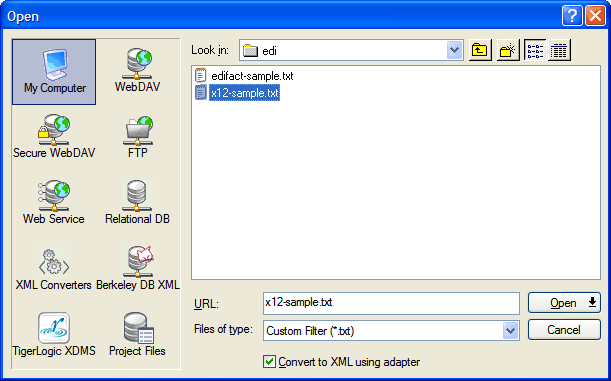
Creating the URL can be done manually or through the Open|File dialog.
Since just opening the file automatically exposes the URL, let's see how straight forward it is to go from X12 to XML.
First, use the same File|Open dialog you are used to in other applications to choose the file, except right before hitting Open, put a check in the special box labeled "Convert to XML using converter".
Open the X12 document in the XML editor
Next we select the correct converter, which in this case is the "Electronic Data Interchange (EDI)" converter.
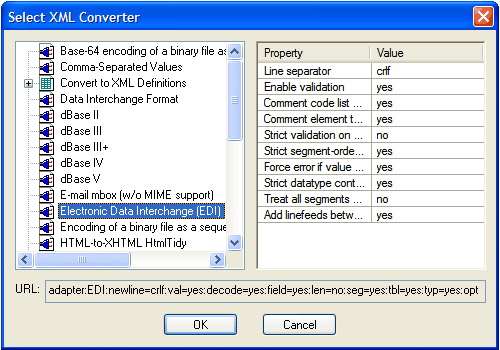
On the right side, there are several options that vary by converter. Changing them changes the URL prefix shown at the bottom of the dialog. Properly formed X12 files will open without any changes, but occasionally you might need to suppress some of the automatic structural validation to get things to open.
| Some of the options Available for the X12 Adapter | ||
|---|---|---|
| Description | Default Value | URL option |
| Line separator | crlf | newline= |
| Enable validation | yes | val= |
| Comment code list data | yes | decode= |
| Comment element types | yes | field= |
| Strict validation on value lengths | no | len= |
| Strict segment-ordering checking | yes | seg= |
| Force error if value not in code list | yes | tbl= |
| Strict datatype content checking | yes | typ= |
| Treat all segments as optional | no | opt= |
| Add linefeeds between segments on write | yes | eol= |
So, after choosing the filename, checking one checkbox, pressing one button (Open), selecting the converter and pressing another button (OK), we've got a converted file in our XML editor.
Using X12 as input to XSLT
To use this file as input to XSLT for example, we could use this same File|Open step to fill the "Source XML URL:" field in the XSLT Scenario dialog:
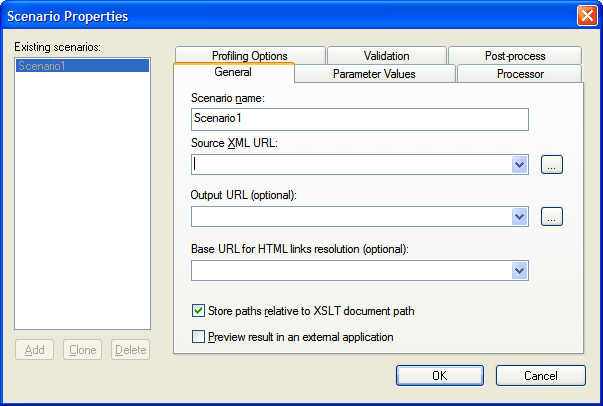
and try the following identity transform that just copies the input to the output:
<xsl:stylesheet version="1.0" xmlns:xsl="http://www.w3.org/1999/XSL/Transform">
<xsl:template match="/">
<xsl:copy-of select="node()"/>
</xsl:template>
</xsl:stylesheet>
Using X12 as input to XQuery
Using XQuery, go to the "Main input:" field in the XQuery Scenario dialog:
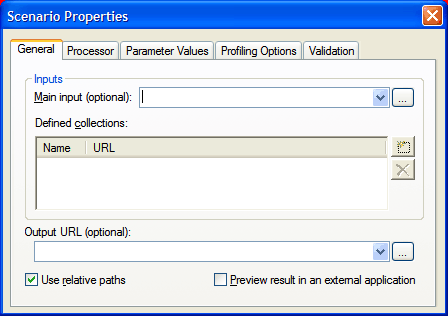
Then run an XQuery program consisting of solely a single period, and you should get as output the entire X12 file but in XML form.
From this you see that it is trivial to use X12 anywhere you are accustomed to using XML. Happy converting!