HTML-to-XML Importer
<%=ConfigurationManager.AppSettings["SS"]%>'s HTML-to-XML Importer allows you to easily convert existing HTML content into XML, separating it into an XSLT stylesheet containing the page layout, and an XML file containing the page data. A sample HTML-to-XML Importing project is illustrated here:
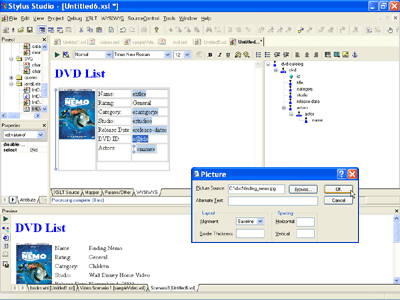 (click to enlarge)
<%=ConfigurationManager.AppSettings["SS"]%>'s HTML-to-XML Importer provides an intuitive way for migrating existing HTML content to newer, dynamic XML and XSLT driven Web technologies. Our approach allows you to leverage third party Web development tools (such as Macromedia Dreamweaver, Adobe GoLive, HomeSite, etc.) to come up with an initial layout, and to then use <%=ConfigurationManager.AppSettings["SS"]%> to 'XML-ify' the resulting pages. This section covers an overview of converting a static HTML page containing a simple layout, to a dynamically, XML and an XSLT stylesheet driven Web page, using <%=ConfigurationManager.AppSettings["SS"]%>'s HTML-to-XML Importer. This subject is covered in more detail in our Converting Static HTML to XML online video demonstration.
Convert Existing HTML pages to an XML data file and XSLT Stylesheet
We start by invoking <%=ConfigurationManager.AppSettings["SS"]%>'s HTML-to-XML Wizard from the XSLT Document Wizard Window, which does a tidy-up of any mal-formed HTML page, converting it to well-formed XHTML. Selecting the page to convert, is illustrated here:
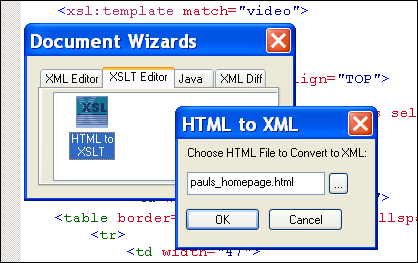
You'll notice that <%=ConfigurationManager.AppSettings["SS"]%> has also coverted the HTML page into a well-formed XSLT stylesheet, which we will further develop visually. Initially, the newly generated XSLT Stylesheet contains just a single XSLT template that matches the root element and outputs the entire contents of the HTML file, illustrated below:
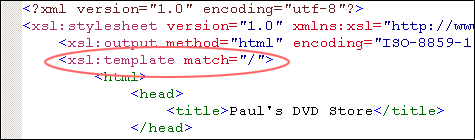 Creates a default XSLT Template" width="475" height="140"/>
Separating Page Data from Presentation Markup
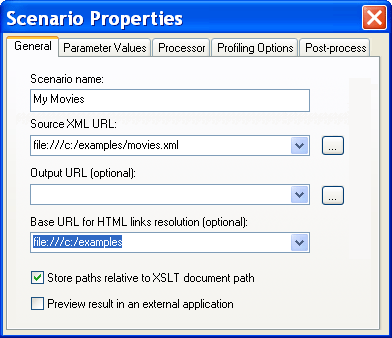
Next we need to separate dynamic data or content elements from the layout aspects of the page (such as tables, etc). To accomplish this we need to first configure an HTML to XML importing scenario, and define a few variables, such as the XML data file or live data source containing the repeating data, the base directory for resolving images, etc. Stylus Studio allows you to visually create advanced layouts, including repeating data elements, lists, tables, images, etc. This is illustrated here:
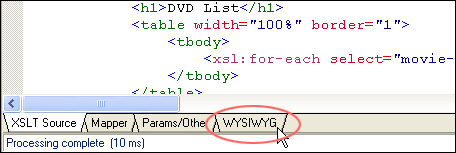
<%=ConfigurationManager.AppSettings["SS"]%> provides visual drag-and-drop tools for separating the data and presentation markup on a Web page; to access these tools click on the WYSIWYG tab (What You See Is What You Get) located at the bottom of the XSLT editing screen, illustrated here:
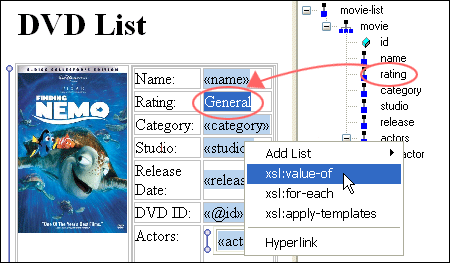
The XSLT WYSIWYG design view displays the static HTML contents on the left, and an XML content pane on the right. Simply drag and drop the live XML data elements onto the HTML page, replacing static text with dynamic XSLT and XPath expressions, illustrated below. An integrated preview window with backmapping allows you to easily preview the dynamically generated page, as well as to troubleshoot the page.
Online Video Tutorials: Converting HTML to XML with Stylus Studio
Stylus Studio's HTML-to-XML Importer is the World's fastest way to get HTML to XML — but don't take our word for it, go and see for yourself! We've created a series of short, online video demonstrations which illustrate in a step-by-step way, how to convert HTML to XML using Stylus Studio.
- Introduction to WYSIWYG in Stylus Studio
- Working with Tables
- Using XSLT Templates
- Converting Static HTML
<%=ConfigurationManager.AppSettings["SS"]%> allows you to realize the benefits of using XML and XSLT for your Web sites, enabling you to intuitively separate a page's presentation markup from page content and data, which in turn makes your site easier to maintain and extend more such as Web site internationalization, Web services, multi-channel publishing, content syndication, or leverage any other advanced XML features!