Web Service Call Composer (Web Service Tester)
<%=ConfigurationManager.AppSettings["SS"]%> includes a powerful Web Service Call Composer (illustrated below) that enables you to locate and invoke Web service methods directly from within <%=ConfigurationManager.AppSettings["SS"]%> XML IDE. <%=ConfigurationManager.AppSettings["SS"]%>'s Web Service Call composer supports all of the core Web service technologies like Web Service Description Language (WSDL), Simple Object Access Protocol (SOAP), and Universal Description Discovery and Integration (UDDI) — and is an ideal Web services tool for testing Web services, inspecting WSDL files, generating SOAP envelopes, and automating or accelerating many other common XML development tasks encountered when developing Web service enabled applications.
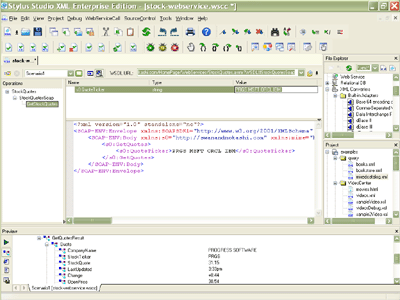 (click to enlarge)
Using <%=ConfigurationManager.AppSettings["SS"]%>'s Web Service Call Composer
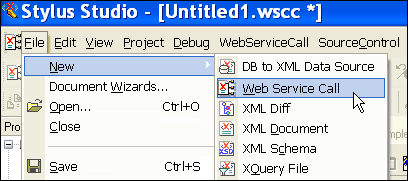
Invoking a Web Service method is easy with <%=ConfigurationManager.AppSettings["SS"]%>. You can launch the Web Service Call Composer by selecting File > New > Web Service Call from the main menu.
 " width="408" height="181"/>
Finding a Web Service's WSDL File Using UDDI
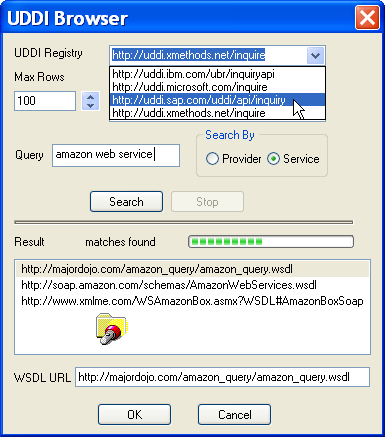
In order invoke a Web Service, you first need to have a reference to its WSDL (Web Service Description Language) file. Since you don't always know the WSDL file URL off hand, <%=ConfigurationManager.AppSettings["SS"]%> includes an integrated UDDI directory browser that allows you to easily query any public UDDI registry and visually inspect the results. To query a public UDDI registry, such as XMethods, Microsoft, SAP, or IBM, just choose from a list of UDDI registries (or type in your own), enter a query string, for example "Amazon web service", and click Search. <%=ConfigurationManager.AppSettings["SS"]%> displays a tabular listing of the results. Choose one and click OK. Finding a Web Service's WSDL file is illustrated here:
Inspecting a Web Service's WSDL File
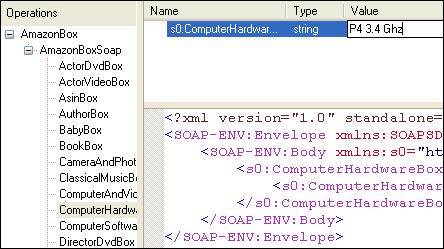
Once you have a handle on a Web Service's WSDL file, you can easily browse through its available Web service methods. Award-winning <%=ConfigurationManager.AppSettings["SS"]%> employs a 3-pane interface (illustrated below) to simultaneously display a Web Service's available operations, the operation's method signature (that is, its function prototype) and parameter list, and the SOAP envelope, which is generated automatically, needed to invoke the selected Web service operation. You can set the operation's parameter values by simply double-clicking a parameter's value field — <%=ConfigurationManager.AppSettings["SS"]%> automatically populates the SOAP envelope required to call the Web service, according to the parameter values you set.
Invoking a Web Service Call with the Web Service Call Composer
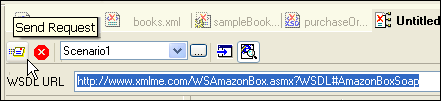
Once you've selected the Web service operation and set its paramater field values, invoking the Web service is easy — just click the "Send Request" button on the Web service toolbar, and <%=ConfigurationManager.AppSettings["SS"]%> fires off the method invocation to the Web service server specified in the WSDL file. You can abort a Web service call by clicking on the Stop button. And that's it! No additional SOAP client coding is required.
Inspecting the Results of a Web Service Call
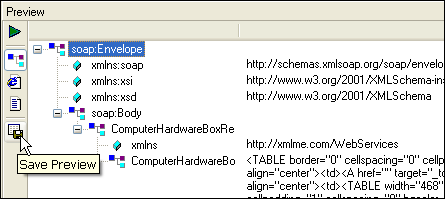
The return value of the Web service operation is displayed in <%=ConfigurationManager.AppSettings["SS"]%>'s Preview window, which allows you to view the resulting XML in Text, Tree, or Browser views; you can also save the results to a file. Here, the Amazon.com web service has returned the HTML code needed to create a call-out box for Pentium processor related items. If you were building your own Web service enabled application, for example, you could use the returned HTML to seamlessly syndicate live content from Amazon.com on your own Web site!
<%=ConfigurationManager.AppSettings["SS"]%>'s Web Service Call Composer is a powerful tool for finding, inspecting, and invoking Web service methods. With so many other related features including XML mappers, XML Schema editors, and XSLT debuggers, <%=ConfigurationManager.AppSettings["SS"]%> is must-have Web service IDE for serious Web service application development!
Next XML Web service development feature: Use Web Service Data as Input for Data Mapping