XML Schema Editor
The XML Schema Editor shown below, which enables you to easily develop advanced data models expressed in W3C XML Schema. It is the only XML Schema Editor to provide a synchronized split-pane interface that simultaneously shows both a visual XML Schema Diagram and the underlying code, with changes in one pane immediately reflected in the other.
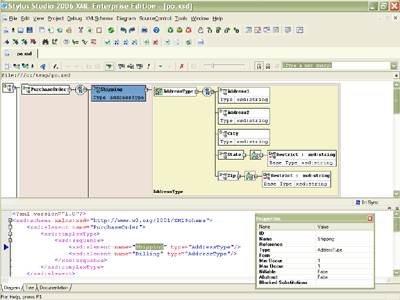 (click to enlarge XML Schema Editor)
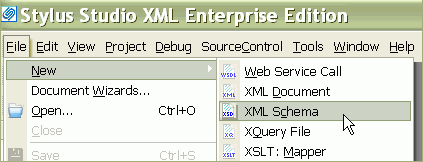
Working with XML Schema is easy in <%=ConfigurationManager.AppSettings["SS"]%>, just open any existing XML Schema file (*.xsd) or select File > New XML Schema from the <%=ConfigurationManager.AppSettings["SS"]%> menu, as shown here:
Synchronized XML Schema Source Code and Visual Diagram View
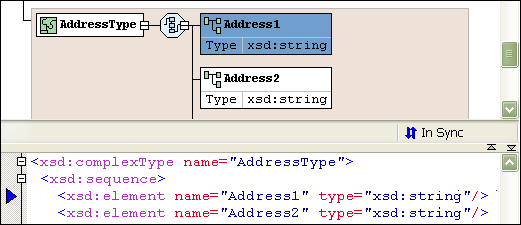
<%=ConfigurationManager.AppSettings["SS"]%> is the only XML IDE to provide synchronized XML Schema Text Editing and Visual XML Schema Diagram Views, providing you with the maximum flexibility in editing XML Schemas. Any edits made to an XML Schema in the text editor are automatically synchronized with the XML Schema Diagram View, and vice versa. With round-trip engineering support in our XML schema editor, there is no longer any need to switch back and forth between a schema's source code and graphical diagram — they are always kept in-synch, in real time. This powerful XML Schema editing metaphor is unique to Stylus Studio and is the most intuitive way to develop XML Schemas.
XML Schema Design Window
<%=ConfigurationManager.AppSettings["SS"]%>'s XML Schema Design Window (illustrated below), allows you to
view and edit any selected XML Schema component, such as global elements and types. The XML Schema diagram
can be expanded / collapsed by clicking on the (+) and (-) buttons. Each element type definition is encapsulated
— for example, the Shipping element is an instance of a AddressType,
hence brown border. The PurchaseOrder element has a pink border.
In the XML Schema Design Window, you can visually insert/append/delete compositors (Choice, Sequence, All),
insert XML elements and attributes, create element references, rename elements, etc. Support for
drag and drop, copy/paste as well as undo/redo operations further simplify XML Schema Editing.
Adding XML Attributes to an Element
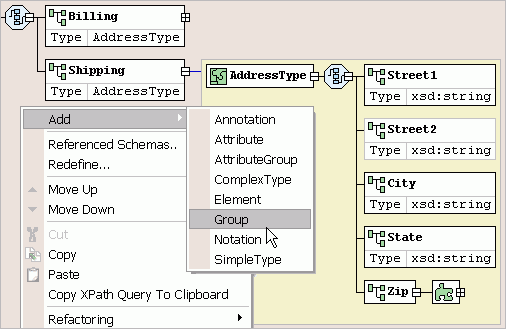
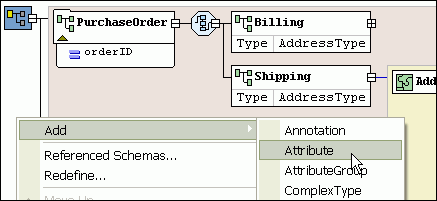
<%=ConfigurationManager.AppSettings["SS"]%> allows you to add and view XML attributes to any XML Schema complex type, just right-click on the element node and choose Add Child > Attribute. For example, here we are adding a product identifier (p_id) as an attribute of the Product complex type definition.
Changing XML Schema Compositor Models
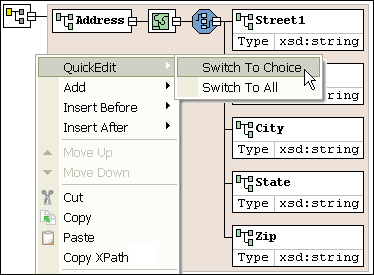
You can easily change a compositor model, just by clicking on a compositor diagram, then from the short cut menu, select QuickEdit and the new compositor type (All, Sequence, Choice)
XML Schema Properties Window
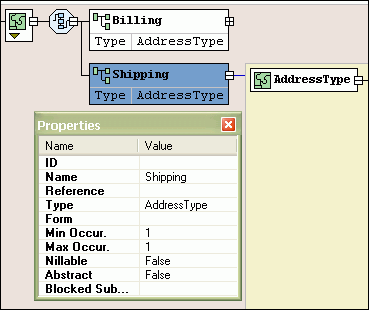
A context-sensitive XML Schema properties window displays attributes about the selected XML schema node. For example, you can specify xsd:name, xsd:type, xsd:substitutiongroup, as well as any facets, etc.
Completely Configurable XML Schema Diagram
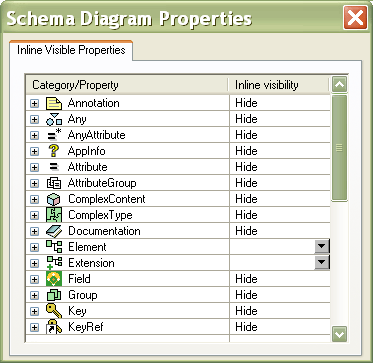
<%=ConfigurationManager.AppSettings["SS"]%>'s XML Schema editor is completely customizable: Fonts, colors, zoom level, and you can save your preferences for future usage. Furthermore, you can customize how XML Schema propeties are rendered in the XML Schema Diagram, for example, you can specify how to display: Annotations, AppInfo, AttributeGroups, ComplexContent, Documentation, Extenstion, Group, KeyRef, etc., as illustrated here:
Save XML Schema data component diagrams
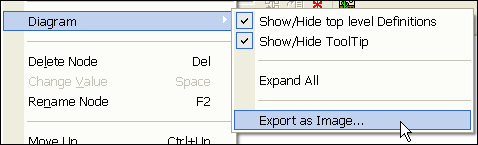
All of the XML Schema component diagrams can be saved to JPG files, just select an XML Schema Component, expand/collapse the diagram the way you want it to appear, then choose "Export as Image" from the XML Schema menu.
Next XML Schema Editor Feature: Generate XML Schema HTML Documentation