XML Differencing
<%=ConfigurationManager.AppSettings["SS"]%> now includes an integrated XML Differencing tool (illustrated below — click to enlarge), for visually computing and analyzing any changes made to files or folders in a highly configurable, XML-aware fashion. A streaming video demonstration entitled: Using XML Differencing in <%=ConfigurationManager.AppSettings["SS"]%> is now available.
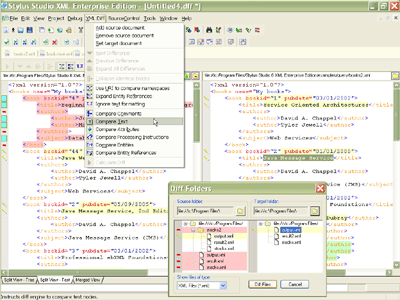
Visually compute differences between XML files in XML Text or Tree Views
<%=ConfigurationManager.AppSettings["SS"]%> visually displays differences between two or more XML files using intuitive icons and colors which clearly explain what has changed. Green represents a new XML node, yellow means that the node has been modified, and red means that a node was deleted. Additional visual icons denote the fact that a modification, addition or deletion exists underneath an un-expanded branch. You can visually browse through the differences using either the XML text view (illustrated in the previous illustration), or in the XML Tree View (illustrated in subsequent illustrations).
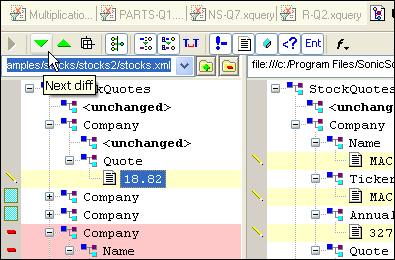
Visually Step through XML differences (Next, Previous)
Our XML Differencing Tool allows you to single-step back and forth through all of the changes of a document, one by one as shown here:
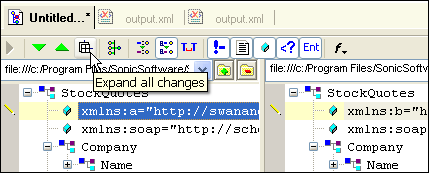
Expand All Changes / Collapse Identical XML Blocks
<%=ConfigurationManager.AppSettings["SS"]%> employs an intuitive split-screen XML Tree View control to help in visualizing XML document differences, as well as optimize the speed of the XML differencing processing utility. With a single-click, the source and target XML document can be fully expanded to view all changes, or, nodes trees that are identical between two XML documents can be collapsed so as to help un-clutter the visual differencing screen.
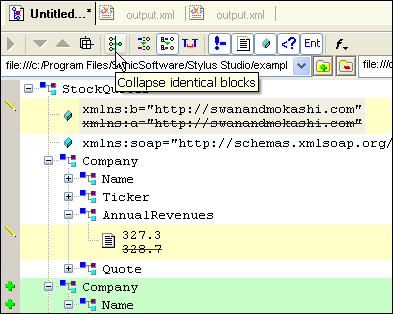
Split Screen and Merged views
In addition to the Split Screen View for examining XML Differences, <%=ConfigurationManager.AppSettings["SS"]%> also provides a Merged file view, which displays the two XML documents as a single XML document, highlighting changes in a way similar to Microsoft Word's track-changes feature, for example in the following illustration, Annual Revenues has been modified and the old value appears striked-out.
Optionally Resolve or Ignore XML Entity References and XML Namespaces
<%=ConfigurationManager.AppSettings["SS"]%> can optionally be configured to resolve namespace references and XML entities.
- Suppose that two XML instance documents each containing XML components declared from the same namespace, yet are qualified using two different namespace prefixes. <%=ConfigurationManager.AppSettings["SS"]%> considers these two documents to be identical as the choice of namespace prefix is not relevant as far as an XML processor is concerned. However consider if the two XML instance documents contained same-named XML components which were declared to be from different namespaces, yet used the same namespace prefix, then these same-named, same-prefixed XML components are truly different as far as an XML processor is concerned.
- Consider two XML instance documents that contain XML entity references, and that the XML entity's definitions for the source XML instance document has been changed. A regular differencing tool would not be able to tell the difference between the two files however <%=ConfigurationManager.AppSettings["SS"]%> can resolve all entity references prior to computing a difference, thereby catching the difference just as an XML processor would.
In these and many more advanced XML comparison situations — Only <%=ConfigurationManager.AppSettings["SS"]%> is intelligent enough to differentiate between XML files in an intelligent, accurate and XML-aware fashion.
XML Differencing Options
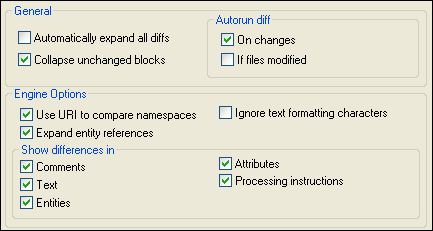
Our XML Differencing Tool is completely customizable via an Options Panel (illustrated below), and you can specify for example, to Optionally Compare or Ignore XML Comments, XML Element Content, White Space and Text Formatting (e.g. Tab spacing, CR, LF), XML Attributes, XML Processing Instructions Visually Compare Folders, etc.
Optionally Optimize Computation of XML Differences for Large XML Document Differencing (+50k nodes)
Our XML Differencing tool is the only XML utility to support different XML differencing algorithms which are optimized for the size of the XML documents being compared (illustrated below). You can specify to use a perfect XML differencing algorithm or, elect to use a speedier algorithm on extra-large documents.

Show Differences in Files and Folders
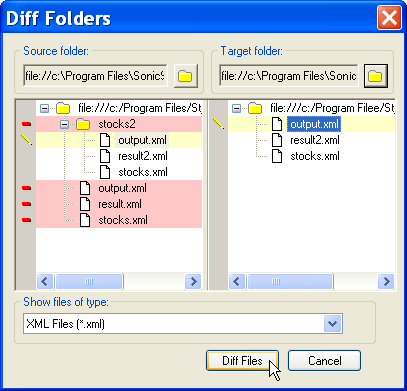
Our XML Differencing Utility can intelligently analyze the contents of system file folders and display at a high-level, files that have changed, renamed, added or deleted. Using an intuitive split-screen visual directory browser, you can navigate the contents of system file folders, and pick which files to compute a differences for.
Configure XML Differencing Colors and Fonts
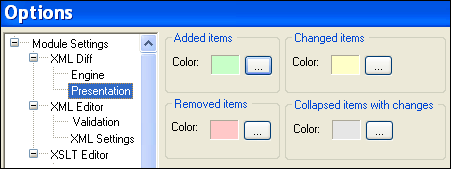
Of course we think we've picked the most intuitive color scheme for visually displaying XML document differences, but if you disagree, everything is completely customizable via an options panel.
Go-to XML file
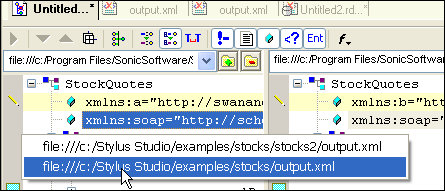
<%=ConfigurationManager.AppSettings["SS"]%> allows you to quickly go-to any of the files being compared (illustrated below), allowing you to easily make edits to the underlying source and target XML files and to quickly re-compute changes.
<%= ConfigurationManager.AppSettings["SSV"] %>'s XML Differencing tool allows you to quickly and intuitively compute changes made to any XML document. This highly configurable and complementary XML tool is required of team-based XML development.