XML Schema Mapping
<%=ConfigurationManager.AppSettings["SS"]%> includes a visual XML Schema-to-XML Schema mapping tool that allows you to easily implement sophisticated XML data mappings involving multiple data sources and customized data processing using either XSLT or XQuery code. The process is simple — just load one or more target data sources (note that you can use any data source, for example, XML Schema(s), relational database(s), EDI files, flat files, etc.), visually create the mapping from your data source(s) to a desired output format, generate the Java code to implement the the transformation, then finally, deploy your data mapping application using <%=ConfigurationManager.AppSettings["DDXC"]%>. In this tutorial we'll show you how it's done — illustrated below is an example of an XML Schema Mapping project in Stylus Studio (click to enlarge).
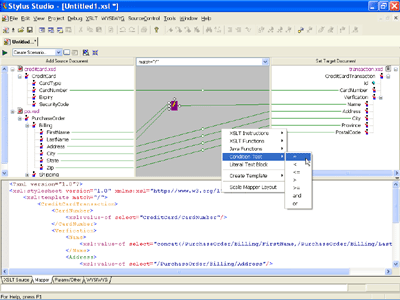
Implement XML Schema Mappings in either XSLT or XQuery
When it comes to Schema mapping, developers can choose two different approaches: XSLT or XQuery, and Stylus Studio supports them both. The W3C's Dr. Michael Kay has written a bit about when to use XSLT vs. XQuery, and both are excellent choices. <%=ConfigurationManager.AppSettings["SS"]%> provides visual tools to create XML mappings, which in turn generates either XSLT or XQuery code to implement the specified XML data mapping. The visual mapper is synchronized with an XML text editor, which shows you exactly what XSLT or XQuery code is being generated as you create your custom XML data mappings. At any time, you can edit the underlying XSLT or XQuery code, which will result in a synchronized change in the visual model.
Support for Advanced XML Schema Mappings Involving Multiple XML Schemas
For mappings involving multiple data sources, just load them all up in <%=ConfigurationManager.AppSettings["SS"]%> and visually create XML data mappings. <%=ConfigurationManager.AppSettings["SS"]%> will automatically generate the XSLT or XQuery code required to implement the specified XML data mapping involving multiple data sources.
Edit Target XML Schema On The Fly
<%=ConfigurationManager.AppSettings["SS"]%> provides numerous ways to specify a target schema for an XML data mapping project, for example, you could:
- Build a custom XML schema using <%=ConfigurationManager.AppSettings["SS"]%>'s built-in XML Schema Editor
- Use one of the hundreds of industry standard XML Schemas and DTD included with <%=ConfigurationManager.AppSettings["SS"]%>
- Build a target data schema on the fly!
If you drag and drop a data node from a data source to the target schema pane, and if no target schema is set, <%=ConfigurationManager.AppSettings["SS"]%> will simply prompt you for an element or attribute name. The target schema is displayed in a tree-view control that supports drag and drop operations, allowing you to change the target output format on the fly.
Support for Custom XML Data Mappings
Data integration projects are rarely as simple a matter as mapping between two similar XML Schemas. It is more likely that you will need to perform data manipulation operations on the source data in order to get it into a desired output format. Possible data manipulations could include:
- Converting units: e.g. Imperial to Metric, etc.
- Data Calculations: e.g. Calculating weekly sales, summing total inventory, etc.
- Logical Comparisons: e.g. "For purchase orders from the USA", etc.
- String Operations: e.g. string concatenation, lower-casing, parsing, etc.
- Flow Control: Looping, testing for a condition, etc.
<%=ConfigurationManager.AppSettings["SS"]%>'s visual XML Schema mapper fully supports a wide degree of customization, including support for creating standard XSLT instructions, XSLT functions, external Java functions, and other logical comparisons and string operations, all through a visual interface. Any custom XML data manipulation is visually expressed in the form of a function block, which takes in one or more inputs and outputs a value. A custom data mapping is then accomplished by simply "wiring" together data inputs to the input ports of a function block, and mapping the output of the function block to the target schema. Of course you can also create more sophisticated data processing functions by chaining together function blocks in series or in parallel.
Support for Various Input and Output Data Formats
<%=ConfigurationManager.AppSettings["SS"]%>'s XML Schema Mapper is not limited to mapping between XML Schemas! Many other common data formats including Document Type Definitions (DTD's), XML instance documents, Relational Databases, flat files, EDI, and even live Web service data can be seamlessly used as either source or destination for data integration projects. The fact that you are using say, an XML Schema or a relational database requires no additional work — <%=ConfigurationManager.AppSettings["SS"]%> takes care of generating the appropriate XSLT or XQuery code and if necessary, connecting to the database or Web service using various built-in data adaptors.
Deploying the XML Schema Mapping Application
So what happens after you've gotten your XQuery or XSLT data integration code to work in Stylus Studio? Most other XML XML tools leave you stranded here, but not Stylus Studio — use the Java code generator along with <%=ConfigurationManager.AppSettings["DDXC"]%> to automatically generate the Java code required to invoke and run your application.
<%=ConfigurationManager.AppSettings["SS"]%> provides advanced support for any XML Schema mapping project!