XSLT EDITOR
<%=ConfigurationManager.AppSettings["SS"]%>'s XSLT Editor is the most advanced XSLT development tool on the market. If you've ever hand-coded an XSLT stylesheet, you'll wonder how you got along without <%=ConfigurationManager.AppSettings["SS"]%> — <%=ConfigurationManager.AppSettings["SS"]%>'s XSLT Editor is that easy to use, and that powerful, too! Click on the screenshot below for a visual overview of the <%=ConfigurationManager.AppSettings["SS"]%> XSLT Editor.
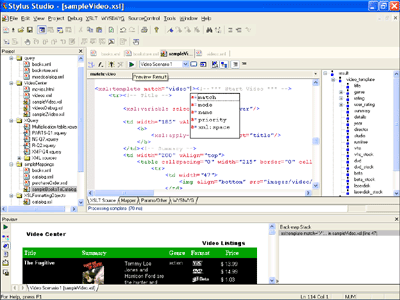 (click to enlarge XSLT Editor)
Single-Click XSLT Transformation
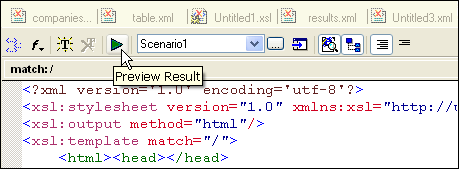
<%=ConfigurationManager.AppSettings["SS"]%>'s XSLT editor supports Single-Click XSLT transformation — just click the Preview Result button or by pressing the F5 key. <%=ConfigurationManager.AppSettings["SS"]%>'s XSLT editor displays the output in a a dockable Output Window.
XSLT Troubleshooting (Backmapping)
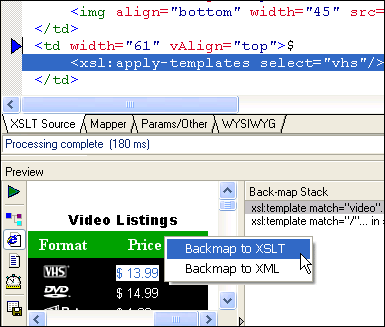
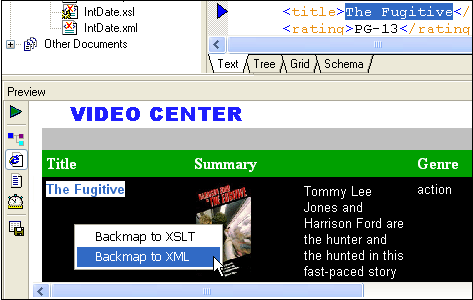
Have you ever looked at HTML and wondered: "What kind of XSLT do you use to create this?" <%=ConfigurationManager.AppSettings["SS"]%>'s XSLT Backmapping has the answer: click anywhere in the Preview window, and <%=ConfigurationManager.AppSettings["SS"]%>'s XSLT editor displays the line of code in the XSLT stylesheet responsible for the selected output. In the screenshot below, the VHS Price is highlighted in the HTML Preview window, which <%=ConfigurationManager.AppSettings["SS"]%> resolves to the xsl:apply-templates select="vhs" line in the corresponding XSLT stylesheet. Backmapping is a powerful built-in troubleshooting feature of <%=ConfigurationManager.AppSettings["SS"]%>'s XSLT Editor.
Support for XSLT Processors (Open XSLT Architecture)
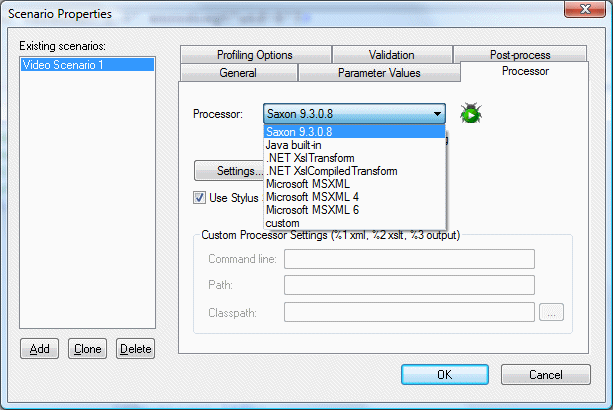
<%=ConfigurationManager.AppSettings["SS"]%>'s XSLT Editor includes a built-in XSLT processor, yet it also works seamlessly
with any other industry-standard XSLT processor, including Xalan-J, Microsoft .NET XSLT Processor (System.XML), MSXML 3.0, MSXML 4.0,
Saxon, and many others — MSXML 4.0 and Saxon 6 are both included with <%=ConfigurationManager.AppSettings["SS"]%> as a convenience.
<%=ConfigurationManager.AppSettings["SS"]%>'s Open XSLT Architecture is a critical feature if you're serious about XSLT. Competing XSLT editors support only editing and debugging
using their own proprietary internal XSLT processor. Such a design limitation can cause unpredictable stylesheet behavior in your production environment due to the differences between XSLT processor implementations.
Adding insult to injury, they only support visual stylesheet design if you agree to use their proprietary power stylesheet file format — Wouldn't you rather use an XSLT Editor that makes it easy to adhere to industry standards?
XSLT Syntax Help for XSLT Functions, Intelligent XSLT Editing & More
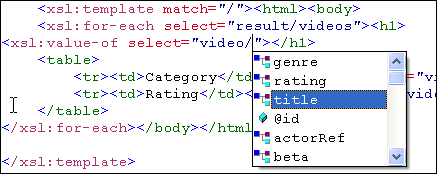
<%=ConfigurationManager.AppSettings["SS"]%>'s XSLT editor supports syntax coloring, intelligent code sensing, and code completion for all common XSL elements such as XSL For Each, XSLT Count, XSL Sort, XSL If, XSLT string functions, as well as for XPath expressions, XPath axes, XSLT parameters, and XPath functions. The following illustration shows Sense:X at work: as you type, Sense:X code sensing creates a combo-box of available nodes (genre, rating, title, id, beta, and so on), which are computed relative to the current context. <%=ConfigurationManager.AppSettings["SS"]%> also supports code sensing and code completion for XPath functions, listing available functions, and their respective function prototypes. With so many helpful XSLT editing features, you'll find that Stylus Studio makes it easy to learn XSLT, joining the ranks of the world's leading leading XSLT experts in no time at all.
XSLT Template Refactoring
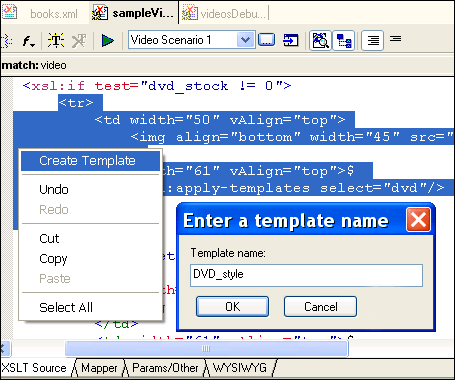
XSLT template refactoring allows you create modular, re-usable XSLT stylesheet code, while still employing a top-down approach to XSLT stylesheet development. The following illustration shows how easy <%=ConfigurationManager.AppSettings["SS"]%> makes this for you: simply highlight a region of your XSLT code, right click, and select "Create Template" from the context menu. Type in the template name, then click OK. That's it! <%=ConfigurationManager.AppSettings["SS"]%>'s XSLT editor creates a new, named template, replacing the the highlighted code with the corresponding "xsl:call-template" code.
Modularized, Per-Template Editing Views
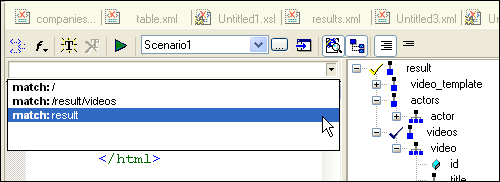
With <%=ConfigurationManager.AppSettings["SS"]%>, you have the option of displaying an entire XSLT stylesheet in the XSLT Editor, or, with a single click, displaying just a single template at a time. Modularized, per-template editing views simplify working with large XSLT stylesheets by reducing complexity and making information more manageable.
XML Source Tree Window
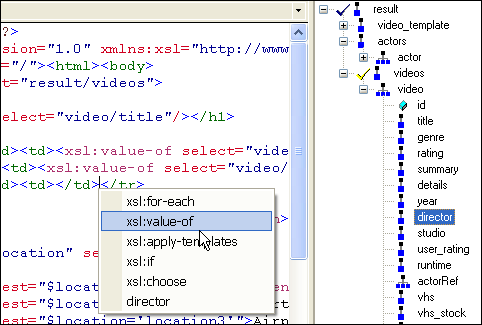
The XML Source Tree Window provides an expandable, visual representation of the input document being used in the XSLT transformation. The Source Tree Window (shown in the right-hand portion of the following illustration) provides these and several other key features:
- Drag-and-drop editing — When editing an XSLT Stylesheet, you can simply drag a node from the XML Source Tree and drop it into its desired location in the source. <%=ConfigurationManager.AppSettings["SS"]%> will ask you how to handle the node (as xsl-value-of, xsl:for-each, xsl:apply-templates, xsl:if, xsl:choose, and so on), and inserts the corresponding XSLT code for you based on your selection.
- Meaningful symbols and icons — The icons in the Source Tree Window convey information about the input document. For example, <%=ConfigurationManager.AppSettings["SS"]%> displays a checkmark if the element is associated with a corresponding template and has other symbols that indicate the node type (XSLT element or XSLT attribute), repeating elements, and so on.
- Easy modifications — Double clicking any XSL element or XSL attribute in the XML Source Tree Window creates a new xsl:template entry with its select XSLT attribute equal to the selected node.
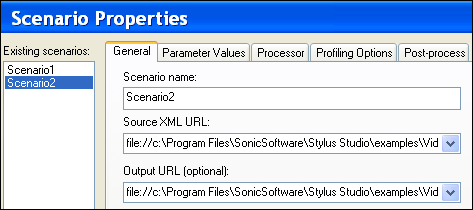
XSLT Editor Scenario Properties
A scenario is a collection of properties associated with a particular XSLT stylesheet transformation. XSLT scenario properties include the XML source and ouput files, the XSLT processor being used, the profiling and post-processing options, and so on. Scenarios make it easy to test your XSLT with different processors and against different input files, helping to ensure that your XSLT performs as expected in a variety of situations. You can create multiple scenarios, each configured to test a certain aspect of your XSLT implementation.
Preview Window
The Preview Window allows you to view the output of an XSLT transformation in HTML (Browser) View, Text View, or Tree View. It also has buttons to refresh the output, save the output to a file, and to view the Performance Profiling report. Finally, the Preview Window supports backmapping, allowing you to click on any output to locate either the XML source or XSLT stylesheet that created the output.
<%=ConfigurationManager.AppSettings["SS"]%>'s XSLT Editor is easily the world's most comprehensive development environment for building and testing XSLT stylesheets.