Configuring the Java Runtime Engine or Java Development Kit
This page identifies the Stylus Studio modules that require Java runtime and Java compiler components, where you can download these Java components, and how to force Stylus Studio to detect new or changed Java components.
Overview
Several modules in Stylus Studio are written using industry-standard Java XML processing components, and therefore require either Java runtime or Java compiler components to be installed on your computer. These Java components, the Java Runtime Environment (JRE) and the Java Development Kit (JDK), are available from Sun Microsystems and are installed separately from Stylus Studio.
Verifying the Current JVM
An easy way to verify the current version of the JVM installed on your local machine is to select Help > About Stylus Studio from from the Stylus Studio menu.
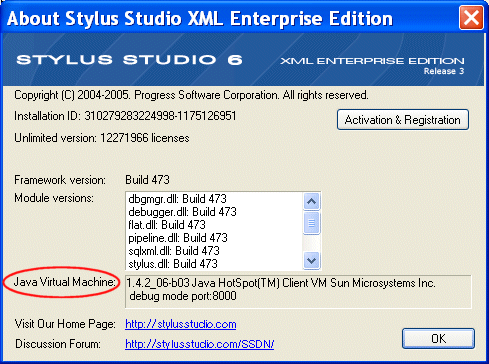
The Java Virtual Machine field displays information about your JVM installation.
What in Stylus Studio requires Java?
The following modules in Stylus Studio require that Java runtime and/or Java compiler components are installed on the machine on which you have installed Stylus Studio:
|
|
Rather than trying to determine in advance which Stylus Studio modules you might use in your XML application development, consider installing the JDK or JRE on your machine.
JDK and JRE Requirements
The difference between the JDK and the JRE is that the JDK contains the JRE, plus tools necessary for compiling Java code. The following application development tasks would require the JDK as opposed to the JRE, for example:
- Writing and debugging Java programs
- Writing custom file systems
- Generating and compiling Java code for XML Pipelines
Downloading Java Components
Java runtime and compiler components are available for download from Sun Microsystems; they are packaged in the Java 2 Platform Standard Edition (J2SE). The following JDK and JRE versions have been tested and work well with Stylus Studio 6:
| Platform | Download from Sun Microsystems |
|---|---|
|
Sun 1.4.2 JRE and JDK (J2SE 1.4.2) Note: Previous releases of Stylus Studio supported JRE 1.3 or earlier. Due to upgrades of software included with Stylus Studio, JRE version 1.4.2 or higher is required. |
 http://java.sun.com/j2se/1.4.2/download.html
|
|
Sun 5.0 JRE and JDK (J2SE 5.0) Note: This was formerly known as version 1.5. |
http://java.sun.com/j2se/1.5.0/download.jsp
|
| Sun 6.0 JRE and JDK (J2SE 6.0) |
http://java.sun.com/javase/downloads/index.jsp
|
("SE" in the Java nomenclature means "Standard Edition", which is sufficient for Stylus Studio.)
Modifying Java Component Settings
Properties for JVM and JDK components are displayed on the Java Virtual Machine page of the Options dialog box, shown below. When you start Stylus Studio, it automatically detects the JVM installed on your machine and sets the properties for the runtime and compiler components accordingly.

Once these properties have values, Stylus Studio uses them until you either
- Use the auto detect feature to change them. You might want use auto detect if you have been using Stylus Studio with the J2SE 1.4.2 and later install the J2SE 5.0, for example.
- Change them manually. You can manually specify that Stylus Studio use a different jvm.dll or javac.exe, for example.
How Auto Detect Works
The auto detect feature prompts Stylus Studio to fetch the settings from the registry setting Current Version under the key HKEY_LOCAL_MACHINE\SOFTWARE\JavaSoft\Java Runtime Environment to find the version, and then adds the version number to that same location to get the settings.
Note that if you manually change your settings to use another local version of the JDK, it may fail to load properly unless you also point the Current Version setting to match. This is because the JVM itself might try to load DLLs from the location of the current version instead of the location you specify.
About JVM Parameters
As a rule, you should never change the default values in the Parameter fields for the JVM or the External JVM. This option exists to accommodate unusual configurations. In such situations, Stylus Studio Technical Support might instruct you to change this value.
About JDK Parameters
The -g parameter instructs the compiler to add debugging information to the generated .class file; it is set by default.
How to Modify Java Component Properties
To modify Java component properties:
- Start Stylus Studio if it is not already running, and select Tools > Options from the menu.
- Choose Tools > Options.
- Select General > Application Settings > Java Virtual Machine.
- If you want Stylus Studio to update Java component properties to the latest installed version on you machine, click the Auto detect button. Otherwise, make the changes manually.
- Click OK to save your changes.
- If you changed any JVM properties, you need to restart Stylus Studio in order for those changes to take effect.
Modifying the Classpath
The only field not set by Stylus Studio’s auto detect feature is the Classpath field. For Stylus Studio to be able to find a Java class, its location must be specified in this classpath.
To add a directory or .jar file to this classpath, click Browse. For Classpath changes to take effect, you must restart Stylus Studio whenever you modify the Classpath field.
NOTE: The value of the Classpath field does not affect the CLASSPATH environment variable. The default value for this field, $(classpath), specifies that you want to use the contents of the CLASSPATH environment variable. There is no requirement for this classpath and the classpath used by the Stylus Studio Java compiler to be identical. However, it is good practice for them to be the same.