CONVERT EDI TO XML
Overview of EDI to XML Conversion
This example shows how Convert to XML can be used to transform EDI files into XML. Either the end result can be used directly, or subsequent processing can be done through XQuery or XSLT.
Understanding the Raw EDI data
EDI files have a qualifier at the start of each record which determines the record layout. We can use this with the Match Pattern feature of Convert-to-XML to produce a unique set of elements for the information in each differently-structured row.
For our sample, let's use a little X12 EDI document of type 831, "Application Control Totals" like this. We include this file (named 831.x12) in the "Convert to XML" folder of the sample project that ships with <%=ConfigurationManager.AppSettings["SS"]%>.
ISA:00:          :00:          :01:1515151515     :01:515151

5151     :041201:1217:U:00403:000032123:0:P:*~GS:CT:99887766

55:1122334455:20041201:1217:128:X:004030~ST:831:00128001~BGN

:00:88200001:20041201~N9:BT:88200001~TRN:1:88200001~AMT:2:10

0000.00~QTY:46:1~SE:7:00128001~GE:1:128~IEA:1:000032123~
Since some EDI files don't have line breaks per se, but instead use segment terminators, this sample was wrapped to fit in the browser window at a 60-character margin. But notice that in this example, there is a separator between each record; it is the tilde "~" character. And immediately after each tilde is a record-type specifier. There is also one at the start of the file which defines this as an X12-format EDI file, and tells us just what this separator is. But we don't really need to know all this; we're just giving an idea of one of the many pieces of information that <%=ConfigurationManager.AppSettings["SS"]%> can deduce from the input file automatically.
Opening the EDI file
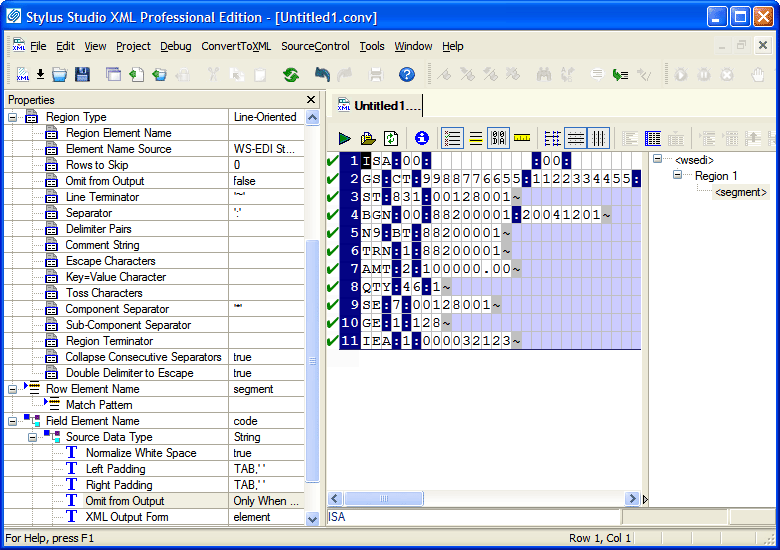
Now, fire up Convert-to-XML and put this in as the input file, and this is what we see:
(click image to enlarge)
Note that such settings as "Line Terminator" and "Component Separator" have already been deduced from the input file for you.
Previewing the EDI to XML Default Conversion
A preview of this would generate the following XML:
<?xml version="1.0" encoding="utf-8"?>

<wsedi xmlns="http://www.wsedi.org/ns/edi/4.1/">

    <segment>

        <code>ISA</code>

        <element>00</element>

        <element>00</element>

        <element>01</element>

        <element>1515151515</element>
... and so on
Now, each <code> element tells us the structure of the segment, and according to the X12 EDI specification, we have the following segments in our message:
| ISA | Interchange Control Header |
| GS | Functional Group Header |
| ST | Transaction Set Header |
| BGN | Beginning Segment |
| N9 | Reference Identification |
| TRN | Trace |
| AMT | Monetary Amount |
| QTY | Quantity |
| SE | Transaction Set Trailer |
| GE | Functional Group Trailer |
| IEA | Interchange Control Trailer |
Building a Match Pattern for an EDI Segment
For each type, there is a different layout, and we can use the Match Pattern feature to process each different segment type individually. Let's just pick the QTY segment, and see how it would be processed.
- So that we can override the names of the fields, set the "Element Name Source" property to "User-Supplied".
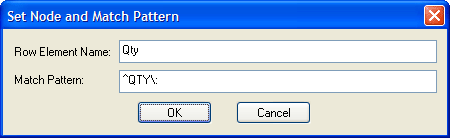
- Put the cursor on the QTY line and choose
"Add Node and Pattern..." from either the ConvertToXML menu or by right-clicking
on the schema window, and add a new pattern like this:
- Right-click on the <segment> node in the schema pane, and choose "Remove Node and Pattern" so that any unmatched rows aren't emitted.
- Since we don't need the segment type emitted as data, because we now are getting a tag
of the appropriate name from the match pattern, we can mark that field as Omit: Always.
Similarly, according to the X12 standard documentation, we can name the other two fields in the segment as "Quantity_Qualifier" and "Quantity" respectively. - The "Quantity Qualifier" has a value of "46" in our sample file; that doesn't tell us much.
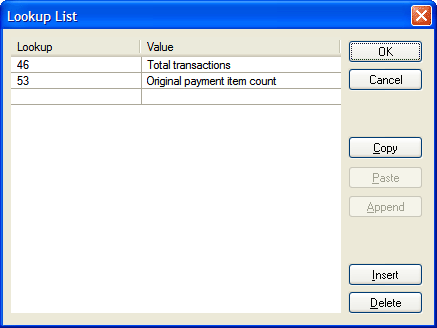
The specification though tells us that a "46" here means "Total transactions" and a "53" means
"Original payment item count" so we can use the Lookup List property to set those values.
This list editor conveniently lets you paste in from other sources, such as Microsoft® Excel or any other source of data that puts tab-separated values on the clipboard.
Generating the XML Output from the EDI Input
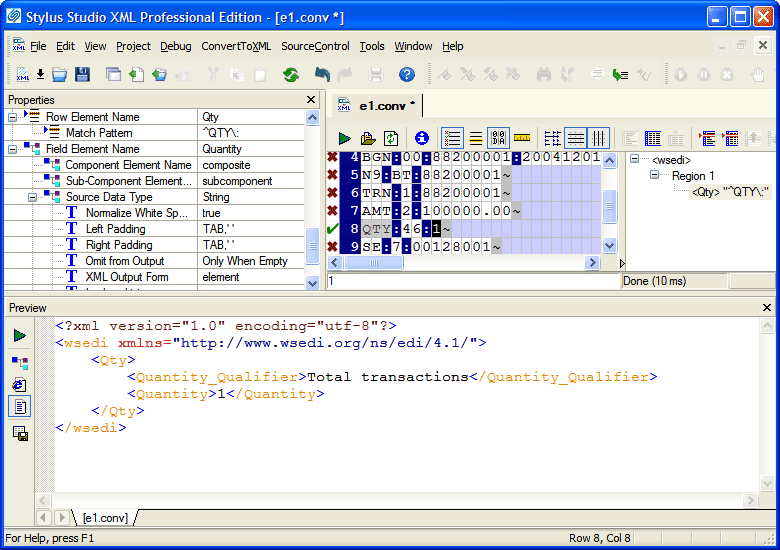
These simple steps above produce the following output:
(click image to enlarge)
Further Reading on EDI
There are various standards, such as:
Some are publicly available; for others, you need a membership to the regulating organization in order to obtain the specifications. Often, though, if you are dealing with another entity, that other business will already have some standard published that you can make use of. Stylus Studio also maintains an archive of EDI-L, a popular forum for discussing EDI issues, and now you can stay up-to-date with our RSS and Atom feeds for EDI-L which are only available from Stylus Studio.
<%=ConfigurationManager.AppSettings["SS"]%> includes the ability to understand the raw EDI formats, though, and can get you a long way towards solving your EDI-to-XML integration needs.
All of the files used here are available in the sample project that ships with <%=ConfigurationManager.AppSettings["SS"]%>, in the "Convert to XML" folder, so that you may use them as references or experiments with the options on your own.
For more information on working with non-XML formats see Convert to XML