Home >Online Product Documentation >Table of Contents >Using the Spell Checker
Using the Spell Checker
You can use the Stylus Studio Spell Checker with all of Stylus Studio's text-based editors (like editors for XQuery and XSLT, for example) to both actively and passively check your documents for typographical errors such as misspellings and repeated words.
Default Spell Checking
The Spell Checker is on by default for most editors. This means that when you open a document in a Stylus Studio text editor, and as you type in that document, Stylus Studio checks the document for typographical errors. Words that the Spell Checker identifies as possibly containing a typographical error are underlined with a red "squiggle", like the word Worx shown in Figure 106.
Tip
|
| You can right-click a word with a squiggle and select Spell Checker Suggestions for to display a list of suggestions for the word identified by the Spell Checker. |
Manual Spell Checking
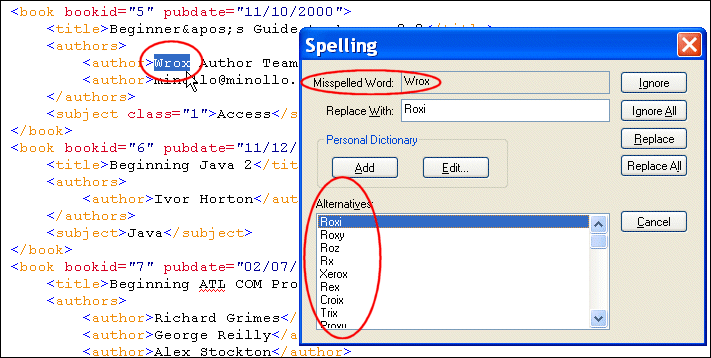
At any time, you can manually spell check a document by selecting Tools > Check Spelling from the Stylus Studio menu. When you do this, Stylus Studio starts the Spell Checker, which reads through the current document. When it finds a possible typographical error, Stylus Studio displays the Spelling dialog box, as shown in Figure 109.
Using the Spelling dialog box, you can
Specifying Spell Checker Settings
You specify Spell Checker settings using the Spell Checking page of the Options dialog box.
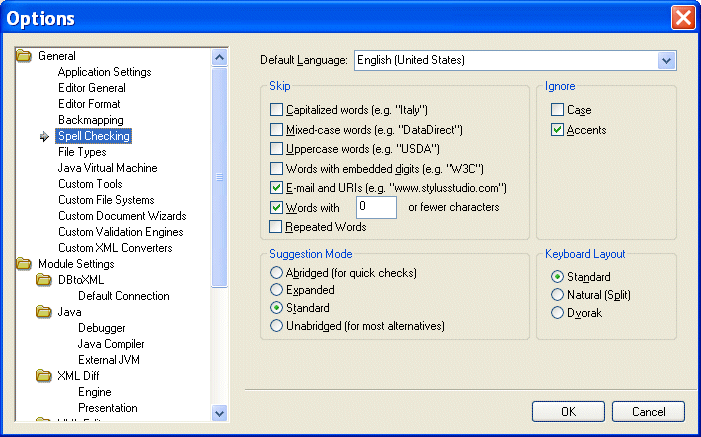
Spell Checker settings include
- Words to skip based on certain characteristics - you might decide to skip e-mail addresses and URLs, for example. Skipped words are not considered by the Spell Checker.
- Characteristics in words that you wish to ignore - you might not care about case or accents marks for spelling purposes. In this case, two words that share the same spelling, except for the characteristic you specify, are considered to be equivalent (même and meme (accent), or BMW and bmw (case),for example).
- The type of dictionary you want the Spell Checker to use when providing alternatives to the typographical errors it locates. Settings range from Abriged to Unabridged and show the fewest to the most alternatives, respectively. The Abridged setting results in fewer alternative suggestions for misspelled words than Standard (the default) or Unabridged, for example, but it requires less time to spell check a given document.
- The layout of the keyboard you are using. The Spell Checker uses this information to offer meaningful suggestions to words you might have mistyped.
How to Spell Check a Document
To spell check a document:
Stylus Studio starts checking the document for typographical errors. If it finds a typographical error, it displays the Spelling dialog box.
If You Want To
|
Then
|
|---|---|
Replace the misspelled word with the word suggested by the Spell Checker
|
Click Replace. Click Replace All to replace all occurrences of that word.
You can also replace the misspelled word with another word selected from the Alternatives list box, or with a word you type in the Replace with field.
|
Ignore the misspelled word
|
Click Ignore. Click Ignore All to ignore all occurrences of that word.
|
Add the misspelled word to the personal dictionary
|
Click Add.
|
Edit the personal dictionary
|
Click Edit. See Using the Personal Dictionary for more information.
|
When you have addressed all identified errors in the document (either by replacing, correcting, or ignoring them), the Spell Checker stops.
Using the Personal Dictionary
The Stylus Studio Spell Checker comes with its own dictionary. You can create a personal dictionary and fill it with your own entries. Personal dictionaries are used in conjuction with the Spell Checker dictionary across all Stylus Studio editors.
To add entries to the personal dictionary, you can
The personal dictionary is stored in the c:\Documents and Settings\username\ directory.
Application Data\Stylus Studio
Warning
|
| Do not modify the files in this directory by hand. Use the Personal Dictionary Editor dialog box to make any changes to the personal dictionary. |
To add a word to the personal dictionary:
The word appears in the Words in Personal Dictionary list box.
Tip
|
| You can also add any word identified as a misspelling to the personal dictionary by pressing the Add button on the Spelling dialog box. |
To import lists into the personal dictionary:
Note
|
|
Lists you import into the personal dictionary must be unformatted |
The Open dialog box appears.
.txt file you want to import into the personal dictionary and click Open.
The words in the list you import appear in the Words in Personal Dictionary list box.
To export the personal dictionary to a .txt file:
The Save As dialog box appears.
The contents of the personal dictionary is saved to the text file.