Home >Online Product Documentation >Table of Contents >The XML Diff Viewer
The XML Diff Viewer
This section describes the XML Diff Viewer and its features, including the different views available for comparing documents, the XML Diff Viewer tool bar, and tools for loading documents.
This section covers the following topics:
Split View - Tree
You use the XML Diff Viewer to compare two or more XML documents. By default, the XML Diff Viewer displays the diffed documents on the Split View - Tree tab. This view, shown in Figure 132, shows the documents side-by-side using a tree/node representation.
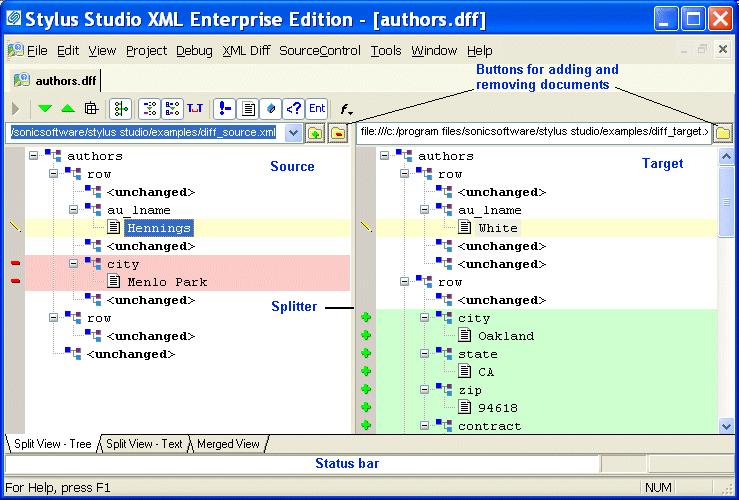
In split views (there is also a split view that shows documents in XML), source documents are displayed on the left, the target document on the right. A splitter between the two panes allows you to change the width of the source and target document panes by dragging the splitter to the left and right.
Split View - Text
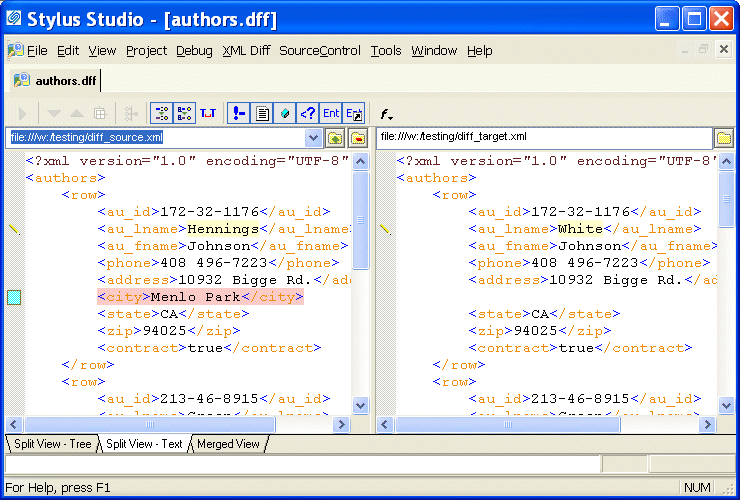
The Split View - Text tab also shows source and target documents side-by-side in plain XML.
Merged View
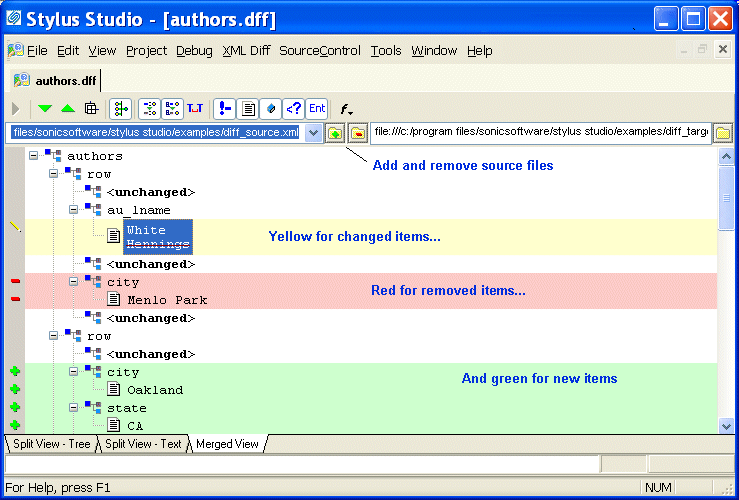
If you prefer, you can select the Merged View tab, which folds the nodes from the source and target documents into a single window, as shown in Figure 134
.
The merged view displays changed items in pairs - the item from the target document appears first, the item from the source document is shown second, as shown in Figure 135.
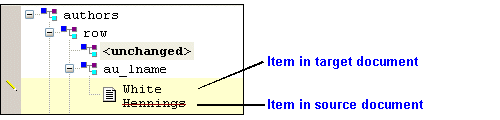
In this example, the line through the <au_lname> element in the source document, Hennings, indicates that it has changed to White in the target document.
View Symbols and Colors
All views use the same symbols and color schemes to identify the types of changes detected by the Stylus Studio diff calculation - by default, green for added items, yellow for changed items, and red for removed items. In addition, the text font and size are controlled by the settings for the XML Editor on the Editor Format page of the Options dialog box.
See Symbols and Background Colors for more information on this topic, and to learn how you can assign custom colors to the results of standard differencing operations.
The XML Diff Viewer Tool Bar
The XML Diff Viewer tool bar, shown in Figure 136, provides tools to help you

The following table identifies the individual tools and tells you where to find more information.
Tool Button
|
Description
|
|---|---|
 |
Calculates the differences in the documents you have selected. This button is active only when Stylus Studio detects the need to calculate differences. This button is disabled if you have selected On changes and If files modified settings. See Engine Settings.
|
 |
Skips to the next (previous) diff in the currently selected document. You must select a line in the document to enable these buttons.
|
 |
By default, Stylus Studio displays collapsed documents when the diff is run. You can override this setting using the tool bar button, or you can change it permanently on the Options. page. See Engine Settings.
|
 |
By default, Stylus Studio collapses any unchanged blocks to simplify the display. You can override this setting using the tool bar button, or you can change it permanently on the Options. page. See Engine Settings.
|
 |
By default, Stylus Studio uses URIs to compare namespaces when diffing documents. You can override this setting using the tool bar button, or you can change it permanently on the Options. page. See Engine Settings.
Note that changing this setting requires documents to be diffed again.
|
 |
By default, Stylus Studio expands entity references when diffing documents. You can override this setting using the tool bar button, or you can change it permanently on the Options. page. See Engine Settings.
Note that changing this setting requires documents to be diffed again.
|
 |
By default, Stylus Studio considers text formatting characters (new lines, carriage returns, tabs) when diffing documents. You can override this setting using the tool bar button, or you can change it permanently on the Options. page. See Engine Settings.
|
 |
By default Stylus Studio shows differences in comments. You can override this setting using the tool bar button, or you can change it permanently on the Options. page. See Engine Settings.
Note that this feature affects only the display, and not the calculation, of comment differences.
|
 |
By default Stylus Studio shows differences in text blocks. You can override this setting using the tool bar button, or you can change it permanently on the Options. page. See Engine Settings.
Note that this feature affects only the display, and not the calculation, of text block differences.
|
 |
By default Stylus Studio shows differences in attributes. You can override this setting using the tool bar button, or you can change it permanently on the Options. page. See Engine Settings.
Note that this feature affects only the display, and not the calculation, of attribute differences.
|
 |
By default Stylus Studio shows differences in processing instructions. You can override this setting using the tool bar button, or you can change it permanently on the Options page. See Engine Settings.
Note that this feature affects only the display, and not the calculation, of processing instruction differences.
|
 |
By default Stylus Studio shows differences in entities. You can override this setting using the tool bar button, or you can change it permanently on the Options page. See Engine Settings.
Note that this feature affects only the display, and not the calculation, of entity differences.
|
 |
By default Stylus Studio shows differences in entity references. You can override this setting using the tool bar button, or you can change it permanently on the Options page. See Engine Settings.
Note that this feature affects only the display, and not the calculation, of entity differences.
|
 |
Allows you to change the font of documents displayed in the XML Diff Viewer.
|
Tools for Working with Documents
The XML Diff Viewer provides several tools for working with source and target documents:
- Add/Remove document buttons. When you click the add or set document button, Stylus Studio displays the Open dialog box. The add button for source documents displays a green plus sign on it (
 ) to alert you to the fact that you can add multiple source documents when diffing XML documents. You can specify only a single target document, however.
You use the remove button, the folder with the red minus sign on it ( ), to remove the current source document from the XML diff calculation.
- Drop-down list. You use the drop-down list to change the current document in the XML Diff Viewer. When you change the current doc in a multi-document diff, the target document display - specifically, the symbols and colors used to identify documents - typically changes, as well. See Symbols Used in the Target Document Window for more information.
Removing a Target Document
You cannot remove a target document. You can specify a different target document by clicking the set target button ( ) again. This replaces the current target document with the document you select.