Home >Online Product Documentation >Table of Contents >How to Create a Custom XML Conversion Definition
How to Create a Custom XML Conversion Definition
To create a custom XML conversion definition (.conv file):
The New Custom XML Conversion Definition dialog box appears.
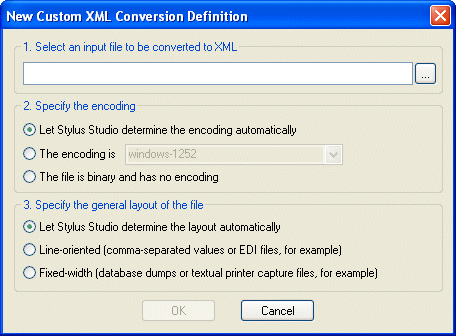
 ) and select the file you want to use to configure the custom XML conversion definition settings. See Choosing an Input File if you need help with this step.
The Open dialog box appears. By default, the Files of Type field filter is set to display .txt, .edi, .csv, .tab, .log, and .bin files.
Tip
|
| The file you select should be representative of other files of this type that you wish to convert to XML using the custom XML conversion definition you are creating. |
Stylus Studio displays the file URL in the first field of the New Custom XML Conversion Definition dialog box.
Stylus Studio displays the file you selected in the Custom XML Conversion Editor.
 ).
).
Stylus Studio displays the Save As dialog box.
The steps in this process are described in greater detail in the following sections.
Tip
|
| Once you have created and saved a custom XML conversion definition, you can use it to open other non-XML files of the same type, just as you would with any other DataDirect XML Converter. See <xHyperlink>Using XML Converters to Open a Non-XML File as XML for more information. |