Home >Online Product Documentation >Table of Contents >Defining Fields
Defining Fields
You can define fields in any region in a fixed-width input file, as shown in Figure 175. Once you have defined a field, you can change its size by simply dragging it to any column in the grid.
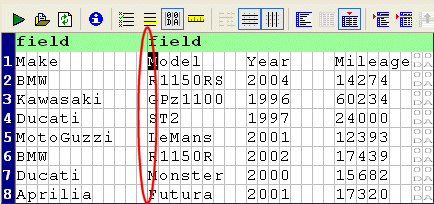
Each field you define is treated as a separate element in the XML output by the custom XML conversion definition. The input file shown in Figure 175, for example, would result in XML with two <field> elements, one consisting of the make of motorcycle, and one consisting of the model, year, and mileage. You can use the field feature to exercise control over the XML - defining separate fields for make, model, year, and mileage, for example.
Consider the following input file:
By default, each row is considered to have a single field, containing Make, Model, Year, and Mileage, resulting in XML output like this:
If you specify fields for Model, Year, and Mileage, the XML output by the custom XML conversion definition looks like this:
Neither approach is always correct, but this feature gives you the ability to define the type of XML output that is appropriate for your use.
Tip
|
|
Of course, in this example, the next logical step might be to use the first row ( |
To define a field:
 ) button. This action is also accessible from the CustomXMLConversion menu and the shortcut menu in the Custom XML Conversion Editor.
Stylus Studio displays a thin orange line that identifies the start of the newly defined field.
To remove a field:
The procedure for removing a field is the same as the procedure for defining one - place the cursor on any character adjacent to the field line you want to remove and click the Begin Field in This Column (
) button.
Creating Notes for Fields
Stylus Studio allows you to create notes on individual fields. These notes are for reference purposes only; they are not output in the XML.
To create notes for a field:
Tip
|
| The Notes property is in the Field Element Name > Source Data Type tree in the Properties window. These properties appear only for rows for which a match pattern exists. See Pattern Matching for more information on this topic. |
The Notes dialog box appears.