Home >Online Product Documentation >Table of Contents >Grouping Data
Grouping Data
 |
| Watch it! You can view a video demonstration of this feature by clicking the television icon or by clicking this link: watch the XML Publisher data grouping video. |
The ability to group data from one or more data sources is a common requirement for many reports. For example, given the videos.xml file, you might want to create a list of actors that shows all the movies in which he or she has starred.
Stylus Studio facilitates grouping using a feature that allows you to create a relationship between different data sources (between books.xml and catalog.xml, for example), or between different data islands within the same source (between two nodes in videos.xml, for example).
This section describes the relationship feature in XML Publisher and how to use it to perform grouping.
What is a Relationship?
A relationship is a link between two nodes in one or more data sources that allows you to compare the values of those nodes. For example, in videos.xml, you might want compare the value of the id attribute of the actor element with the value of actorRef element, and then perform some action when those values are equal.
Comparison operations you can define for a relationship are
When you create a relationship in XML Publisher, you are defining the inner and outer loops of the for-each statements in your XSLT or XQuery code that will be used to perform the grouping (xsl:for-each in XSLT; FLWOR instructions in XQuery). The order of the nodes you select determines the order in which the outer and inner loops are created:
Creating a Relationship
Once you have added one or more data sources to the data sources panel, you can create a relationship between nodes within the same data source, or across data sources.
To create a relationship:
The Add Relationship button becomes active, as shown here:
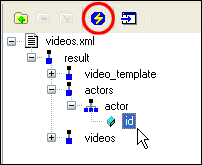
The Create Relationship dialog box appears. The tree for the document appears in the Link From field. The document that appears in the Link To field depends on how many data sources you added in step 1.
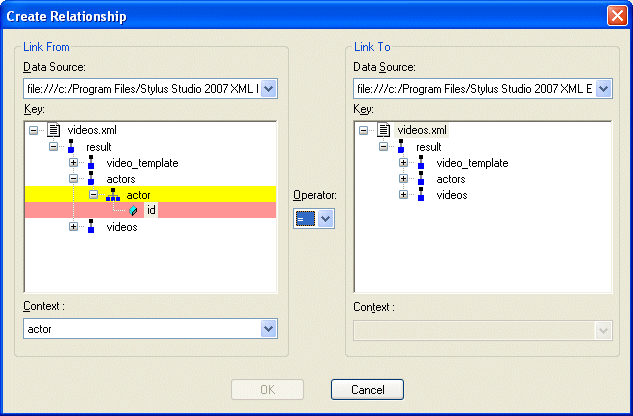
By default, Stylus Studio sets the node's context using the first repeating element in the selected node's hierarchy - including the selected node itself. In this example, we selected the id attribute of the actor element, so the actor repeating element is used to set the context for this loop.
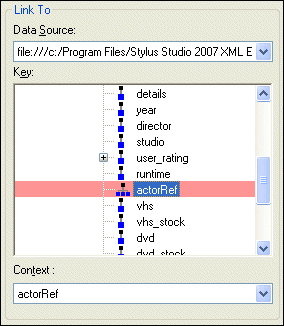
In this example, we selected videos/video/actorRef repeating element.
The relationship you just defined appears in the data sources pane of the XML Publisher Editor.
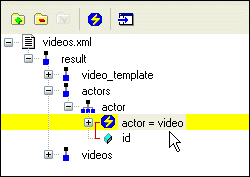
If you expand the relationship node, you see the graphic representation of the join formed between the actors/actor/id node and the videos/video/actorRef node.
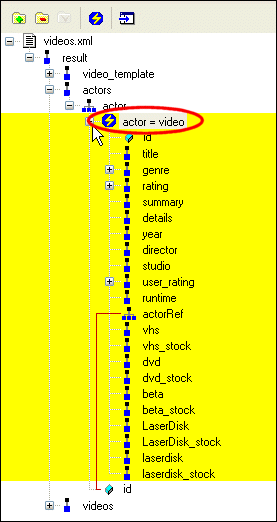
You can now use this relationship as a data source in XML Publisher. See Example - Using a Relationship in a Report for more information.
Example - Using a Relationship in a Report
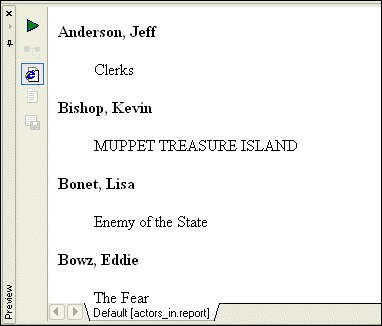
This example describes how to build a simple report in XML Publisher, shown here, that lists actors and the movies they have appeared in. The information for this report is based on the data in videos.xml, in the VideoCenter folder in the Stylus Studio examples project. Specifically, it matches the id attribute in the actors/actor element with the videos/video/actorRef element.
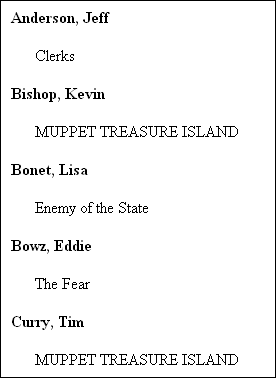
To create the example report:
videos.xml from the VideoCenter folder in the Stylus Studio examples project and drop it on the data sources panel in the XML Publisher Editor.
Stylus Studio displays a tree representing the videos.xml document.
actors node by selecting it and pressing the * key on your number pad.
id attribute.
The Create Relationship dialog box appears.
actorRef repeating element.
video element (to locate all movies with a matching actorRef and id), change the value in the Context field to video (also a repeating element).
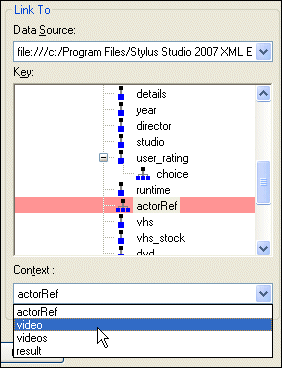
The data source defined by the relationship we just created between the actors and videos nodes appears in the data sources pane.
Stylus Studio creates two loops.

If you place the mouse over the outer loop, the tool tip displays the XPath - /result/actors/actor; similarly the XPath for the inner loop is /result/videos/video[$actor/@id./actorRef].
Now that the context for the loops has been defined, we next need to specify the data we want to display.
videos/video/title element and drop it in the inner loop.
actors/actor element and drop it in the outer loop. Select Insert Value from the pop-up menu.
When you have finished, your XML Publisher canvas should look like this:

 ), and save the file when prompted.
Before formatting, the report looks like this:
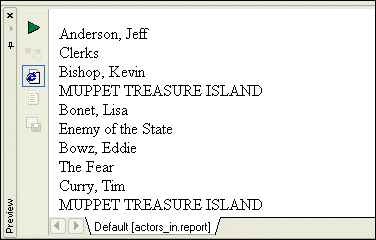
All the information is there, but the report is hard to read.
We now have a report that resembles the one shown in Figure 481.
Deleting a Relationship
You can delete the relationships you have defined as data sources for XML Publisher reports just as you would any other data source.
To delete a relationship:
The relationship is removed from the XML Publisher.