Home >Online Product Documentation >Table of Contents >Running the EDI to XSD Document Wizard
Running the EDI to XSD Document Wizard
To run an EDI to XML Schema document wizard:
1. Select File > Document Wizards from the Stylus Studio menu.
The Document Wizards dialog box appears.
2. Select the XML Editor tab:
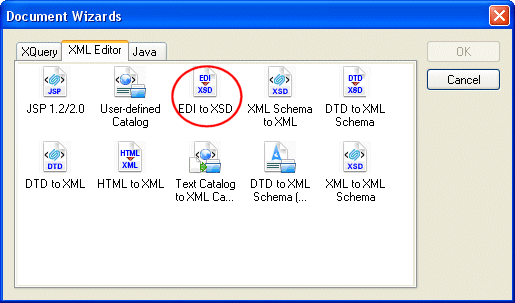
3. Double-click the icon for the EDI to XSD document wizard.
A dialog box for the document wizard you selct appears. The Generate XML Schema from EDI Standards dialog box is shown here.
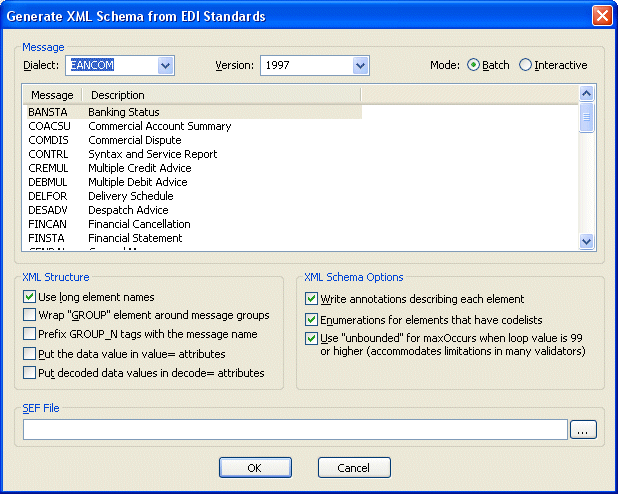
4. If necessary, change the version ID or release number. Values are listed chronologically in ascending order.
5. Select the message or transaction set on which you wish to base the XML Schema you are creating.
6. Change the XML Schema creation options as required. See Wizard Options if you need help with this step.
7. Click OK.
Stylus Studio converts the EDI you selected in step 5 to XML Schema and opens a new, untitled document in the XML Schema Editor.