Home >Online Product Documentation >Table of Contents >Defining complexTypes That Contain Only Attributes
Defining complexTypes That Contain Only Attributes
An XML Schema allows you to create groups of attributes. This makes it easy to create a complexType that contains only attributes. The first step is to create an attributeGroup. You can then create a complexType and add a reference to the attributeGroup to the complexType.
Diagram View
To define a complex type that contains only attributes:
schema node  .
.
Alternatives: This operation is also available from the XMLSchema > Diagram > Add > AttributeGroup menu and from the Add button  .
.
The new attributeGroup is added to the XML Schema. It is displayed in the diagram and in the text pane (if you have it open). The properties for the new attributeGroup are displayed in the Properties window.
The new attribute is added to the attributeGroup.
Tree View
To define a complex type that contains only attributes:
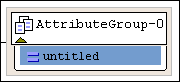
 . In the Tree view, Stylus Studio displays a field for new attributeGroup.
 . In the Tree view, Stylus Studio displays a field for the new attribute definition.
 . In the Tree view, Stylus Studio displays a field for the new complexType.
 . Stylus Studio displays a pop-up menu that contains a list of attributeGroups.