Home >Online Product Documentation >Table of Contents >Defining Elements That Carry Attributes and Contain Data in XML Schemas
Defining Elements That Carry Attributes and Contain Data in XML Schemas
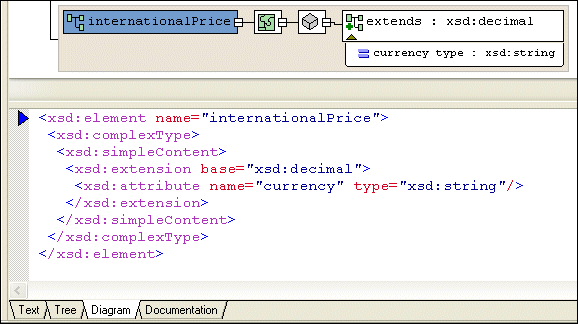
You might want to define an element that carries attributes and contains data, but does not contain subelements. In the purchaseOrder.xsd document, an example of this is the internationalPrice element, shown here in the Diagram tab.
|
Figure 298. internationalPrice Element in purchaseOrder.xsd
This element has a currency attribute, and it contains data based on the xsd:decimal simpleType.
Diagram View
To define a complex type that contains only attributes:
1. Right-click the
schema node

.
2. In the shortcut menu, select Add > Element.
Alternatives: This operation is also available from the XMLSchema > Diagram > Add > Element menu and from the Add button  .
.
The new element is added to the XML Schema. It is displayed in the diagram and in the text pane (if you have it open). The properties for the new element are displayed in the Properties window.
3. Create a complexType of the element - right-click the element and select Add > ComplexType.
4. Make sure the new complexType is selected.
5. Click the
QuickEdit button

and select
Derive by extension. This choice lets you extend a base simpleType.
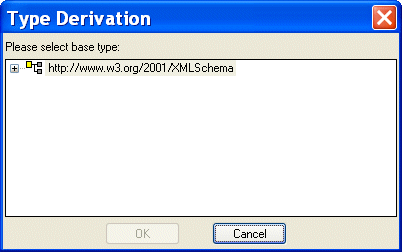
The Type Derivation dialog box appears.
|
Figure 299. Type Derivation Dialog Box
6. Expand the W3C XML Schema and select the simpleType on which you want to base the data allowed by the complexType.
7. Click OK.
The XML Schema is updated with the element's new definition. Figure 300 shows an extension of the decimal simpleType.
|
Figure 300. complexType with simpleContent Defined
The simpleContent node ( ) specifies that the complexType can contain only data and attributes. It cannot contain subelements.
8. To add an attribute, right-click the element and select Add > Attribute.
Tree View
To define an element that contains raw data and carries attributes:
1. Click the Schema node.
2. In the left tool bar, click
New Element Definition
. In the
Tree view, Stylus Studio displays a field for the new element definition.
3. Type the name of the element and press Enter twice. If you press Enter once, Stylus Studio displays a pop-up menu that lists the possible types for the new element. You need to define a new type, so you cannot select from this list. If the pop-up menu does appear, press Enter or click outside the menu. You should now have a named element with no type specified.
4. In the left tool bar, click
New complexType
. In the
Tree view, Stylus Studio displays a field for the new complexType.
5. In the left tool bar, click
New Content
. Stylus Studio displays a drop-down list.
6. In the drop-down list that appears, double-click simpleContent. This is the Content Type property. When the content type is simpleContent, the complexType you are defining can contain data and attributes. It cannot contain subelements.
7. If you want the contained data to be one of the simpleTypes already defined with no restrictions, click
New Extension
in the left tool bar.
Stylus Studio displays a scrollable, drop-down list of the simpleTypes built in to XML Schema and previously defined in the current schema.
8. If you clicked
New Extension, double-click the type of the data you want this element to contain. Go to
step 9.
If you clicked New Restriction, follow these steps:
a. Double-click the simpleType whose values you want to restrict.
b. In the left tool bar, click
New Facet
. Stylus Studio displays a pop-up menu.
c. Double-click the type of facet you want to specify.
d. In the Properties window, double-click the Value field.
e. Enter a value for the new facet.
f. To add another facet, click the
restriction node for the simpleType, and repeat
step b.
9. In the left tool bar, click the
complexType node that you created in
step 4.
10. In the left tool bar, click
New Attribute Definition
. In the
Tree view, Stylus Studio displays a field for the new attribute definition.
11. Type a name for the new attribute and press Enter. Stylus Studio displays a scrollable, drop-down list of the possible types for the new attribute.
12. Double-click the attribute type. If you want to, specify a value for the attribute's Default or Fixed Value property in the Properties window.