Home >Online Product Documentation >Table of Contents >XSLT Stylesheet Editor Quick Tour
XSLT Stylesheet Editor Quick Tour
When you use the Stylus Studio XSLT stylesheet editor, you work with XSLT stylesheets, XML source documents, and result documents. This quick tour is organized to introduce you to some of the main features for working with XSLT in Stylus Studio:
Parts of the XSLT Editor
The XSLT Editor consists of four tabs that allow you to work with XSLT in different ways, based on your preferences and the functionality that you desire.
Note
|
| Using the Mapper tab is discussed in detail in Using the XSLT Mapper - Getting Started. |
- Params/Other. You use the Params/Other tab to specify the encoding Stylus Studio uses to store the stylesheet, the stylesheet's output method, and the encoding Stylus Studio uses for the document that results from applying this stylesheet. You can also use this tab to view default values for parameters used by your stylesheet.
Exploring the XSLT Source Tab
This topic is part of a sequence. If your-quotes.xsl is not open, see Opening a Sample Stylesheet.
To work with the XSLT Source tab:
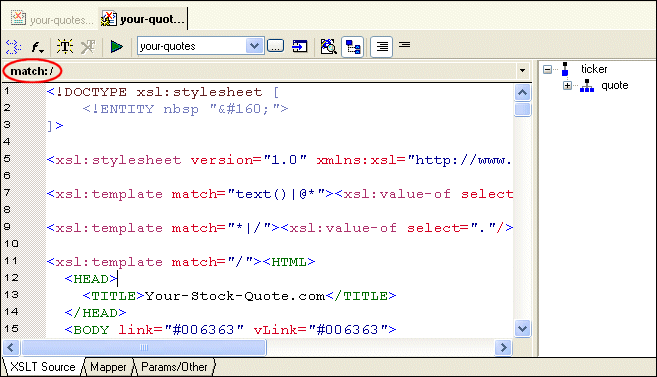
In the status bar just below the XSLT Editor tool bar, Stylus Studio displays match: /. This indicates that the location you clicked is inside a template that matches the root node.
Now the status bar is blank. This instruction is not part of a template.
 .
.
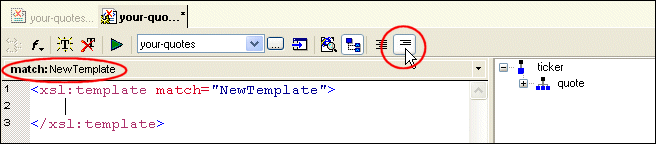
Stylus Studio inserts the following after the last template already specified in the stylesheet.
To define a new template, replace NewTemplate with the match pattern you want, and add contents to the new template as needed.
 , which is the right most button.
Stylus Studio displays only the new template.
You can edit the stylesheet in either template mode or in full source mode. In template mode, Stylus Studio displays one template at a time. In full source mode, Stylus Studio displays the whole stylesheet.
Tip
|
| In large or complex stylesheets, use the XSLT Editor's status bar to identify the current template. |
Stylus Studio displays a list of the templates in the stylesheet with their match patterns.
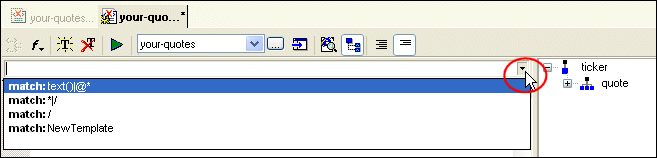
Every stylesheet that Stylus Studio creates includes two built-in templates. One built-in template matches every element and the root node. The other built-in template matches all text and attribute nodes. See Using Stylus Studio Default Templates.
To delete a template, click the match pattern for the template you want to delete and then click Delete template in the XSLT Editor tool bar. You must be in template mode to delete a template.
 .
.
Stylus Studio displays the complete stylesheet. The cursor is at the beginning of the template that was being displayed in template mode.
Exploring the Params/Other Tab
Click the Params/Other tab:
Drop-down menus let you specify the encoding format used to store the stylesheet in Stylus Studio, as well as method and encoding output attributes. A simple grid displays the name, source URL, and default value of any global parameters used by the active stylesheet, as well as by any imported ones.
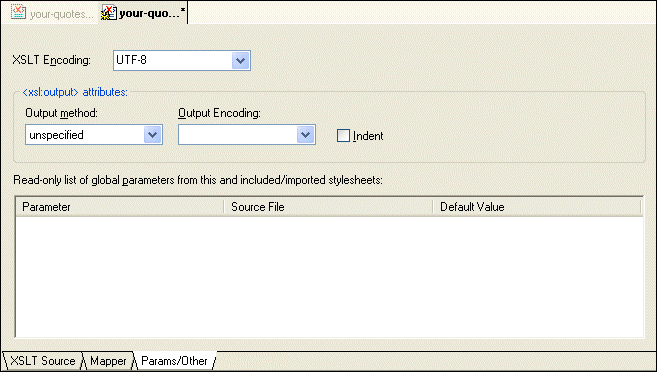
All information that you can specify in the Params/Other tab can also be specified in the XSLT source. For example, you can specify the XSLT encoding in the processing instruction at the beginning of the stylesheet; you can specify the output method and encoding with the xsl:output instruction. Stylus Studio automatically updates the XSLT source with any changes you make in the Params/Other tab, and vice versa.