Home >Online Product Documentation >Table of Contents >How to Use a Third-Party Processor
How to Use a Third-Party Processor
You specify XSLT processors for stylesheets individually. You can, of course, create multiple scenarios for the same stylesheet, with each one using a different processor. When you use a third-party XSLT processor, output from the processor appears in the Preview window.
To use a third-party XSLT processor:
 to display the Scenario Properties dialog box.
To create a new scenario, click Create Scenario. See Creating a Scenario.
Note
|
| Stylus Studio allow you to choose an MSXML option only if you have the MSXML or MSXML .NET Framework (version 1.1 or 2.0) installed. |
If you selected Use custom processor (%1 xml, %2 xslt, %3 output):
CLASSPATH environment variable.
Using the Saxon Processor
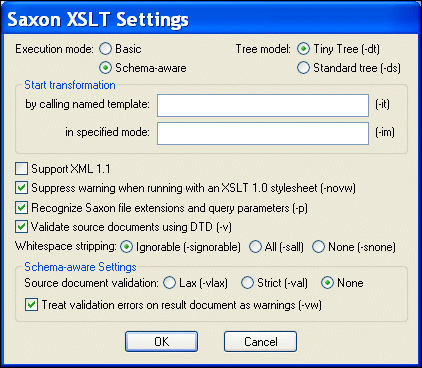
Stylus Studio lets you execute XSLT transformations using either the Saxon-B (basic) or Saxon-SA (schema-aware) processor. You specify which processor you want to use with the Execution mode property in the Saxon XSLT Settings dialog box. Settings that have command line equivalents in Saxon show the command in parentheses following the property name. Some settings are available only if you are using Saxon-SA.
Stylus Studio's Sense:X syntax coloring and auto-completion provides full support for Saxon syntax, so long as the Saxon Logic XSLT processor is either associated with the current XSLT scenario or has been set as the default XSLT processor.
If you want to use the Saxon processor:
The Settings button becomes active.
The Saxon XSLT Settings dialog box appears.
Passing Parameters
To pass parameters to the Stylus Studio built-in XSLT processor or to the Microsoft .NET, Saxon, or MSXML processor, specify them in the Parameters tab of the Scenario Properties dialog box. To pass parameters to a custom external processor, you must specify them in the command line you enter.