Home >Online Product Documentation >Table of Contents >Setting a Text Value
Setting a Text Value
You can set text values for target structure elements and attributes. You might want to do this if you are composing a mapping whose target structure contains an element or attribute that requires a fixed value, instead of using a value gathered from an input XML document.
Example
Here is the XSLT code Stylus Studio generates for the Title element when a text value is specified for it:
Stylus Studio displays a red letter T for nodes for which you define a text value:

There are two ways to set a text value:
How to Set a Text Value on the Mapper Canvas
To set a text value on the mapper canvas:
The shortcut menu appears.
The text block appears on the mapper.

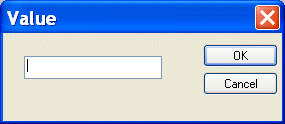
Double-click the text block to display the Value dialog box.
Tip
|
| You can also display the Value dialog box by selecting Properties from the text block shortcut menu (right click). |
How to Set a Text Value on the Target Node
To set a text value on a target node:
The shortcut menu appears.
The Value dialog box appears.