Home > Online Product Documentation > Table of Contents > Using an External XSLT Processor
Using an External XSLT Processor
In addition to a built-in XSLT processor, Stylus Studio includes several third-party XSLT processors, including Xalan-J, MSXML .NET, and Saxon (6 and 8). Note, however, that only the following XSLT processors support Stylus Studio stylesheet debugging and backmapping functionality:
These features are not supported by other XSLT processors, including others bundled with Stylus Studio (MSXML 4.0, for example).
This section discusses the following topics:
How to Use an External Processor
You specify XSLT processors on an individual stylesheet basis. When you use an external XSLT processor, output from the processor appears in the Preview window.
To use an external XSLT processor:
 to display the
Scenario Properties dialog box.
to display the
Scenario Properties dialog box.
To create a new scenario, click Create Scenario. See Creating a Scenario.
|
Note
|
|
Stylus Studio allow you to choose an MSXML option only if you have the MSXML or MSXML .NET processor installed. |
If you selected Use custom processor (%1 xml, %2 xslt, %3 output):
CLASSPATH environment variable.
Passing Parameters
To pass parameters to the Stylus Studio built-in XSLT processor or to the Xalan-J, MSXML .NET, Saxon, or MSXML processor, specify them in the Parameters tab of the Scenario Properties dialog box. To pass parameters to a custom external processor, you must specify them in the command line you enter.
Options for Using External Processors
If you want, you can specify external XSLT processor options that Stylus Studio uses whenever you specify the use of a particular external processor in a scenario. If you use a particular external processor frequently, and you specify default values in the external XSLT options page, you do not need to enter the information for each scenario. You would just need to indicate which processor you want to use.
If you specify default values and you then specify different values in a scenario's properties, the scenario properties override the defaults.
To set external XSLT processor options:
Stylus Studio displays the Options dialog box.
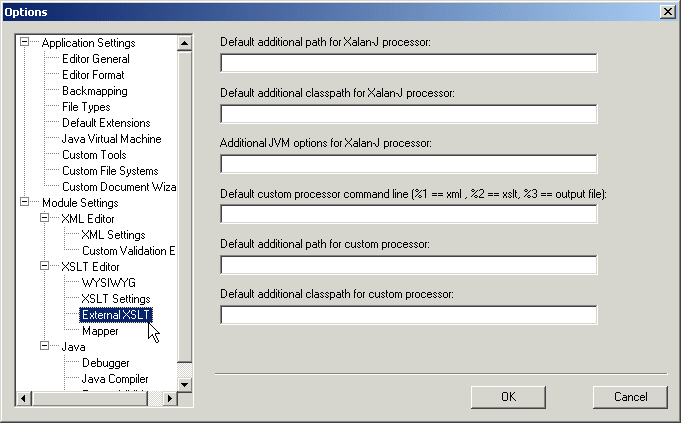
Xalan-J XSLT Processor Options
For the Xalan-J XSLT processor, you can specify any of the following:
Custom XSLT Processor Options
For a custom XSLT processor, you can specify any of the following: