
Convert Text Files to XML (Any Flat File to XML)
Sometimes it's easy to convert flat files to XML, and other times it's not. For the simple cases, the comma-separated value adapter or one of its relatives is a good choice. But there are several cases where that's just not good enough. For example:
- Simple CSV files
- When fields are fixed-width
- When there is more than one record layout in the file
So let's conquer those together.
Fixed Width Record Layout
Suppose your file looks like this bikes_fixed.txt file:
1: | Make········Model····Year····Mileage |
2: | BMW·········R1150RS··2004····14274·· |
3: | Kawasaki····GPz1100··1996····60234·· |
4: | Ducati······ST2······1997····24000·· |
5: | MotoGuzzi···LeMans···2001····12393·· |
6: | BMW·········R1150R···2002····17439·· |
7: | Ducati······Monster··2000····15682·· |
8: | Aprilia·····Futura···2001····17320·· |
For display, we've used a "·" (raised dot) to represent a space, but notice that although we've broken the text to make the record layout easier to see, there are no line ending markers — no LF's and no CR's.
To turn this into XML, we're going to build a custom adapter. Just follow the steps, and look at the pictures — just like Mapquest or Google Maps.
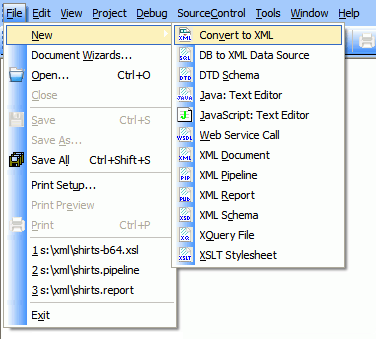
1. Choose File|New|Convert to XML.
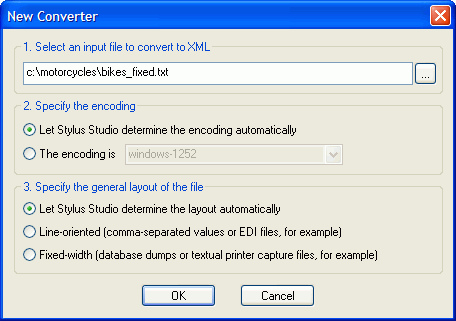
2. Choose the input file. What we're going to do is take a file that is representative
of the format we want to convert, and use it as a template. Once we have the adapter
built against it, that same definition should work against any file of similar format. Note
that sometimes there is sufficient context for <%=ConfigurationManager.AppSettings["SS"]%>
to determine the basic structure and encoding up front, so it offers to "guess" for you
based on what it knows about certain common file formats.
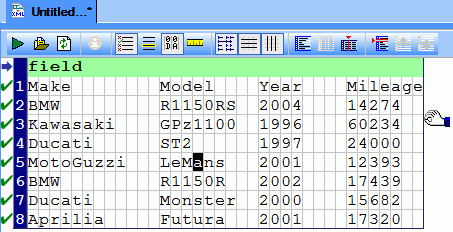
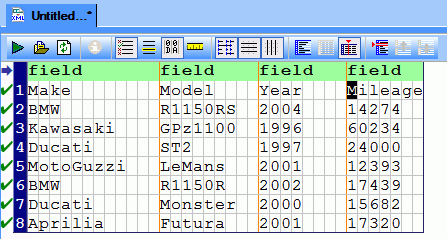
3. When the file opens, <%=ConfigurationManager.AppSettings["SS"]%> will assume a default record width for this fixed-width file, since no record separators are obvious. So we will grab the right-hand margin and drag it to the left until the columns line up. Alternatively, we could open the Properties window and set the width manually (but this is more fun).
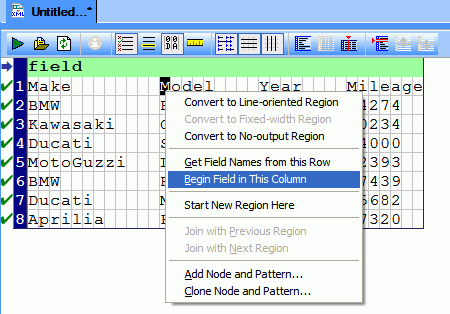
4. To set the field boundaries, right-click on what looks to be the first character of each field, and choose Begin Field in This Column. Do this once for each field boundary. If you make a mistake, don't worry. That same option will remove the field marker. Or, you can just drag the lines around.
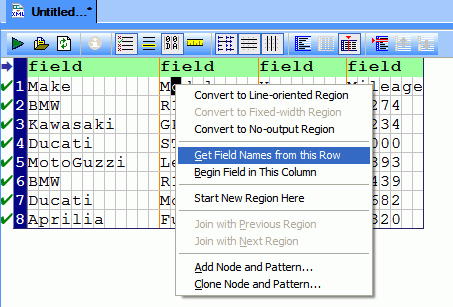
5. The fields need names, and in this case they are right inside the file. So we can tell <%=ConfigurationManager.AppSettings["SS"]%> to get them from there by right-clicking anywhere in that first row and choosing Get Field Names from This Row. We could also double-click on the field headings and set them manually, or use the Properties window or even the schema tree (which is beyond the scope of this tutorial).
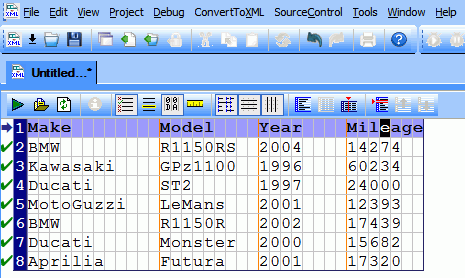
At this point, we're ready to run the adapter.
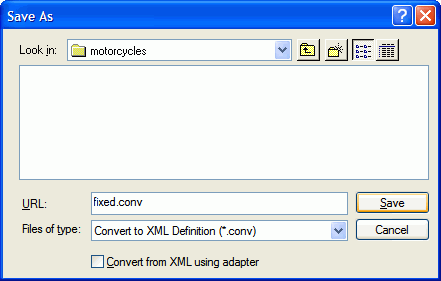
6. Now let's save and run the adapter against our test file. Choose ConvertToXML|Preview Result, or
click on the  button. If you haven't already
saved it, you will be prompted to save it now.
button. If you haven't already
saved it, you will be prompted to save it now.
And here is the final result:
This adapter definition can now be used to read this format of flat file anywhere a normal XML file could be read. It can be run through XSLT or XQuery, it can be validated against a DTD or XML Schema, and it can be used in XML pipelines. It can also be used in your own programs by using the embeddable Data Conversion APIs.
Now, go try this out for yourself by downloading an evaluation copy today.
Next XML Data Conversion Utility: Generate XML Schema