Varying Record Layout to XML
Sometimes it's easy to convert flat files to XML, and other times it's not. For the simple cases, the comma-separated value adapter or one of its relatives is a good choice. But there are several cases where that's just not good enough. For example:
- Simple CSV files
- When there is more than one record layout in the file
- When fields are fixed-width
So let's conquer those together.
Multiple Record Layouts in One File
Sometimes the problem is that the file contains heterogeneous data — that is, the data in different records has different formats. For example, let's look at a portion of weather-sensor data. In this file, each row is separated by a CR/LF pair, and the fields are separated by exclamation marks. There are three kinds of sensors: rain, temperature, and wind. (And we'll just ignore the fact that the weather seems a little wacky lately.)
TEMP!00:14!75 |
RAIN!00:35!21 |
RAIN!00:43!2 |
TEMP!01:43!75 |
WIND!02:14!S!16 |
RAIN!03:03!23 |
WIND!03:43!SW!13 |
RAIN!04:41!16 |
RAIN!05:15!20 |
TEMP!05:32!76 |
TEMP!06:38!80 |
WIND!07:50!NW!5 |
TEMP!08:29!77 |
RAIN!08:46!14 |
RAIN!09:00!12 |
TEMP!09:24!80 |
TEMP!10:14!77 |
If we want to extract this information, and recognize that different rows have different fields and even different numbers of fields, we'll need to match somehow on something unique within each row.
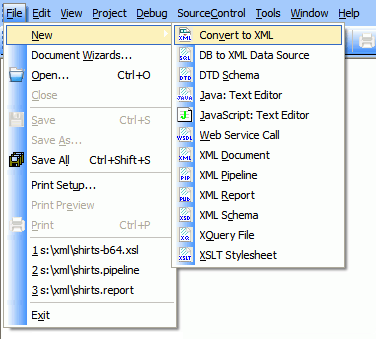
1. Choose File|New|Convert to XML.
2. Choose the input file. What we're going to do is take a file
that is representative of the format we want to convert, and use it as a template. Once we have the adapter
built against it, that same definition should work against any file of similar format. (Yes, for those of you
paying careful attention, we're repeating ourselves from the
fixed-width text page. But just for this paragraph. Honest.) Note
that sometimes there is sufficient context for <%=ConfigurationManager.AppSettings["SS"]%>
to determine the basic structure and encoding up front, so it offers to "guess" for you
based on what it knows about certain common file formats.
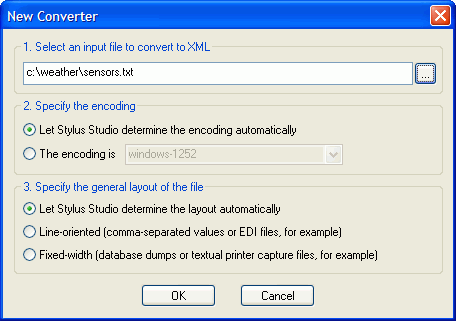
3. In this case, <%=ConfigurationManager.AppSettings["SS"]%> didn't guess the separator properly.
It saw a colon ":", and assumed that was it. We'll switch it to an exclamation point "!" by putting
one in quotes in the Region Type|Separator property.
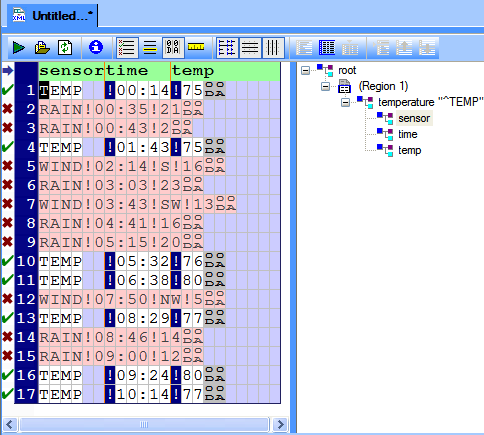
4. Next, let's name the fields. Put the cursor on the first row, and then double-click the heading row over each field name. We're going to use "sensor", "time" and "temp". For now, let's ignore the fact that some rows have four fields, because none of our TEMP rows do.
When we're done, it should look like this. Notice the schema tree on the right-hand side? That gives us an idea of the format of the XML that will be emitted by this.
5. Next, we're going to set a filter so that only TEMP rows will emit this XML branch. Right-click on
the row indicator in the schema tree, and choose "Edit Node and Pattern...".
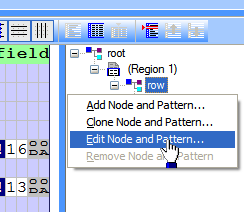
From there, change the element name to "temperature" and the match pattern to the regular expression ^TEMP, which means "match all rows which begin (the ^ character) with the phrase 'TEMP'".
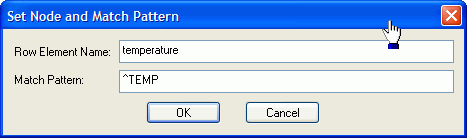
Once we do this, the canvas will change to show the rows that match the pattern in white, and the rows that don't match any pattern in pale red.
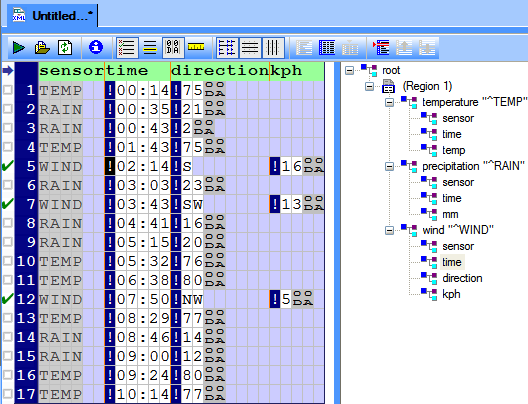
6. To add our match patterns for the next two items, WIND and RAIN, the simplest way is to right-click on the row and choose the "Add Node and Pattern..." option. That will pre-fill the fields, but we'll tweak them a little. WIND will result in an element of "wind" and a pattern of "^WIND", while RAIN will get "precipitation" and "^RAIN". Click on any WIND row and then you can double-click the heading row to set the field names, and then do the same for the RAIN row. You'll see something like this:
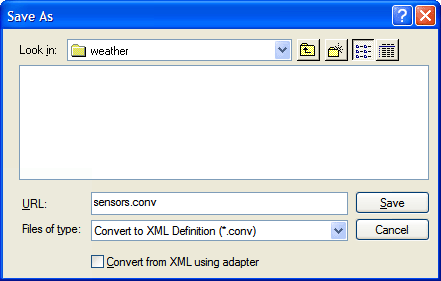
7. Now let's save it and run it against our template file. Choose ConvertToXML|Preview Result, or
click on the  button. If you haven't already
saved it, you will be asked to save it now.
button. If you haven't already
saved it, you will be asked to save it now.
And here is the final result:
These custom-designed adapters — that you build — can be saved and used as input to XSLT, XQuery (especially DataDirect XQuery, or XML pipelines. They can also be called directly from the Data Conversion APIs. So go try this out for yourself by downloading an evaluation copy today.