WYSIWYG XSLT Designer
Please note: As of Stylus Studio 2007 Release 2 (May 2007) support for the XSLT designer has been replaced with XML Publisher, a more powerful XML-based tool for developing report generation applications.
<%=ConfigurationManager.AppSettings["SS"]%>'s powerful and easy-to-use WYSIWYG ("What you see is what you get") XSLT designer lets you create XSLT stylesheets — without writing any code! Using <%=ConfigurationManager.AppSettings["SS"]%>'s WYSIWYG XSLT designer, you can go from a blank slate to solid and robust XSLT in minutes, using simple drag-and-drop operations and intuitive formatting and design tools.
's XSLT WYSIWYG Designer to create XSLT without writing any code" src="images/screenshots/xsl_wysi_table1_small.gif" border="0" width="400" height="256"/>
(click to enlarge)
Choose a Source File
To get started with <%=ConfigurationManager.AppSettings["SS"]%>'s WYSIWYG XSLT designer, just choose the XML file you want to use as the source to design your XSLT. You specify the source XML file and other, optional, settings in the Scenario Properties dialog box.
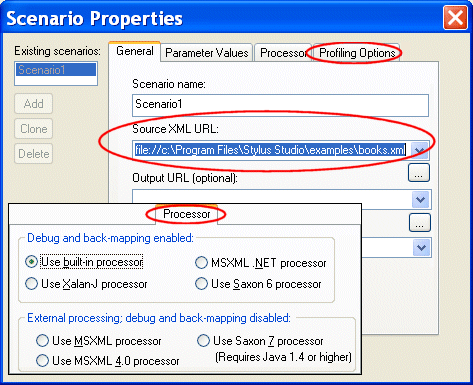
<%=ConfigurationManager.AppSettings["SS"]%> scenarios let you easily establish — and save — values that are used when processing your XSLT. For example, you might want to try processing the same XML file using different XSLT processors and different settings for the XSLT Profiler, a feature that helps you evaluate your XSLT's efficiency and troubleshoot any performance bottlenecks. Once you select an XML file, you're ready to start the design process.
You Design the HTML; <%=ConfigurationManager.AppSettings["SS"]%> Writes the XSLT
<%=ConfigurationManager.AppSettings["SS"]%> displays a tree diagram of the XML source document you select in the right pane of the WYSIWYG XSLT Designer. The center pane, blank when you start, is the HTML canvas on which you design your document. You can start by typing plain text directly on the canvas, or by using the WYSIWYG XSLT Designer's intuitive drag-and-drop functionality, as shown here.
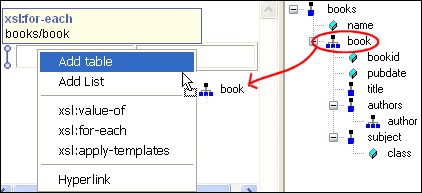
When you drag and drop an element or an attribute from the source document onto the HTML canvas, as shown in this illustration, <%=ConfigurationManager.AppSettings["SS"]%> displays a context-sensitive menu of choices appropriate for that object. Here, we've selected a repeating element, book. Notice that the choices in the context-sensitive menu (Add Table, Add List, and so on) are appropriate for repeating elements.
Select XSLT Processing From Context-Sensitive Menus
<%=ConfigurationManager.AppSettings["SS"]%> makes it easy for you to modify the graphical elements in the HTML canvas, like the table we added earlier. As you select an area of the HTML (the canvas background, or a specific table cell, for example), the Properties window, to the left of the HTML canvas, changes to reflect the current focus. Here, we've selected the glyph <%=ConfigurationManager.AppSettings["SS"]%> uses to represent the xsl:for-each statement in tables (it looks like a barbell standing on its end). This glyph is added to the HTML canvas automatically for repeating elements that occur within a table.
lets you edit XSLT properties graphically" src="images/screenshots/xsl_wysi_table_props.gif" border="0" width="448" height="152"/>
In this example, the Properties window displays statements appropriate for the
xsl:for-each statement, including xsl:sort. Rather than making you guess at
valid values for this statement, <%=ConfigurationManager.AppSettings["SS"]%> displays valid attributes and elements you can use to complete the xsl:sort. In this illustration,
we're sorting the {{title}} element based on @bookid attribute.
XSLT Source is Just a Click Away
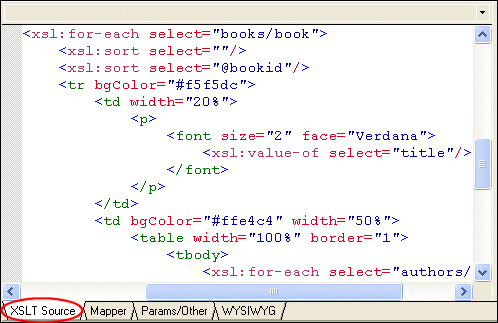
As you work with the WYSIWYG XSLT designer, you can click the XSLT Source tab to see the code that <%=ConfigurationManager.AppSettings["SS"]%> is creating for you (and by the way, it's industry-standard W3C XSLT code, and not the propretary mapping format used by other XML tools vendors). Overall, it's a great way to learn XSLT! And, of course, <%=ConfigurationManager.AppSettings["SS"]%>'s synchronized editors mean that any tweaks you make to the XSLT source are automatically reflected in the WYSIWYG tab, and vice versa.
Test Your XSLT as You Go
At any time during the XSLT design process, you can test the XSLT against the source XML file you specified in the Scenario Properties dialog box. (You can, of course, change the file against which you process the XSLT, or create another scenario entirely.) Testing is easy: just click the Preview Result button (the green triangle shaped like a "Play" button) in the WYSIWYG XSLT Designer toolbar.
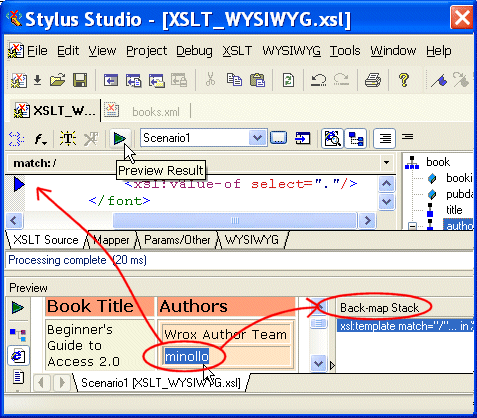
<%=ConfigurationManager.AppSettings["SS"]%> renders the HTML defined by the XSLT you have designed in the Preview window. The Preview window is displayed automatically if it's not already open. If you prefer, you can display the result using a tree diagram or as text by clicking a button in the Preview window toolbar.
If you're curious about a specific value or characteristic of the resulting HTML, just click it! <%=ConfigurationManager.AppSettings["SS"]%>:
- Displays the Back-map Stack window. The back-map stack shows you current stack of executed XSLT instructions, including the template that is currently in effect. The line number identifies the currently executed line of XSLT source.
- Locates the XSLT responsible for output displayed in the Preview window. If the XSLT Source tab is currently active, <%=ConfigurationManager.AppSettings["SS"]%> scrolls the window to the precise line of XSLT, and displays a blue arrow in the left margin of the XSLT Source tab.
And <%=ConfigurationManager.AppSettings["SS"]%>'s XSLT Profiler is always available to help you troubleshoot and analyze the performance of your XSLT.
<%=ConfigurationManager.AppSettings["SS"]%>'s WYSIWYG XSLT designer makes writing serious XSLT a snap. And the ability to toggle the XSLT Source tab makes it a great teaching aid.