Home >Online Product Documentation >Table of Contents >Adding XSLT and XQuery Transformations
Adding XSLT and XQuery Transformations
The next step in building our XML pipeline is to add the XSLT and XQuery transformations generated using XML Publisher. These transformations will render the XML document resulting from the Extract full order information XQuery, myFullOrderSample.xml, as HTML and PDF, respectively.
Of course, if we wanted to, we could have used XQuery to generate the HTML and XSLT to generate the XSL-FO; or we could have used just XQuery or XSLT to generate both document formats. The technology you choose is largely a matter of personal preference, though some are better suited to certain tasks (like data aggregation, HTML formatting, and so on) than others.
Add createReport.xsl
To add createReport.xsl to the XML pipeline:
createReport.xsl from the pipelines/order folder and drop it on the XML pipeline canvas.
Stylus Studio add an XSLT node to the XML pipeline.
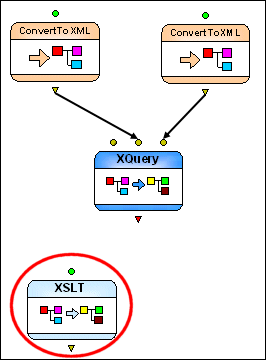
The colored input port indicates that this XSLT node already has a default input and value defined for it. We will specify our own input value (the XML document created by the Extract full order information XQuery node).
Tip
|
| Stylus Studio uses the file name for the node name when you create the node by dragging and dropping a document on the XML pipeline canvas. |
Extract full order information XQuery node to the input port on the new XSLT node.
order.html, for example). See Setting a Value for an Output Port if you need help with this step.
Tip
|
| Since we know the XQuery node generates the XML document we require, we can delete the Copy to URL for its output port. Otherwise, output will continue to be written to that URL. |
 ).
).
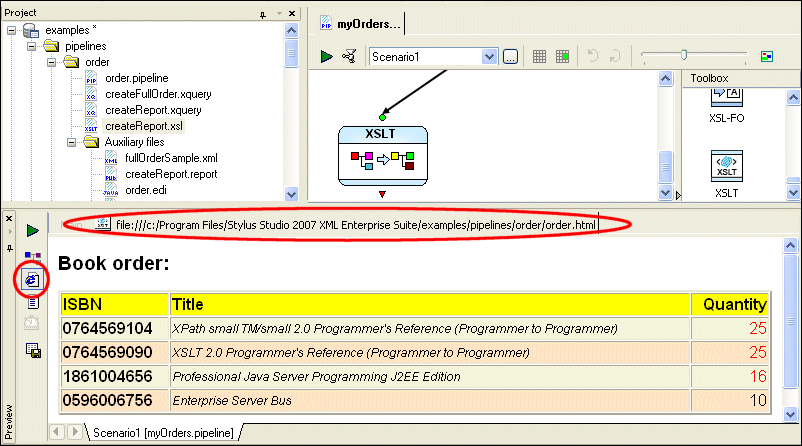
As currently defined, our XML pipeline should create an HTML report based on the myFullOrderSample.xml document, and this is what appears in the Preview window.
Add createReport.xquery
All that remains for our XML pipeline definition is to specify the XQuery node that will transform myFullOrderSample.xml into PDF. For this purpose, we will use the createReport.xquery generated by the XML Publisher.
To add createReport.query to the XML pipeline:
createReport.xquery from the pipelines/order folder and drop it on the XML pipeline canvas.
Stylus Studio may display a warning message, indicating that the processor specified for the createReport.xquery document differs from that specified for the XML pipeline.
Stylus Studio adds a new XQuery and associated XSL-FO node to the XML pipeline.
The XSL-FO node is the result of the post-processing specified for the XQuery - when we generated the XQuery code from XML Publisher, we chose XSL-FO for the Document Type (see Figure 438). Stylus Studio automatically selected the default FO processor, RenderX XEP, to process the FO generated by createReport.xquery.
Extract full order information XQuery node to the input port on the new XQuery node.
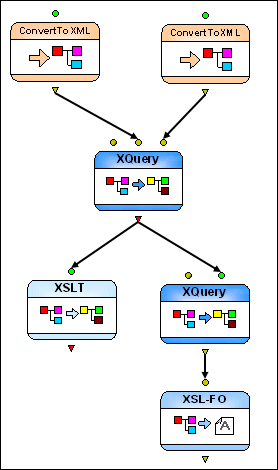
order.pdf, for example) of the XSL-FO node. See Setting a Value for an Output Port if you need help with this step.
).
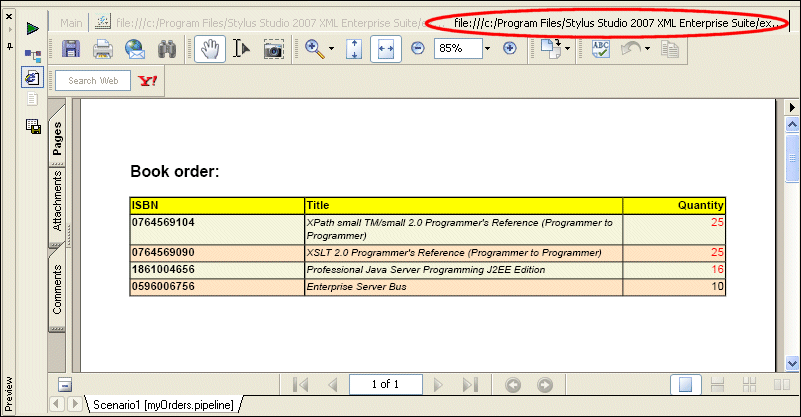
Stylus Studio reopens the Preview, which displays an execution log for the XML pipeline's operations. New statements appear for the new XQuery and XSL-FO nodes.
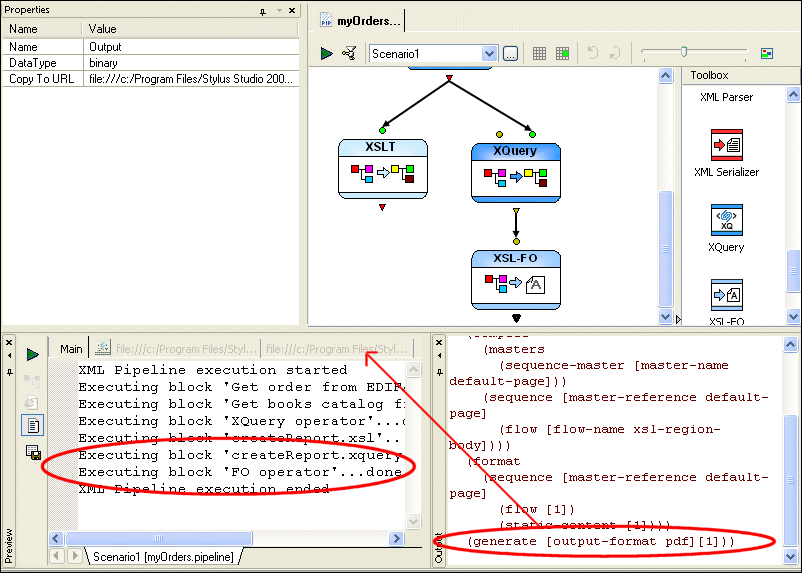
It also reopens the Output window, which shows output from the XSLT processor and the RenderX FO post-processor.
Note
|
| If you receive an error during this step, it might mean that Adobe Acrobat Reader was not properly installed on your system. Go to http://www.adobe.com and resinstall Acrobat Reader. |