Home >Online Product Documentation >Table of Contents >Updating the Tree Representation of a Sample Document
Updating the Tree Representation of a Sample Document
This section provides instructions for updating the DOM tree representation of the your-quotes.xml document.
You should have already performed the steps in Updating the Schema of a Sample Document. Each of the following topics contains instructions for editing the sample XML document. You should perform the steps in each topic before you move on to the next topic. After the first topic, some steps depend on actions you performed in a previous topic.
This section includes the following topics:
Adding an Element to a Sample Document Tree
To add an element to the tree representation of your-quotes.xml:
your-quotes.xml.
See Opening a Sample XML Document if you need help with this step.
Stylus Studio closes the Properties window.
ticker element to expose the children of the ticker element.
 in the left tool bar to add a
 quote element to the document.
Stylus Studio displays a drop-down menu that lists the elements you can add at that position in the tree.
Stylus Studio displays a field next to the new quote element. The DTD allows a quote element to contain data.
Changing an Element's Data in a Sample Document Tree
This topic is part of a sequence. If your-quotes.xml is not open, see Opening a Sample XML Document. The sequence starts with Adding an Element to a Sample Document Tree.
In the Tree tab of your-quotes.xml, to change the data that an element contains:
 .
.
Stylus Studio activates the field to the right of the symbol element and selects the current value.
XSOL and press Enter.
Stylus Studio displays a shortcut menu.
exchange element.
NYSE and press Enter.
Adding Attributes and Other Node Types to a Sample Document Tree
This topic is part of a sequence. If your-quotes.xml is not open, see Opening a Sample XML Document. The sequence starts with Adding an Element to a Sample Document Tree.
To add attributes and other types of nodes to your-quotes.xml:
 .
.
Stylus Studio displays an attribute name field immediately below the selected quote element.
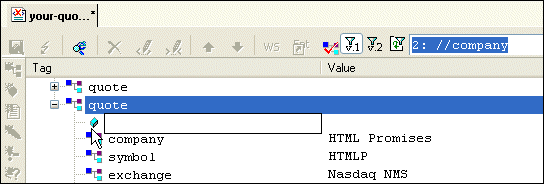
agent and press Enter.
Stylus Studio displays a default value for the attribute, Text, in an entry field to the right of the new attribute.
Star Brokers and press Enter.
Stylus Studio displays an entry field for a new attribute name, allowing you to easily add a number of attributes, one after the other.
 .
.
Stylus Studio displays a message in the Output window that indicates that the document is not valid. The DTD does not specify the agent attribute for the quote element. Stylus Studio allows you to modify your document in invalid ways, which you might want to do during application design. The validation feature informs you that your document is invalid when you try to validate the document.
 .
again.
.
again.
Stylus Studio displays a message in the Output window that indicates that the document is now valid.
Adding an Entity Reference to a Sample Document Tree
This topic is part of a sequence. If your-quotes.xml is not open, see Opening a Sample XML Document. The sequence starts with Adding an Element to a Sample Document Tree.
To add an entity reference to your-quotes.xml:
to add subelements to the new quote element.
Stylus Studio displays a drop-down menu that lists a number of elements that you can insert at this point. Scroll the list to view them all.
Stylus Studio displays a field next to the element name. You can enter data here, such as the name of the company. But rather than entering data, suppose you want to refer to an entity. To refer to an entity:
 , which is the last button in the left tool bar.
Stylus Studio displays a drop-down menu that lists the defined entities.
If the New Entity Reference button is not active, click Toggle Display of Entity References in the XML editor top tool bar. This button allows you to control whether you can refer to entities.
Stylus Studio inserts the text The Country's Best Computer Company as the value for the company element.
Stylus Studio displays the &TBCC; entity reference in the new company element.