Home >Online Product Documentation >Table of Contents >Updating a Sample Document Using the Grid Tab
Updating a Sample Document Using the Grid Tab
 |
| The XML Editor Grid tab is available only in Stylus Studio XML Enterprise Suite and Stylus Studio XML Professional Suite. |
This section provides instructions for updating the your-quotes.xml document using the Grid tab of the XML Editor. The Grid tab is useful for displaying structured data. It is a convenient way to view a document that contains multiple instances of the same type of element, for example.
 |
| Watch it! You can view a video demonstration of this feature by clicking the television icon or by clicking this link: watch the XML Grid Editor video. |
A complete list of the videos demonstrating Stylus Studio's features is here: http://www.stylusstudio.com/xml_videos.html.
To update XML document using the Grid tab:
your-quotes.xml.
See Opening a Sample XML Document if you need help with this step.
Stylus Studio displays a table that contains the XML data.
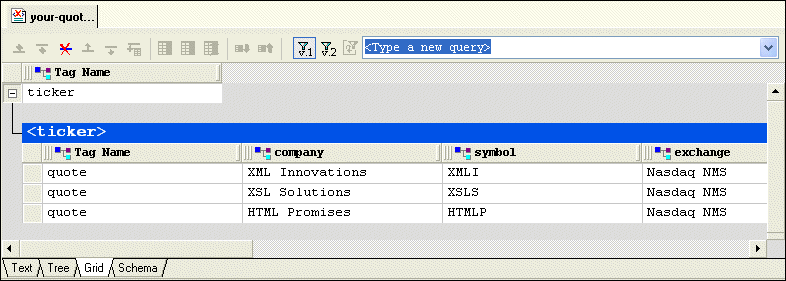
The left most column, with the Tag Name heading, contains the children of the <ticker> element. The remaining columns contain the grandchildren of the <ticker> element. The heading of each column identifies the element name - company, symbol, and so on.
<quote> element.
The row is highlighted in blue.
 ) button.
A new instance of the <quote> element is added to the document. The cursor is placed in the <company> element cell.
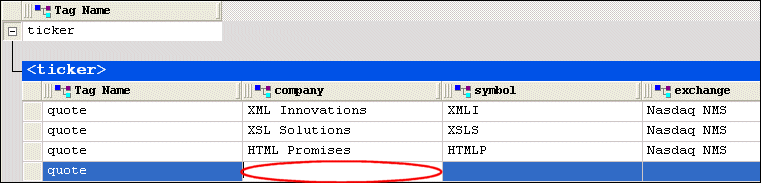
XML Designs and press Enter.
Stylus Studio creates the value for the <company> subelement.
quote element.