Home >Online Product Documentation >Table of Contents >Opening the XSLT Mapper
Opening the XSLT Mapper
This procedure describes how to open the XSLT Mapper and select the files you want to use for the drag-and-drop operations that will define your XSLT stylesheet.
To open the XSLT Mapper:
Stylus Studio displays the Scenario Properties dialog box.
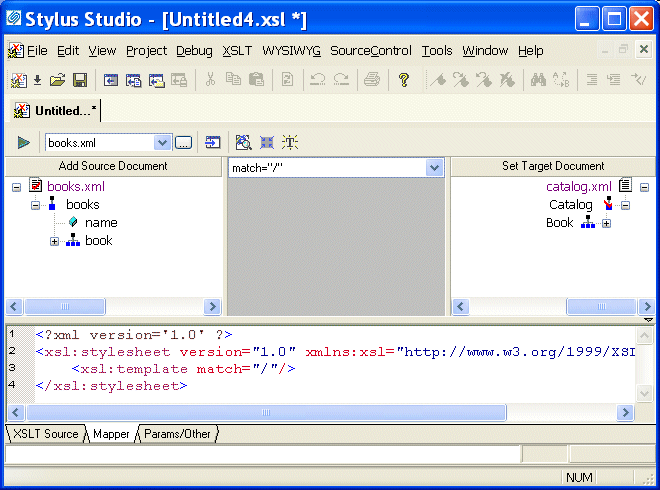
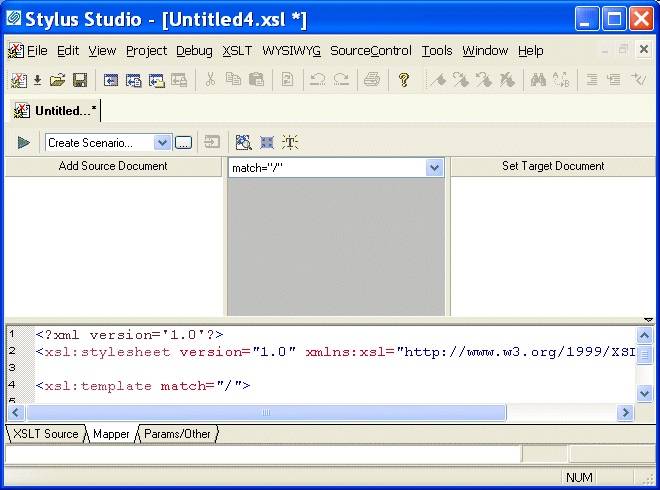
Stylus Studio displays XSLT editor with the Mapper tab selected. The source pane beneath the mapper panes appears by default, allowing you to see how the mappings of XML document elements are rendered as XSLT. The source pane is fully editable and synchronized with the XSLT Mapper. Of course, you can always click the XSLT Source tab for a full-screen view of your XSLT code.
Tip
|
| The Project window also appears if it was open the last time Stylus Studio was closed. You can close it. |
Stylus Studio displays the Open dialog box.
examples\simpleMappings directory in the Stylus Studio installation directory.
Stylus Studio displays the Open dialog box.
examples\simpleMappings directory in the Stylus Studio installation directory.
Stylus Studio displays tree diagrams of these XML documents. The default XSLT source code has not been altered at this point.