Home >Online Product Documentation >Table of Contents >Editing Tools of the XML Schema Diagram Tab
Editing Tools of the XML Schema Diagram Tab
Many of the operations you perform in the Diagram tab can be performed in a number of ways. This section briefly describes menu and tool bar use, and introduces additional features for defining XML Schema.
This section covers the following topics:
Menus and Tool Bars
The complete set of available operations is defined by the menu system. The tool bar provides a subset of frequently performed operations. The top-level menu (XMLSchema > Diagram), the shortcut menus, and the tool bar are context sensitive - only operations that are permitted given the current context are available. For example, if you want to add an element to a sequence, you can
 on the tool bar and select Element from the drop-down list it displays
Each of these actions lets you add a new node, in this case, an element, to your XML Schema definition.
In-place Editing
In-place editing allows you to change node names and properties directly in the diagram. For example, say you want to change the value of the Mixed property of the PurchaseOrderType complexType. Just double-click the property. Stylus Studio opens the property for editing, as shown in Figure 61.
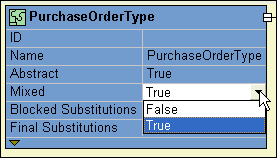
Similarly, if you double-click a node name, Stylus Studio places the property in edit mode, allowing you to type a new name.
Tip
|
| To display all of a node's properties in the diagram, see Displaying Properties. |
Drag-and-Drop
An alternative to using the menu and the tool bar is to use drag-and-drop, which lets you add an existing node to another node's definition. For example, say you wanted to add an existing element to a sequence. You can do this by dragging the element icon to the sequence icon, as shown in Figure 62.
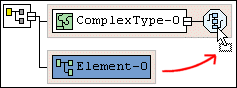
Use drag-and-drop any time you want to define a node using a node already defined in your XML Schema.
Tip
|
| When you drag and drop, you remove the element from its current context. If you want to make a copy an element, press and hold the CTRL key when you perform the drag operation. |
Typical targets of drag-and-drop operations include the following nodes
Typical sources for drag-and-drop operations include the following nodes
QuickEdit
QuickEdit is a feature of the Diagram tab that streamlines common editing operations. For example, you can use QuickEdit to
For example, the following structure was created by selecting QuickEdit > Add Elements Choice from the complexType's shortcut menu.

QuickEdit appears on the top-level and shortcut menus in those contexts in which it is available, and it is also available on the tool bar by pressing the QuickEdit button  .
.
Refactoring
Refactoring is a process that allows you to copy globally defined nodes from one XML Schema and paste them in a new XML Schema. The difference between refactoring and a simple copy is that refactoring includes both the node you select and all its dependencies. Consider the following example: here is how the purchaseOrder node appears when it is copied from purchaseOrder.xsd and pasted into a new XML Schema document:
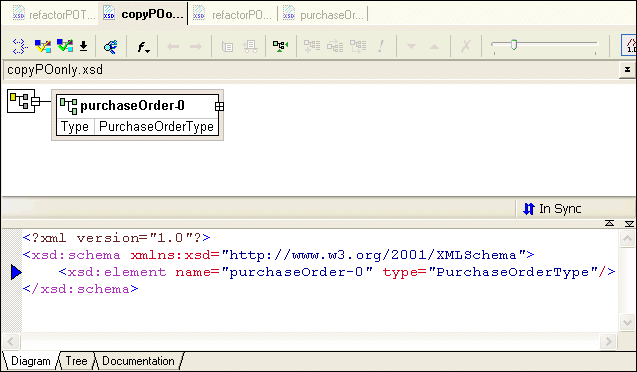
As you can see, the copy action copies only the selected node to the clipboard. When the same node is copied using refactoring and pasted into another XML Schema document, the node, and all its dependencies copied as well.
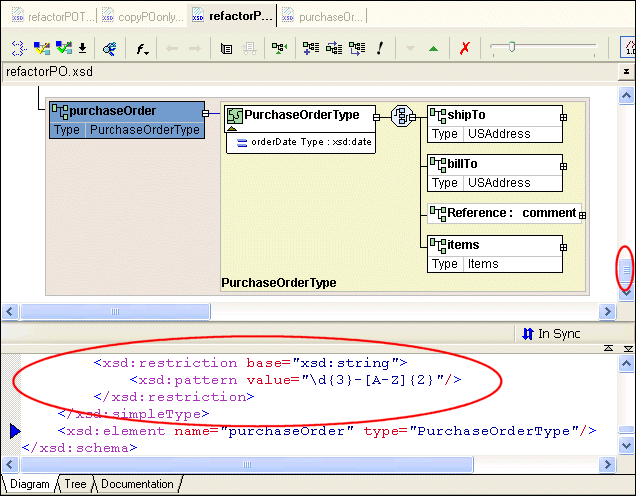
Not all of the diagram or text are displayed in this illustration, but it is clear that more than just the purchaseOrder node was copied to the clipboard. For example, the purchaseOrder's type, PurchaseOrderType complexType has been copied, as well as PurchaseOrderType's element and sequence nodes, such as shipTo, billTo, and items.
If you were to scroll up either the text pane or the diagram pane, you would also see, for example, the complete definitions for other global complexTypes such as SKU and USAddress.
To refactor a node:
The node and all its dependencies are copied to the clipboard.