Home >Online Product Documentation >Table of Contents >Defining a complexType in a Sample XML Schema in the Diagram View
Defining a complexType in a Sample XML Schema in the Diagram View
This topic is part of a sequence that begins with Description of Sample XML Schema.
The steps for defining the PublicationType complexType described in Description of Sample XML Schema are presented in the following topics:
Defining the Name of a Sample complexType in the Diagram View
This topic is part of a sequence that begins with Description of Sample XML Schema.
To define a complexType in a sample XML Schema:
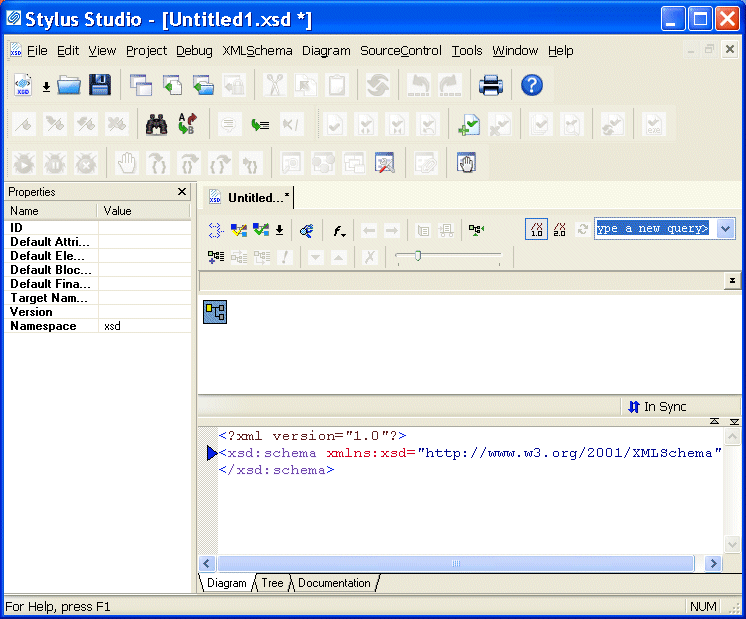
Stylus Studio displays the XML Schema Editor. Maximize the XML Schema Editor window. If the Project window is visible, you can close it.
Stylus Studio displays the Diagram view for the new schema.
Alternatives: This action is also available from the XMLSchema > Grid Editing menu.
Stylus Studio displays a representation for the new node in the diagram. The complexType properties appear in the Properties window. The new complexType has a default name of ComplexType-0.
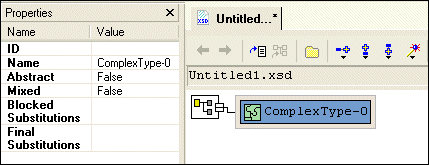
PublicationType in the Name property in the Properties window and press Enter.
Stylus Studio updates the diagram and the XML Schema in the text pane.
 .
.
bookstoreDiagram.xsd, and click Save. You can save it in the examples directory of the Stylus Studio installation directory or in a directory of your choice.
Adding an Attribute to a Sample complexType in the Diagram View
This topic is part of a sequence that begins with Description of Sample XML Schema.
To add the genre attribute to the PublicationType complexType:
PublicationType node.
Stylus Studio displays a node for the new attribute (untitled).
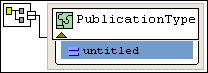
genre as the name of the new attribute and press Enter.
Stylus Studio displays a drop-down list of built-in types.
xsd:string and press Enter.
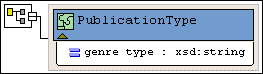
The diagram should now look like the one shown in Figure 69
.
Tip
|
| You can toggle the display of attributes by clicking the small triangle at the bottom of the complexType node. |
.
Adding Elements to a Sample complexType in the Diagram View
This topic is part of a sequence that begins with Description of Sample XML Schema.
The elements belonging to this complexType must occur in a specific order. Before defining the first element, you need to create a sequence node to define this requirement in the XML Schema.
To add the title element to the PublicationType complexType:
PublicationType node.
The sequence node is added to bookstoreDiagram.xsd. The sequence modifier indicates that if an instance document contains the sequence node's child elements (the elements you will add next), they must be in the order in which they are defined.
title and press Enter.
sequence node  .
.
A child element is added to the PublicationType node.
title.
Stylus Studio displays a drop-down list of built-in types.
xsd:string and press Enter.
According to the XML Schema requirements described earlier, the title element can occur only once. By default, the default value for the Min Occur. (minimum occurrences) and Max Occur. (maximum occurrences) properties is 1. You want exactly one instance of the title element in PublicationType, so you can accept these defaults.
Adding Optional Elements to a Sample complexType in the Diagram View
This topic is part of a sequence that begins with Description of Sample XML Schema.
To add the optional subtitle element to the PublicationType complexType:
sequence node
.
Below the title element, Stylus Studio displays a rectangle for the new element definition.
subtitle.
xsd:string.
You can accept the default of 1 for the Max Occur. property.
.
At this point, the XML Schema diagram should look like Figure 70:
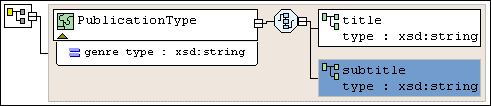
Adding an Element That Contains Subelements to a complexType in the Diagram View
This topic is part of a sequence that begins with Description of Sample XML Schema.
The sample schema requirements (see Description of Sample XML Schema) state that the PublicationType complexType must include at least one author element. Further, an author element must include a first-name element and a last-name element.
Each element that can contain one or more subelements is a complexType. Consequently, to add the author element to the PublicationType complexType, you must first define the AuthorType complexType. You can then add an element that is of AuthorType to the PublicationType complexType.
To define the AuthorType complexType:
Alternatives: This action is also available from the XMLSchema > Grid Editing menu.
Stylus Studio displays a representation for the new node in the diagram. The complexType properties appear in the Properties window.
AuthorType in the Name property in the Properties window and press Enter.
Stylus Studio updates the diagram and the XML Schema in the text pane.
AuthorType node in the diagram.
Stylus Studio displays the sequence node
.
sequence node.
first-name in the Name property in the Properties window and press Enter.
xsd:string and press Enter.
last-name as the name of the new element.
Now you can add the author element to the PublicationType complexType:
sequence node belonging to the PublicationType node.
Stylus Studio displays a representation for the new node in the diagram. The complexType properties appear in the Properties window.
author in the Name property in the Properties window and press Enter.
Stylus Studio updates the diagram and the XML Schema in the text pane.
AuthorType you defined in the previous procedure.
Tip
|
|
A plus sign appears on the right side of the |
Tip
|
| When you give an element an unbounded maximum number of occurrences, Stylus Studio renders the node using two outlines, to indicate that multiple occurrences of this element are allowed. |
.
At this point, the XML Schema diagram should look like Figure 71:
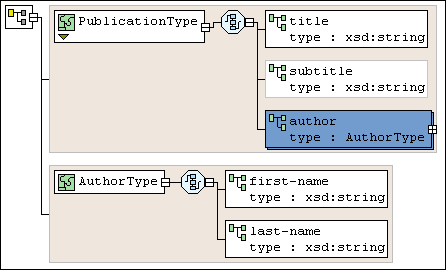
Choosing the Element to Include in a Sample complexType in the Diagram View
This topic is part of a sequence that begins with Description of Sample XML Schema.
In the sample XML Schema, you want PublicationType elements to contain an ISBNnumber, PUBnumber, or LOCnumber element.
To specify this:
sequence node belonging to the PublicationType node.
Stylus Studio displays a representation for the new sequence node in the diagram. Sequence properties appear in the Properties window.
We added the sequence node in error - the specification requires that this node be a choice node. The QuickEdit feature makes it easy to correct errors such as this.
sequence node. In the shortcut menu that appears, select QuickEdit > Switch to Choice.
Stylus Studio changes the sequence node to the choice node ( ).
).
choice node.
ISBNnumber and press Enter.
xsd:int and press Enter.
PUBnumber element, and once to add the LOCnumber element.
.
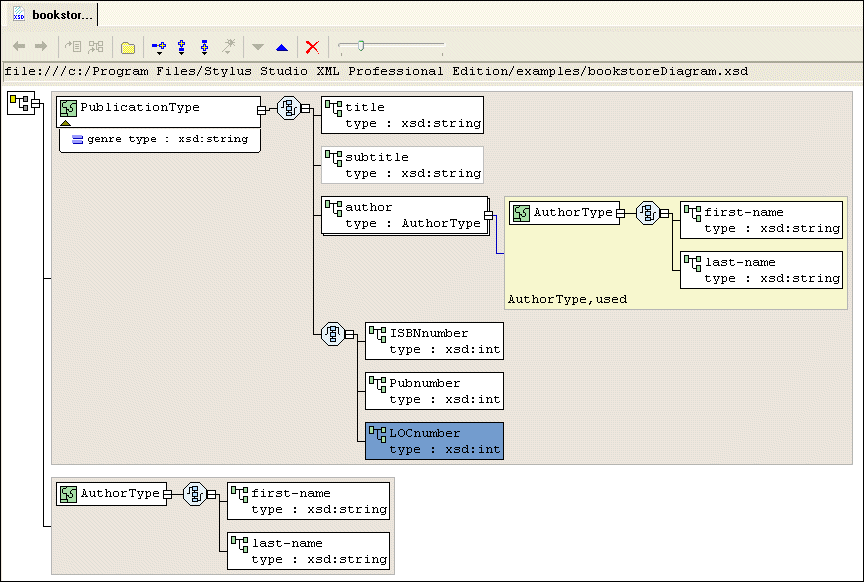
The definition of the PublicationType complexType is now complete and should look like Figure 72: