Home >Online Product Documentation >Table of Contents >Modifying Java Component Settings
Modifying Java Component Settings
Properties for JVM and JDK components are displayed on the Java Virtual Machine page of the Options dialog box, shown in Figure 100. When you start Stylus Studio, it automatically detects the Java Virtual Machine (JVM) and compiler components installed on your machine and sets the properties for these components accordingly.
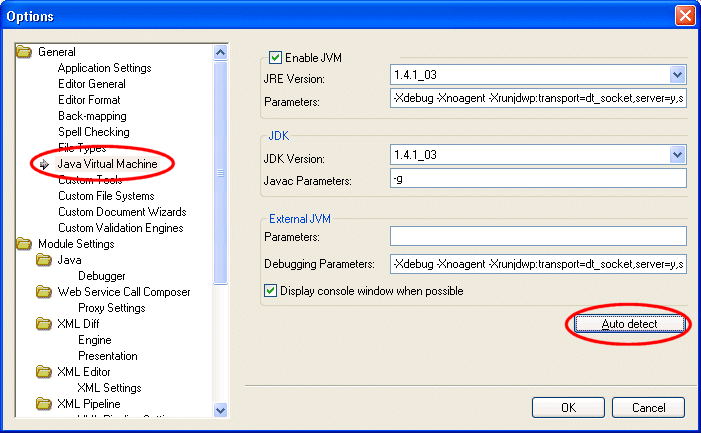
Once these properties have values, Stylus Studio uses them until you either
How Auto Detect Works
The auto detect feature prompts Stylus Studio to fetch the settings from the registry setting Current Version under the key HKEY_LOCAL_MACHINE\SOFTWARE\JavaSoft\Java Runtime Environment to find the version, and then adds the version number to that same location to get the settings.
Note that if you manually change your settings to use another local version of the JDK, it may fail to load properly unless you also point the Current Version setting to match. This is because the JVM itself might try to load DLLs from the location of the current version instead of the location you specify.
About JVM Parameters
As a rule, you should never change the default values in the Parameter fields for the JVM or the External JVM. This option exists to accommodate unusual configurations. In such situations, Stylus Studio Technical Support might instruct you to change this value.
About JDK Parameters
The -g parameter instructs the compiler to add debugging information to the generated .class file; it is set by default.
How to Modify Java Component Properties
To modify Java component properties:
The Options dialog box appears.
Otherwise, make the changes manually.