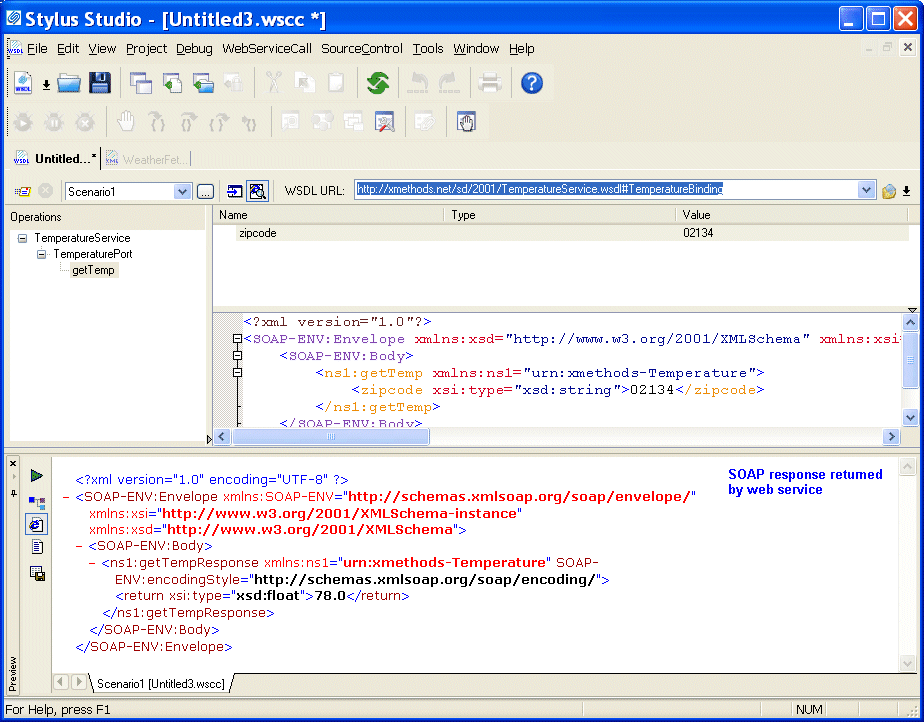
%@ page language="C#" masterpagefile="~/templates/Documentation.master" inherits="Page" pagetitle="How to Test a Web Service" keywords="How to Test a Web Service"%>Chapter 1: Getting Started with Stylus Studio®Chapter 2: Editing and Querying XMLChapter 3: Converting Non-XML Files to XMLChapter 4: Converting EDI to XMLChapter 5: Working with XSLTChapter 6: Creating XSLT Using the XSLT MapperChapter 7: Debugging StylesheetsChapter 8: Defining XML SchemasChapter 9: Defining Document Type DefinitionsChapter 10: Writing XPath ExpressionsChapter 11: Working with XQuery in Stylus StudioChapter 12: Composing Web Service CallsOverviewObtaining WSDL URLsModifying a SOAP RequestTesting a Web ServiceWhat Happens When You Test a Web ServiceHow to Test a Web ServiceSaving a Web Service CallQuerying a Web ServiceCreating XQuery from a Web Service CallCreating a Web Service Call ScenarioChapter 13: Working with WSDL DocumentsChapter 14: Building XML PipelinesChapter 15: Publishing XML DataChapter 16: Integrating with Third-Party File SystemsChapter 17: Extending Stylus StudioChapter 18: The Stylus Studio Java APIChapter 19: Stylus Studio GUI ReferenceHome >Online Product Documentation >Table of Contents >How to Test a Web Service< Previous| Next > How to Test a Web Service To test a Web service, click the Send Request button ( ) to submit the SOAP request. Stylus Studio displays the SOAP response in the Preview window as shown in Figure 402: Figure 402. Testing a Web service < Previous| Next >
Home >Online Product Documentation >Table of Contents >How to Test a Web Service
Stylus Studio displays the SOAP response in the Preview window as shown in Figure 402: