Home >Online Product Documentation >Table of Contents >Creating a Database Connection
Creating a Database Connection
Before you can execute a collection() function in an XQuery, you need to create a database connection. This is part of the process of making the database tables and views available to your XQuery code.
This section covers the following topics:
Supported Databases
Stylus Studio provides support for the following relational databases:
Drivers for most of these databases are bundled with Stylus Studio. For some, like PostgreSQL, for example, you need to specify the classpath for the database driver.
The Connection Settings Dialog Box
In Stylus Studio, you use the Connection Settings dialog box to specify database connection properties.
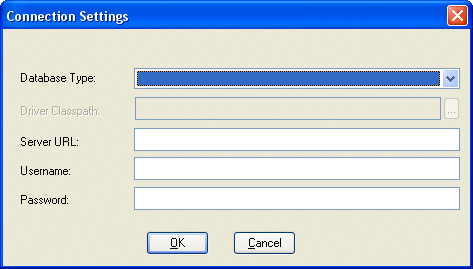
Settings vary from database to database, but they typically include the following:
- You use the Database Type field to specify the database to which you want to connect. See Supported Databases for a complete list.
- If you are using the PostgreSQL databases, you need to specify the location of the JDBC driver for that database in the Driver Classpath field. (Drivers for other relational databases are bundled with Stylus Studio.)
- The server URL and other connection parameters. In addition to the server's location, connection parameters can include the server name, the port through which the connection is established, and other information, such as a server ID (SID). See Using the Server URL Field for more information.
- You use the Username and Password fields to specify the database user you want to associate with this data source.
Using the Server URL Field
You use the Server URL field to identify the server hosting the database to which you want to connect, the port to use, and any other required or optional parameters. For example, the string used to connect to a Microsoft SQL Server database might look like this:
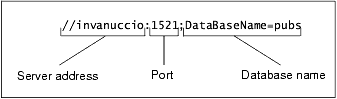
The specific syntax of the string you enter in the Server URL field varies based on database type. Consult your database documentation for information regarding connectivity syntax and optional parameters.
Tip
|
| Stylus Studio populates the Server URL field with a default string appropriate for the database you specify in the Database Type field. |
How to Create a Database Connection
To create a database connection:
Stylus Studio displays the Connection Settings dialog box.
If yes, go to step 5.
If no, go to step 6.
 ).
).
The Set Classpath for the JDBC Driver dialog box appears.
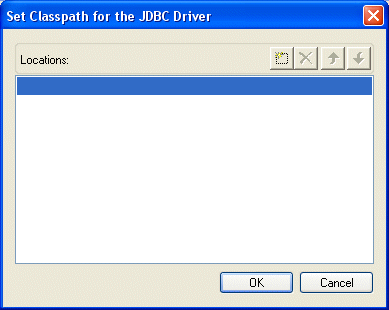
 ) button.
A new entry field appears in the Locations list box. Two buttons appear to the right of the entry field.
 ).
).
Stylus Studio displays the Browse for Jar Files dialog box.
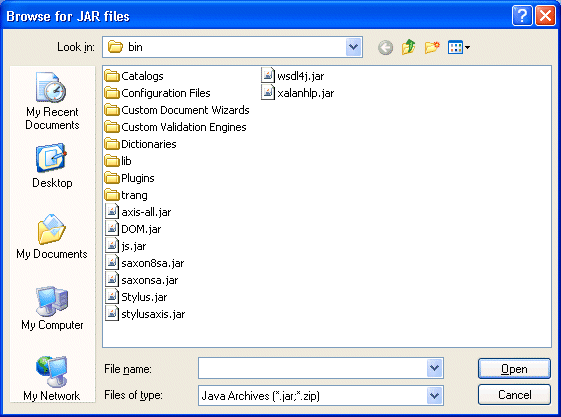
To add a folder to the classpath, click the browse folders button ( ).
).
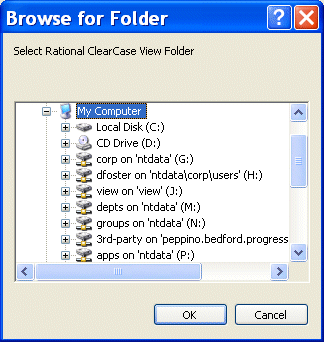
Stylus Studio displays the Browse for Folder dialog box.
The file appears in the Locations list box of the Set Classpath for the JDBC Driver dialog box.
The JAR file or folder appears in the Driver Classpath field of the Connection Settings dialog box.
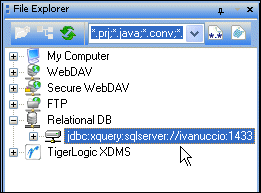
The server connection appears in the File Explorer window.
How to Edit a Database Connection
You can edit connection settings for an existing relational database connection.
To edit a database connection:
Stylus Studio displays the Connection Settings dialog box. The current connection settings are displayed.