Home >Online Product Documentation >Table of Contents >Other Ways to Register a Database Configuration
Other Ways to Register a Database Configuration
If you choose, you can explicitly register a database connection by dropping any elements from a database connection displayed in the File Explorer window (the connection representation, database, schema, table, or view) on the schema pane of the XQuery Source tab. You might want to do this when you want to view a table's or view's columns prior to writing your XQuery code, so you can see what data structures are available, as shown here:
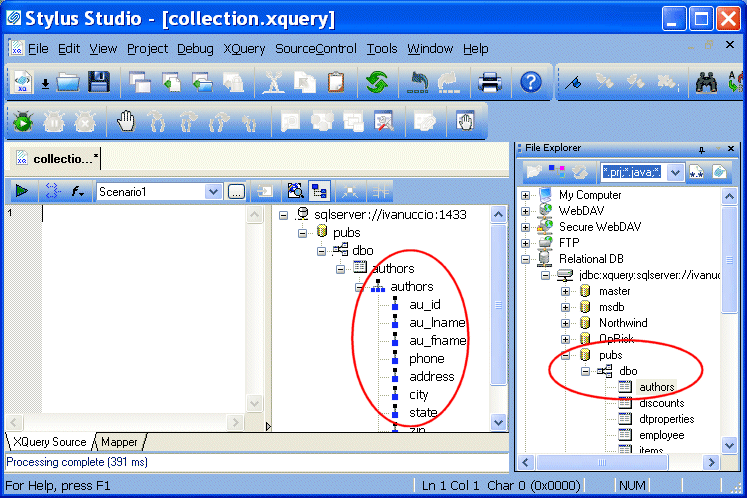
This also gives you the ability to close the File Explorer window after creating your database connection - providing more room to work, and simplifying the Stylus Studio desktop display.
Choosing a Database Object
You can register a database connection by dragging any database object from the File Explorer window. The object you select affects which objects you can then query in your XQuery code:
- Server - all of the server's databases and their child tables and views can be queried
- Database - all of the database's tablespaces and their child tables and views can be queried
- Tablespace - any of the tablespace's tables or views can be queried
- Table/View - only the table or view can be queried
- Column - only the column can be queried
Once you register a database connection to the XQuery, the configuration information remains associated with the XQuery until you explicitly delete it from the schema pane in the XQuery Editor.