Home >Online Product Documentation >Table of Contents >Creating a ddtek:wscall Function
Creating a ddtek:wscall Function
There are two ways to create a ddtek:wscall function in XQuery Mapper:
Use this method when you have created a Web service call using the Stylus Studio Web Service Call Composer. See , , on page 901 for more information on this topic.
- Manually, by choosing the
ddtek:wscallfunction from the XQuery Mapper canvas short-cut menu (right-click to display). This method requires you to enter the URL for the WSDL file, which you can do by typing or navigating a file system, and selecting the Web service operation you want your XQuery code to execute.
Use this method when you want to use Web service operations that have not been exposed using a Stylus Studio Web service call.
To create a ddtek:wscall function automatically:
.wscc file) for the Web service whose operations you want to include in your XQuery code.
.wscc file and drop it on the XQuery Mapper canvas.
Stylus Studio adds the ddtek:wscall function glyph to the Mapper canvas and code for the ddtek:wscall function to your XQuery code.
If the Web service exposes multiple operations, the ddtek:wscall function is created with the operation that was exposed in the Web Service Call Composer when the .wscc file was last saved. You can choose the operation you want your XQuery code to execute by modifying the Web service call in XQuery Mapper:
ddtek:wscall function glyph.
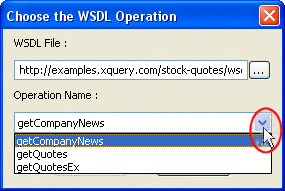
The Choose the WSDL Operation dialog box (see Figure 378) appears.
To create a ddtek:wscall function manually:
Note
|
| There are two predefied wscall functions - wscall/2 provides location and payload input ports; wscall/3 also provides a header input ports. |
Stylus Studio displays the Choose the WSDL Operation dialog box.
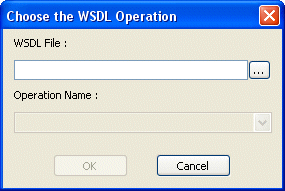
Example: http://www.swanandmokashi.com/HomePage/WebServices/StockQuotes.asmx?WSDL
Tip
|
| You can use Stylus Studio to help locate WSDL documents. See Obtaining WSDL URLs for more information. |
Stylus Studio displays the operations associated with the Web service represented by the WSDL in the Operation Name field.
Example: GetStockQuotes.
Stylus Studio displays the wscall function block on the XQuery Mapper canvas.

The illustration shown in Figure 379 shows a wscall defined with location and payload input ports.