Java IDE
<%=ConfigurationManager.AppSettings["SS"]%> includes a powerful built-in Java IDE to accelerate development of XML-enabled Java / J2EE applications.
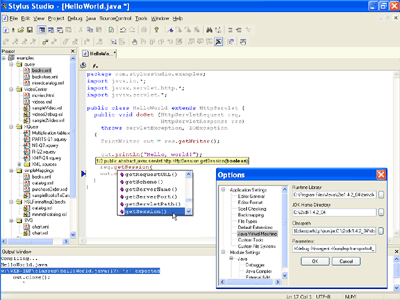
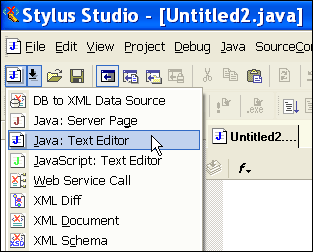
Creating a new Java file with <%=ConfigurationManager.AppSettings["SS"]%>'s Java IDE is easy: just select New > Java Text Editor, which invokes <%=ConfigurationManager.AppSettings["SS"]%>'s built-in Java IDE as shown here:
Java Code Syntax Coloring, Code Sensing and Autocompletion
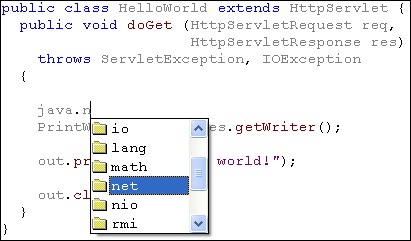
<%=ConfigurationManager.AppSettings["SS"]%> colors reserved words in blue (eg: public, static, final, throws, returns, etc), Java methods in brown, Java objects and classes in grey, and strings in purple — all of this is configurable, of course. <%=ConfigurationManager.AppSettings["SS"]%> searches your system's classpath as you type to provide you with Java code sensing and auto-completion as shown here:
Java Syntax Help
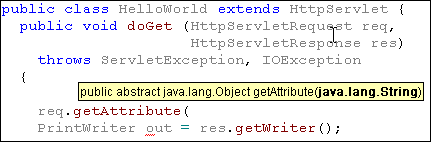
In addition to code sensing and autocompletion, <%=ConfigurationManager.AppSettings["SS"]%>'s Java IDE also displays a method's signature (i.e. it's function prototype) giving you helpful hints on what to type next, for example, in this illustration, <%=ConfigurationManager.AppSettings["SS"]%> has determined that "req.getAttribute()" is an abstract method which takes a String as an argument and returns an Object to the caller:
Single Click Java Compiler
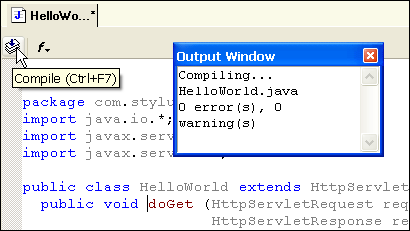
Java class file compilation is easy, just type CTRL-F7 or click on the compile button on the Java IDE toolbar. <%=ConfigurationManager.AppSettings["SS"]%> reports any compiler errors or warnings to the Output Window. In this figure, <%=ConfigurationManager.AppSettings["SS"]%> reports that compiling the HelloWorld servlet was successful:
Integrated JavaDoc Help
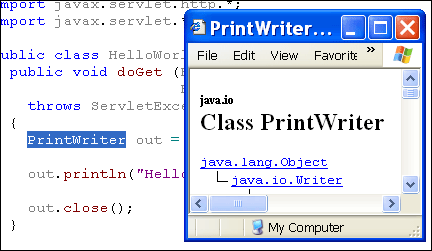
Context sensitive, Integrated JavaDoc help is just one of the many great time-saving features including with <%=ConfigurationManager.AppSettings["SS"]%>'s Java IDE. Can't remember an object's interface? Just put the cursor on any Java object, <%=ConfigurationManager.AppSettings["SS"]%> will determine the object's class and automatically open its corresponding JavaDoc help file!
Real-time syntax checking
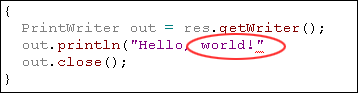
<%=ConfigurationManager.AppSettings["SS"]%>'s Java IDE helps prevent errors from happening as you type, checking your java code syntax for missing semicolons, unmatched brackets and braces, and undefined symbols, and any other possible error. <%=ConfigurationManager.AppSettings["SS"]%> reports errors visually to the editing screen by underlining the offending code in red, as shown here:
Java Backmapping
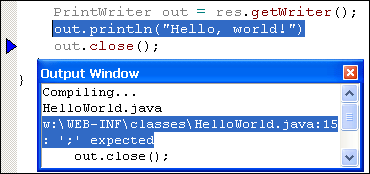
Java backmapping is a convenient troubleshooting feature included with <%=ConfigurationManager.AppSettings["SS"]%>'s Java IDE that relates Java compiler error or warning messages with the offending line of Java code that generated that compiler error. By double clicking on a compiler error message in the Output Window, <%=ConfigurationManager.AppSettings["SS"]%> will automatically highlight the offending line of code, facilitating troubleshooting/debugging of your Java code. You can step through multiple errors in the Output window by typing the F4 key.
Integrated Java and XML Debugging
The Java IDE is fully integrated with our XSLT debugger and XQuery debugger, enabling you to seamlessly debug your XSLT stylesheet or XQuery expression even if it calls external Java functions.
Configurable Java IDE Settings
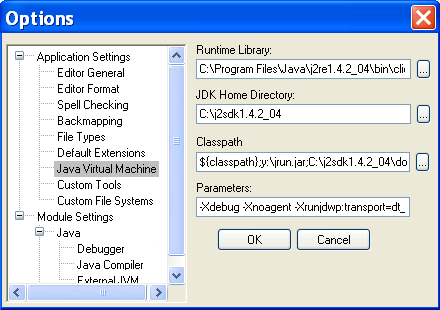
Finally, all of the JVM settings, such as compiler arguents, classpath, etc, are easily configurable via a Java Options pannel as shown here:
<%=ConfigurationManager.AppSettings["SS"]%>'s integrated Java IDE enables you to easily bind XML technologies such as XML files, XML Schemas, DTD's, XSLT stylesheets, XQuery expressions, WSDL documents, SOAP, etc. to java class files, for use within your XML enabled Java/J2EE application.
Next Java & XML Development Feature: Integrated JavaServer Pages (JSP) IDE