Java Code Generation
Taking your XSLT and XQuery To-Go with the new Java Code Generator in <%= ConfigurationManager.AppSettings["SSVXE"] %>, by Clyde Kessel, Sr. Software Engineer, the <%=ConfigurationManager.AppSettings["SS"]%> Team.
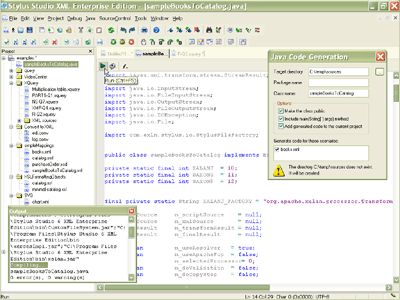
So you've used <%=ConfigurationManager.AppSettings["SS"]%> to write and debug XSLTor XQuery, and it runs like a charm — inside <%=ConfigurationManager.AppSettings["SS"]%>. But now your boss wants you to take your XQuery and XSLT stylesheets to your production environment. Well, if your platform is Java (JRE 1.4 or later), <%= ConfigurationManager.AppSettings["SSVXE"] %> can automatically generate the Java code required to deploy the XSLT or XQuery as a Java application or class within your Java application, using the <%=ConfigurationManager.AppSettings["SS"]%> Java Code Generator, illustrated below (click to enlarge). In this tutorial we're going to show you how.
 " width="400" height="300">
To follow along, make sure you have both the JRE 1.4 or later and <%= ConfigurationManager.AppSettings["SSVXE"] %> installed on your computer.
What the Java Code Generator Does for You
<%=ConfigurationManager.AppSettings["SS"]%> makes it easy to write and debug XSLT and XQuery programs; you write, test, debug and run them using the
<%=ConfigurationManager.AppSettings["SS"]%> XML IDE. For many use cases,
that's all you need to do — when you need to run your XSLT, you can just launch <%=ConfigurationManager.AppSettings["SS"]%> and run the file. Other use cases require something more automated. For example, suppose the XSLT or
XQuery is part of a client/server application, or needs to be run as part of a periodic batch job. In situations like this,
you will need to use the new <%=ConfigurationManager.AppSettings["SS"]%> Java Code Generator to build a Java application that runs the XSLT or XQuery.
The <%=ConfigurationManager.AppSettings["SS"]%> Java Code Generator will create a .java file that you can run:
- As a console application in a cmd.exe window (the .java file contains
amain()method) - As part of a larger Java application or applet
To assist in the transition from XML to Java, <%=ConfigurationManager.AppSettings["SS"]%> creates the .java files, opens them inside the built-in Java IDE (which supports Java editing, compilation, debugging, and more), and finally, helps you set up a classpath tailored to the options you have chosen.
Creating a Standalone Java Application to Run an XSLT
We're going to use XSLT for the examples in this article — but you can leverage all of <%=ConfigurationManager.AppSettings["SS"]%>'s Java code generation features with XQuery files as well. We'll start by opening up one of the examples provided with the <%=ConfigurationManager.AppSettings["SS"]%> examples project:
- Select Project > New Project from the <%=ConfigurationManager.AppSettings["SS"]%> to create a new project.
- Use the File Explorer to open the
sampleBooksToCatalog.xslfile, located in the\examples\simpleMappingsdirectory where you installed <%=ConfigurationManager.AppSettings["SS"]%>.
To create XSLT or XQuery in <%=ConfigurationManager.AppSettings["SS"]%>, you create a scenario. Scenarios allow you to define settings and options to associate with the XSLT or XQuery, such as the source file you want to transform or query, whether or not you want to perform any post-processing on the result, and so on. Let's check our XSLT's scenario properties to ensure that sampleBooksToCatalog.xsl is configured to use a Java XSLT processor (as opposed to say, MSXML). You access the XSLT scenario properties by clicking the browse [...] button next to the scenario name. Select the Processor tab and display the Processor drop-down list, as shown here:
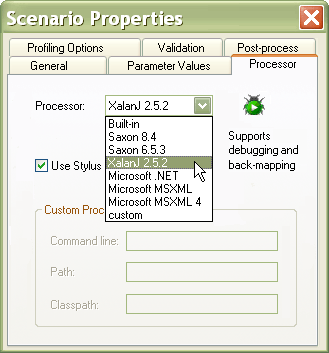
The <%=ConfigurationManager.AppSettings["SS"]%> XML Java Code Generator works with the several popular Java XSLT processors, including the Saxon XSLT processor. (For XQuery, you can use the Saxon XQuery Processor and DataDirect XQuery processors.) Select the processor that you are using in your application, and click OK to save the change. Now, you're ready to generate some Java code.
Select XSLT > Generate Java Code... from the <%=ConfigurationManager.AppSettings["SS"]%> menu to open the code generation dialog box.
<%=ConfigurationManager.AppSettings["SS"]%>'s Java Code Generator provides multiple code generation options to let you customize the code being generated for you.
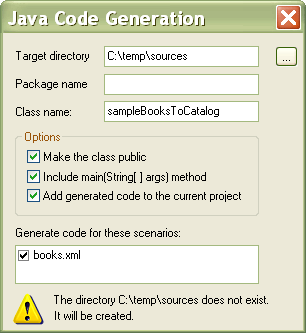
The first time you generate Java code, you'll need to fill in the Target directory field to specify where to output the
.java file. You can optionally specify the Package name field. By default, <%=ConfigurationManager.AppSettings["SS"]%> uses the file name for the
generated class name, but you can change the value of the Class name field if you want. Other options
let you specify whether or not you want to make the generated class public, whether or not you want to generated
.java file to include the main(String[ ] args) method, and whether or not you want to add the generated code to the
currently active project. All of these options are on by default, and we'll leave them set that way, as shown here:
Once the generated .java file (.ZIP, 4KB) is done, <%=ConfigurationManager.AppSettings["SS"]%> automatically opens it in the built-in Java Editor. From there you can easily run the Java code by selecting Java > Run from the menu, or you can step through with the <%=ConfigurationManager.AppSettings["SS"]%> Java debugger. We’ll run the Java code shortly, but let's first take a peek at the classpath your new Java file requires by selecting Project > Set classpath from the <%=ConfigurationManager.AppSettings["SS"]%> menu.
So Many Jars... so Little Time
The java.lang.ClassNotFoundException exception is the bane of Java programming, especially in
Java XML development since every XSLT processor has its own jar files. The problem gets worse if your application uses
validation (using, say, Xerces) or XSL-FO post-processing (using, say, Apache FOP) — more and more jars, each
with its own classpath headache. But <%=ConfigurationManager.AppSettings["SS"]%>'s Java Code Generator pretty much delivers required classpaths to
you on a silver platter. Or a Windows dialog box. Same thing.
After you have created your XSLT or XQuery and generated the Java code for it, you can use Project Classpath dialog box (again, select Project > Set classpath from the <%=ConfigurationManager.AppSettings["SS"]%> menu) to see what the jar files <%=ConfigurationManager.AppSettings["SS"]%> has put in the classpath. When you run the .java file as a standalone application, just copy/paste the same jar files in your classpath, and the application will run perfectly.
The Scenario Properties Dialog Box
The Scenario Properties dialog box lets you specify options for running your XSLT or XQuery, including the following, all of which are reflected in the generated Java code. You can use scenario properties to specify:
- Which XSLT or XQuery processor to use when your Java program runs. Earlier, you saw that there were three choices for XSLT: Saxon <%=ConfigurationManager.AppSettings["NEWSAX"]%>, Saxon 6.5.3. (For XQuery, you can use Saxon <%=ConfigurationManager.AppSettings["NEWSAX"]%> or DDXQ.) Whatever you choose, the Java Code Generator places the correct jar files in the project classpath for you.
- The input and output URLs. Only the input URL is required for XSLT. You can enter any URL supported by the Java class URL, including
file:///...,http:///..., etc. - Global XSLT or XQuery parameters
- Output validation. After the processor has run, your Java program can invoke the XercesJ 2.5.1 validation engine to validate the output of your XSLT or XQuery against a target XML schema. To use this feature, just check the Validate stylesheet result checkbox. If you want to validate against an external schema, you should also select the Use build-in validator checkbox and enter the necessary schema(s) in the associate list box.
- XSL-FO post processing. In the Post-process tab, select the Post process with Apache FOP option. <%=ConfigurationManager.AppSettings["SS"]%> will handle the rest. When you run the Java program from your generated code, your application will create a PDF file in the Target directory you specified in the Java Code Generation dialog box.
One of the key highlights of the Java Code generator is its unique ability to generate the code needed to seamlessly access a wide variety of different data sources. If you have checked Use Stylus URI Resolver on the Scenario Properties dialog box Processor tab (it is selected by default), you can generate the Java code needed to directly access any of the <%=ConfigurationManager.AppSettings["SS"]%> file systems, including:
ws:///...(Web service)adapter:///...(Convert to XML adapters, or any custom XML adaptor)tig:///...(Raning Data's TigerLogic XDMS)- any other Custom File System you have written
The <%=ConfigurationManager.AppSettings["SS"]%> URI Resolver
The XSLT or XQuery processor needs to know how to resolve a URL whenever it needs to open an external file, including:
- The default input and output files (or <%=ConfigurationManager.AppSettings["SS"]%> data sources)
- The .xsl or .xquery file itself
- Any files referenced inside of the XSLT or XQuery using the
doc(...)function - Files called using
<xsl:import>or<xsl:include>in any file being read by the application - Any schema file which is referenced by any file being read by the application
The processor knows how to resolve standard URLs like file:///..., or http:///....
But <%=ConfigurationManager.AppSettings["SS"]%> provides a rich set of URL protocols for seamlessly accessing other data sources like relational,
EDI, or other legacy data formats as XML, thanks to the <%=ConfigurationManager.AppSettings["SS"]%> URI Resolver. Think of it as an adapter layer
in your code that converts the legacy data into an XML format on the fly, enabling you to use virtually any data source
in an XSLT or XQuery application. You specify whether the Java program should support the <%=ConfigurationManager.AppSettings["SS"]%>
URL protocols on the Processor tab of the Scenario Properties dialog box. If you check the Use Stylus URI Resolver
checkbox (it is on by default), then <%=ConfigurationManager.AppSettings["SS"]%> adds the necessary code to your Java program.
This includes adding the necessary jar files to the classpath, and inserting a call to the StylusFileFactory.unlockAPI method.
Support for Multiple Scenarios in the Same Java Application
The <%=ConfigurationManager.AppSettings["SS"]%> Scenario Properties dialog box lets you create several scenarios for the same XSLT or XQuery program. This feature is fully integrated with the Java Code Generator, allowing you to easily and simultaneously create Java code for any scenarios you select. If you have defined multiple XSLT several scenarios (each one using a different processor or XML Schema for validation, for example), each scenario is listed in the Java Code Generation dialog box; simply check the boxes for the scenarios you want included in the Java program.
The Java code generated by <%=ConfigurationManager.AppSettings["SS"]%> includes a setScenario method for each scenario you select.
You can uncomment scenarios individually when running the Java code in <%=ConfigurationManager.AppSettings["SS"]%>, or, when deploying the application,
you can simply write the code to set the setScenario method for individual scenarios as desired.
Embedding Your Program in a Larger Application
As described earlier, you can optionally have <%=ConfigurationManager.AppSettings["SS"]%> include the main(String[ ] args) method in the
generated Java code for your XSLT or XQuery. You will need this, of course, if you plan to run the program standalone.
It also provides you with a nice example of how to use the class in a larger application — all your application needs
to do is to instantiate the object, then call all the methods in the same order as they are called by the main() method.
<%=ConfigurationManager.AppSettings["SS"]%> Java Code Generator in a Nutshell
<%= ConfigurationManager.AppSettings["SSVXE"] %> provides powerful XML tools to develop, test, debug, and now, deploy your XML applications by generating the code needed to execute XSLT and XQuery in your Java applications! Save hours of needless typing and debugging by downloading the <%=ConfigurationManager.AppSettings["SS"]%> Java Code Generator today!