XML File Explorer
<%= ConfigurationManager.AppSettings["SSV"] %>'s File Explorer provides a productive, consistent, and easy-to-use interface for working with the data sources frequently used in enterprise data integration projects.
Opening the XML File Explorer
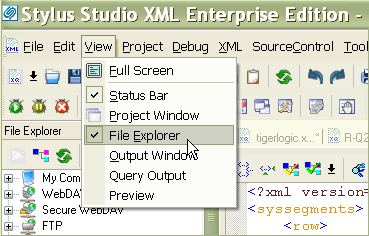
To open the File Explorer window, select View > File Explorer from the <%=ConfigurationManager.AppSettings["SS"]%> menu. The File Explorer, illustrated below, is a dockable window, supporting all basic file operations like open, save, rename, move, create directory, and so on. You can also use the File Explorer to convert files to and from XML on-the-fly using simple drag-and-drop.
Browsing Data Sources in the XML File Explorer
<%=ConfigurationManager.AppSettings["SS"]%>'s XML File Explorer is the easiest way to browse different data sources — relational databases, WebDAV servers, other legacy data formats, and a number of third-party file systems can all be accessed quickly and easily. Each file system is represented with a unique icon to speed recognition. To browse a data source, you first connect to it by providing the host server's URL and login credentials.
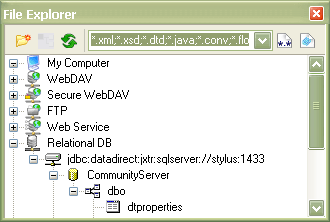
<%=ConfigurationManager.AppSettings["SS"]%>'s XML File Explorer supports all types of data sources, including
- Local file systems
- WebDAV servers
- Secure WebDAV servers
- FTP servers
- Live Web service data
- SQL Server 2000
- Oracle9i, Oracle10g
- IBM DB2
- Sybase
- Informix
- MySQL
- TigerLogic XDMS
- EDI/EDIFACT/X12
- Binary files
- Any flat file
Converting Data Sources Using the XML File Explorer
As an added convenience, the XML File Explorer provides integrated support for Convert to XML converter definitions. Suppose you have non-XML data, a dBase file for example. To convert the dBase data into XML using one of <%=ConfigurationManager.AppSettings["SS"]%>'s many built-in XML converters, just drag the dBase file onto the applicable built-in dBase adapter (as shown below). <%=ConfigurationManager.AppSettings["SS"]%> then automatically invokes the XML data conversion and opens the converted dBase file in a new XML Editor window.
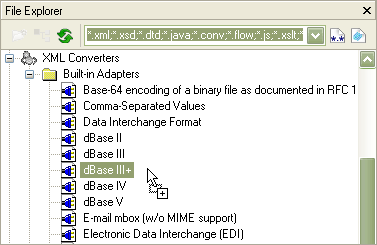
<%= ConfigurationManager.AppSettings["SSVXE"] %> includes built-in XML converters for the following popular data formats, all of which can be converted to XML using drag-and-drop operations within the File Explorer.
- Base 64 encoding of binary files
- Comma Separated Values (CSV)
- Data Interchange Format
- dBase II
- dBase III
- dBase III+
- dBase IV
- dBase V
- Email mbox (without MIME support)
- Electronic Data Interchange (EDI)
- Binary encoded files
- Java .properties File
- COBOL Line Sequential
- COBOL Printer Sequential
- COBOL Record Sequential with Fixed Length Records
- COBOL Record Sequential with Variable Length Records
- COBOL Relative with Fixed Length Records
- Progress .d Data Dump
- Rich Text Format (RTF)
- Smith Corona Personal Word Processors
- Super Data Interchange Format
- Symbolic Link Format
- Tab Separated Values (TSV)
- Whole-line Text
- Windows .ini File
- Windows Write
It's also easy to develop custom XML converters for other non-XML data formats using <%=ConfigurationManager.AppSettings["SS"]%>'s Convert to XML utility — for more information, please see our online video demonstrations entitled: Introduction to Convert to XML, EDI to XML Mapping in Stylus Studio and Bi-Directional EDI to XML Mapping using <%=ConfigurationManager.AppSettings["DDXC"]%> which covers working with and integrating different data formats.
The XML File Explorer is a productive tool for organzing and accessing the many disparate data sources that you are bound to encounter when building applications in any advanced data integration project. Get started with <%=ConfigurationManager.AppSettings["SS"]%> by downloading a free trial today!