Home >Online Product Documentation >Table of Contents >Formatting Decimal Numbers
Formatting Decimal Numbers
XML Publisher allows you to define formatting characteristics for the decimal numbers displayed in a report. For example, you might want to specify that all dollar values displayed in a report end with two decimals, thus $10 would be formatted as $10.00, $21.72 as $21.72, $99 as $99.00, and so on.
Formatting decimal numbers is a two-step process:
Formatting for decimal numbers is specified for the report body and affects all decimal numbers in a report for which you have specified a picture string. Formatting applies only to dynamically generated values - the total value of an order, for example - and not to any numbers that you type by hand as body text or in a text component.
Where You Specify Decimal Number Formats
You specify the formats for decimal numbers on the Decimal Format tab of the XML Publisher Properties window, shown here:
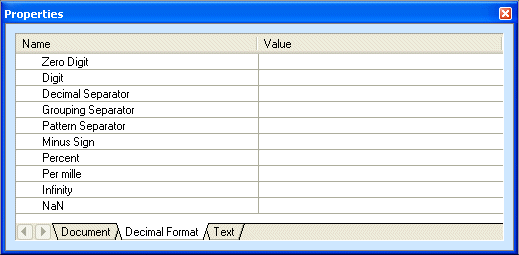
For example, if you want decimal values to be separated by a comma (,) instead of a period (.), you would enter a comma in the Value field for the Decimal Separator property. Default values are used for any properties that you do not specify. See Table 177, Decimal Format Properties on page 1113 for more information.
In addition to defining the format of the decimal numbers in your reports, the properties on the Decimal Format tab also affect the values you can use to define your picture string. For example, the Digit property defines the character that you use to define digits in the picture string. Its default value is the number character (#). Similarly, the Decimal Separator property defines the character used to separate decimal values; its default value is the period character (.). If you want to use values other than these in your picture strings, you must be sure to specify them on the Decimal Format tab.
Where You Specify Picture Strings
As mentioned earlier in this section, a picture string represents a pattern for number strings. An example of a picture string might be #,###.00. Number strings that match the picture string you define are formatted using values you specify on the Decimal Format tab.
You specify the picture string in the Format property on the Dynamic Value tab for the report component - the Price node, in the following illustration - whose number strings you want to format. You must specify a picture string for any number strings you want formatted using the values you define on the Decimal Format tab. If you do not specify a picture string, no formatting is applied to the number string and it is rendered in the finished report as-is.
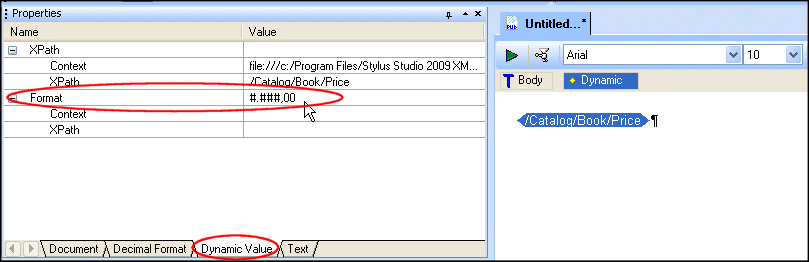
Values entered for the Format property must conform with the rules described in the XSLT specification: http://www.w3.org/TR/xslt20/#dt-picture-string.
Example
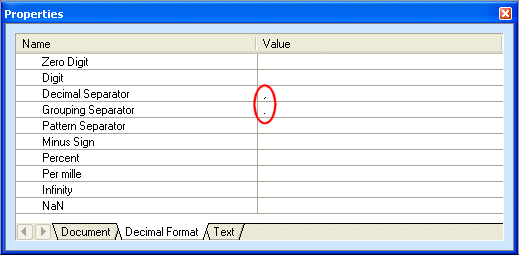
We are producing reports for consumption by a European audience. This audience is accustomed to seeing monetary values represented using the period (.) as the grouping separator (for thousands, for example), and the comma (,) used as the decimal separator. Thus, for example, a monetary typically displayed in North America as 4,230.95 needs to be rendered as 4.230,95 for this report.
To satisfy this report requirement:
When we have finished, the Properties window looks like this:
Next, we need to define the picture string for the decimal number we want to format using these characters.