Home >Online Product Documentation >Table of Contents >Creating New Structure Definitions
Creating New Structure Definitions
A structure definition is a top-level definition in an EDI Structure:
Structure definitions can be created from anywhere in the EDI Structure - that is, context (as shown by cursor placement or focus) does not matter. New structure definitions are placed in the appropriate EDI structure folder, sorted alphanumerically. Creating a new structure definition does not affect existing definitions in the EDI Structure.
For information on creating context-specific definitions (code list values, segment references, and similar definitions, see Modifying Existing Definitions.
Adding a Message
To add a message:
Alternative: Select EDI > New Definition > Message from the Stylus Studio menu.
The Message Definition dialog box appears.
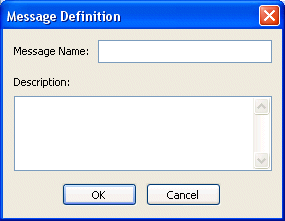
The message definition is added to the existing transaction messages in the EDI Structure; new messages are sorted in alphanumeric order.
Adding a Segment
To add a segment:
Alternative: Select EDI > New Definition > Segment from the Stylus Studio menu.
The Segment Definition dialog box appears.
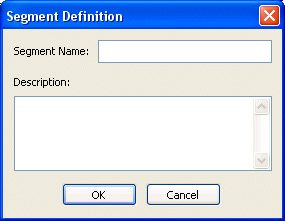
The segment definition is added to the existing segments in the EDI Structure; new segments are sorted in alphanumeric order.
Adding an Element
To add an element:
Alternative: Select EDI > New Definition > Element from the Stylus Studio menu.
The Element Definition dialog box appears.
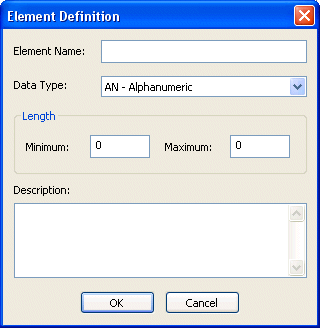
The element definition is added to the existing elements in the EDI Structure; new elements are sorted in alphanumeric order.
Adding a Composite
To add a composite:
Alternative: Select EDI > New Definition > Composite from the Stylus Studio menu.
The Composite Definition dialog box appears.
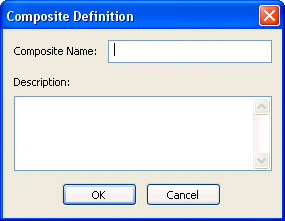
The composite definition is added to the existing composites in the EDI Structure; new composites are sorted in alphanumeric order.
Adding a Code List
To add a code list:
Alternative: Select EDI > New Definition > Code List from the Stylus Studio menu.
The Code List Definition dialog box appears.
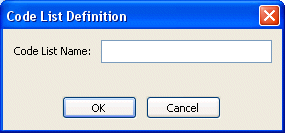
The code list definition is added to the existing code lists in the EDI Structure; new code lists are sorted in alphanumeric order.
See Creating a Code to learn how to add values to a code list.