Home >Online Product Documentation >Table of Contents >Source Documents
Source Documents
In Stylus Studio, a source document can be an XML document, an XML Schema (XSD), or a document type definition (DTD). The role of a source document is to provide Stylus Studio with a structure that it can use to compose the XQuery, based on how you map individual source document elements and attributes to nodes in the target structure. Stylus Studio infers the structure from the document you specify and displays this structure on the Mapper tab.
This section covers the following topics:
Choosing Source Documents
You can use one or more source documents to build an XQuery in Stylus Studio. You might want to select multiple documents if you need their elements or attributes to fully describe the target structure or the desired XQuery result content, for example.
If you choose an XSD or DTD document, you must also choose an XML instance document to associate with it. Stylus Studio uses the instance document associated with a XSD or DTD source document to generate the XPath document() function in the finished XQuery code. This document is also used to preview XQuery results.
See Source Documents and XML Instances to learn more about how Stylus Studio treats source documents. See Creating an XQuery Scenario to learn more about XQuery scenarios.
Source Documents and XML Instances
As described previously, Stylus Studio uses the source document you specify to infer a structure you can use to create mappings to the target structure. In addition to the document structure, Stylus Studio needs document content information in order to compose a complete XQuery. You provide this information by associating a XML instance to each source document you specify.
Source documents can have one of three associations, each of which has implications for the XPath expressions written by Stylus Studio when it composes the XQuery code. A source document can be associated with
for $book in /books/book
The document() function is not necessary because Stylus Studio uses the XQuery input document specified in the Scenario Properties dialog box.
By default, Stylus Studio uses the first XML document you add to the XQuery mapper as the source XML for the XQuery scenario, as shown here:
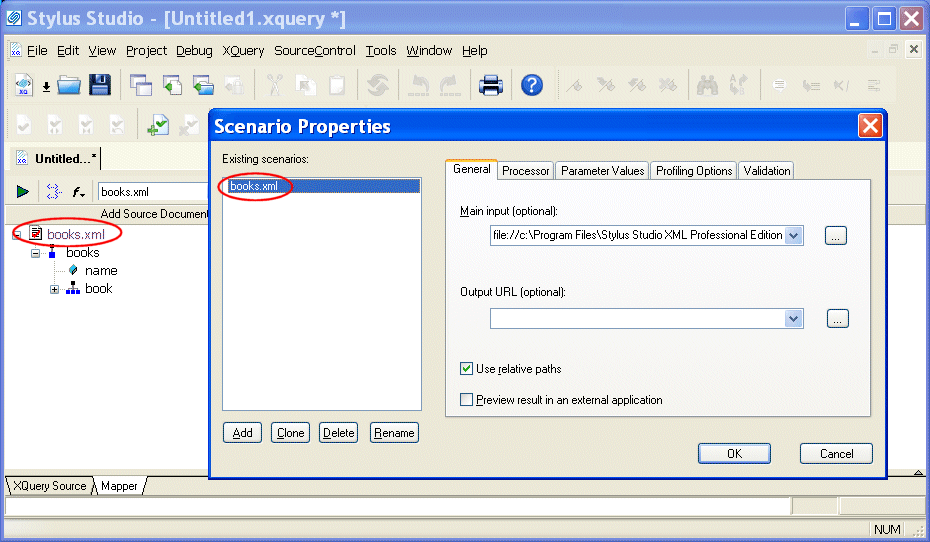
The document specified in the Source XML URL field on the Scenario Properties dialog box is the document used to preview XQuery results. You can select this association for another XML document if you choose, but only one source document may have this association.
Note
|
| Creating a scenario for an XQuery is optional. See Creating an XQuery Scenario. |
Source document icons
Stylus Studio uses different icons to indicate how a source document is associated with the other documents used to compose the XQuery.
Icon
|
Meaning
|
|---|---|
 |
The source document is associated with itself. This is the default for most XML documents (and XML documents only).
|
 |
The source document is associated with the XML document specified in the XQuery scenario. This is the case with the first XML document you add to XQuery mapper, but you can change this association manually if you choose. See How to Change a Source Document Association.
|
 |
The source document is associated with a separate XML document instance. XSD and DTD source documents are always associated with an XML instance.
|
How to Change a Source Document Association
To change a source document association:
The source document shortcut menu appears.
How to Add a Source Document
To add an XQuery source document to XQuery mapper:
The Open dialog box appears.
If you selected an XML document in step 3, the document appears in the source document pane of the Mapper tab. Go to step 5.
If you selected an XSD or DTD document, Stylus Studio displays the Choose Root Element dialog box.
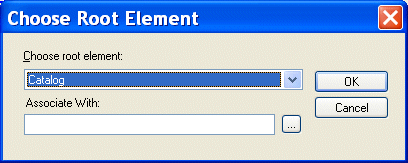
You use this dialog box to associate the XSD or DTD with an XML instance.
 ) button to specify the XML instance to which you want to map the root element you have selected. The root element of the XML document you select must be the same as the element you selected as the root element from the XSD or DTD document.
The document appears in the source document pane of the Mapper tab. Go to step 5.
How to Remove a Source Document
Note
|
| A source document cannot be removed from XQuery mapper if it is mapped to the target structure. See Removing Source-Target Map. |
To remove a source document from XQuery:
The source document shortcut menu appears.
How Source Documents are Displayed
A source document is represented using a page icon, and its name is displayed using a different color to help distinguish it from element and attribute names. The page icon is modified based on the source document's association with other documents. See Source Documents and XML Instances for more information on this topic.
By default, only the file name itself is displayed; if you want, you can display the document's full path by selecting Show Full Path on the document's shortcut menu. (Right-click on the document name to display the shortcut menu.)
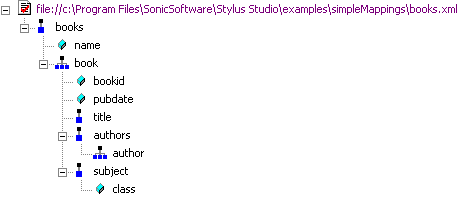
Source documents are displayed using the tree view; you can use your keyboard's *, +, and - number pad keys to expand and collapse selected documents.
Document structure symbols
Stylus Studio uses the following symbols to represent nodes in both source and target document structures:


See Source document icons to learn about the different ways source document icons are depicted.
Tip
|
| If a node is required by the XML Schema or DTD associated with the target document, a red check appears over the node symbol. |
Getting source document details
If you want details about the document that are not available in tree view, you can open the document by selecting Open from the document's shortcut menu. When you open a document this way, Stylus Studio displays it in its own editor (the XML editor if it is an XML document, for example).