Convert EDIFACT to X12 or vice-versa
Now that we have the tools to transform XML with XSLT or XQuery, convert to XML, and convert from XML, we should be able to directly build maps between EDIFACT/X12 and XML or XML and EDIFACT/X12 or now even EDI and EDI.
So, let's demonstrate using the <%= ConfigurationManager.AppSettings["SS"] %> XSLT mapper to go from an EDIFACT ORDERS "Purchase order message" document in version D03B to a response X12 831 "Application Control Totals" document in release 003040. The use-case would be we need to forward the order quantity and transaction amount from a fulfillment system that speaks in a newer dialect of EDIFACT to an accounting system that speaks an older variant of X12.
Here are the steps we're going to follow: (some of which are optional)
- Generate schema for source document EDIFACT or Use instance document
- Generate schema for X12 as target
- Open XSLT editor mapper tab
- Map elements
- Set literal text values
- Map elements requiring functions
- Run the EDI to EDI transform
- Post-transformation validation
- EDI to XML on the Command Line
After the step-by-step EDI to EDI tutorial here, we'll show the completed XSLT file which you can download and manipulate with <%= ConfigurationManager.AppSettings["SS"] %> yourself.
Generate schema for source document EDIFACT or Use instance document
For the source of our transform, we can either use a sample EDIFACT document or use a schema representing the EDIFACT D03B ORDERS structure. Since we've got a document, we're all set. Otherwise, we could follow these steps to generate an XML Schema for an EDIFACT message.
For our demonstration, we'll assume all files are local in the C:\test
directory. Our instance document will be the one from
edifact-sample.txt
that's been used in other demonstrations.
Generate schema for X12 as target
To generate the X12 schema as a target, we use File|Document Wizards...|X12 to XML Schema
and choose release 003040 and the 831 transaction set, "Application Control Totals."
When the XML Schema editor opens, save the document as C:\test\3040-831.xsd, or
use the copy stashed here on our server. Again, more
details on this step can be found in the description of how to generate an XML schema for
validating X12 documents.
<%=Global.ThumbOf("/images/edi/edi2ediinit.gif", 310, "EDI to EDI Mapping — File|Open|XSLT: Mapper (before)")%>
After:
<%=Global.ThumbOf("/images/edi/edi2ediboth.gif", 310, "EDI to EDI Mapping — File|Open|XSLT: Mapper (after)")%>
Open XSLT editor mapper tab
Start a new XSLT map by choosing File|New|XSLT: Mapper.
Click on the Add Source Document button on the top left, and choose the edifact-sample.txt
file, but before pressing Open, check the "Convert to XML using converter" box. Next,
when prompted for the converter type, choose "Electronic Data Interchange (EDI)" and
press OK.
Click on the Set Target Document button on the top right, and
choose the 3040-831.xsd XML schema document.
Map elements
Next we map the elements that are exactly the same between the left and the right sides. To do this, we click on the element on the left and drag it to the corresponding element on the right. You can watch the XSLT code (or XQuery, for the XQuery mapper) being updated in real-time in the bottom window.
For example, EDIFACT/UNB/UNB04/UNB0402 is
the "0019: date and time of preparation — time" which is in the same format as
X12/ISA/ISA10, and
and EDIFACT/UNB/UNB05 is
the "0020: interchange control reference" which maps to X12/ISA/ISA13 which is the
"I12: interchange control number."
(All of that can be gleaned from the EDIFACT dictionary available in the1 <%= ConfigurationManager.AppSettings["SS"] %> EDIFACT Zone, and/or the generated schemas which include documentation. X12 documentation can be purchased from DISA directly for a nominal fee, or often the subset necessary is included with the application that produces or consumes the relevant transaction set.)
We proceed in this fashion until all of the fields that have corresponding entries between EDIFACT and X12 are mapped.
Set literal text values
Some of the values in the output are not going to change between runs, such as the
release number and encoding. We need to set those to be literal values. To do this,
right click on the node in the target tree on the right, and choose "Set Text Value"
from the menu. As an example, choose X12/ISA/ISA12 which contains the
release number, and set it to the five-digit sequence "00304". A red
T
will appear over the node so that you know it has a text value.
Map elements requiring functions
Some of the mappings require a little more effort. For example, the dates in the
version of EDIFACT we are using are in the YYYYMMDD format, but the X12 release
uses YYMMDD.
So, to connect from EDIFACT/UNB/UNB04/UNB0401X12/ISA/ISA09, we'd need to insert
a substring function to eliminate the first two characters.
To do that, right-click on the canvas in the middle and choose XSLT Functions|substring.
Then draw a line from the UNB0401 to the top port on the left side of the function block.
And a line from the port on the right side to the ISA09.
Then double-click on the middle port on the left, and put
in the starting position of 3, and double-click on the bottom port on the left and set the length to 6.
A few more of those, and the mapping is completed, yielding the completed edifact-to-x12.xsl transform, which you can just copy and paste into your editor from here.
Run the EDI to EDI transform
Okay, press the green triangle, and look at your output.
Note that the preview window itself shows the XML equivalent, you must look at the X12 EDI output by opening it in a text editor, or one of the other editors within <%= ConfigurationManager.AppSettings["SS"] %> to look at it.
Below is how the X12 EDI output would look after running our transform.
...051107+1159+U+00304+ 6002+0+T+:'
GS+CT+5412345000176+4012345000094+051107+0001+1+X+003040'
ST+831+SSDD1'
BGN+00+BKOD99+051107+0001'
DTM+007+051107+0001'
N9+DD+0764569104+XPath 2.0 Programmer?'s Reference'
N9+DD+0764569090+XSLT 2.0 Programmer?'s Reference'
N9+DD+1861004656+Java Server Programming'
N9+DD+0596006756+Enterprise Service Bus'
TRN+2+1'
AMT+E+39.95'
AMT+E+39.95'
AMT+E+39.95'
AMT+E+39.95'
QTY+01+25'
QTY+01+25'
QTY+01+16'
QTY+01+10'
SE+4+SSDD1'
GE+22+1'
IEA+1+ 6002'
Post-transformation validation
One final optional step is to make sure what we're generating is in fact complete.
Using the same 003040 X12 831 XML Schema we
used earlier, we can do post-processing validation which will catch any necessary
elements we missed or anything we mismapped.
Open the Scenario Properties and choose the Validation tab.
Make sure "Validate stylesheete result" is checked, and add the 831 schema, so that it
looks like this:
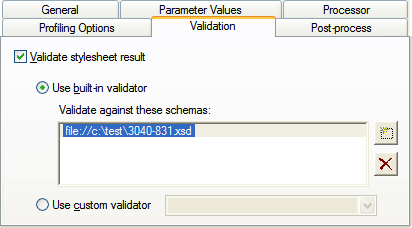
Now whenever you run the transform, the output will automatically be validated for you.
EDI to XML on the Command Line
Just for fun, let's see what it would take to run this same transform from the command line. All of the following would be typed just on one line:
The -in parameter sets the input source as the EDI document in the
current directory, the -out parameter specifies where to write the output,
and in the middle is our transform.
Conclusion
Congratulations! You now have all of the tools you need to map from EDIFACT to X12, or X12 to EDIFACT, or anything to or from XML.
For further reading: